PDF2 min read
How to Convert PDF to Word (DOCX) and Actually Edit It
Turn a PDF into an editable Word document. What converts well, what doesn't, and how to handle scanned PDFs. Works with Word, Google Docs and Pages.
By the ZapMorph team
On this page
Just want it done?
Open the PDF to Word Converter — it runs in your browser and nothing is uploaded.
The most common reason to convert PDF to Word is simple: you need to change something, and PDFs aren't made for editing. A contract needs a clause updated, a CV needs a new job added, a form needs filling in properly.
Here's how to do it, and how to set your expectations so you're not disappointed.
What converts well
PDF is a "print" format. It records where each letter sits on the page, not that "this is a heading, this is a paragraph". Converting means reconstructing that structure.
Converts well:
- Letters, reports, articles and contracts that are mostly text.
- Headings and paragraphs.
- Simple single-column layouts.
Converts less well:
- Magazine-style multi-column layouts.
- Complex tables and forms.
- Designs with text over images.
- Scanned PDFs, which contain no text, only images of text.
How to convert PDF to Word with ZapMorph
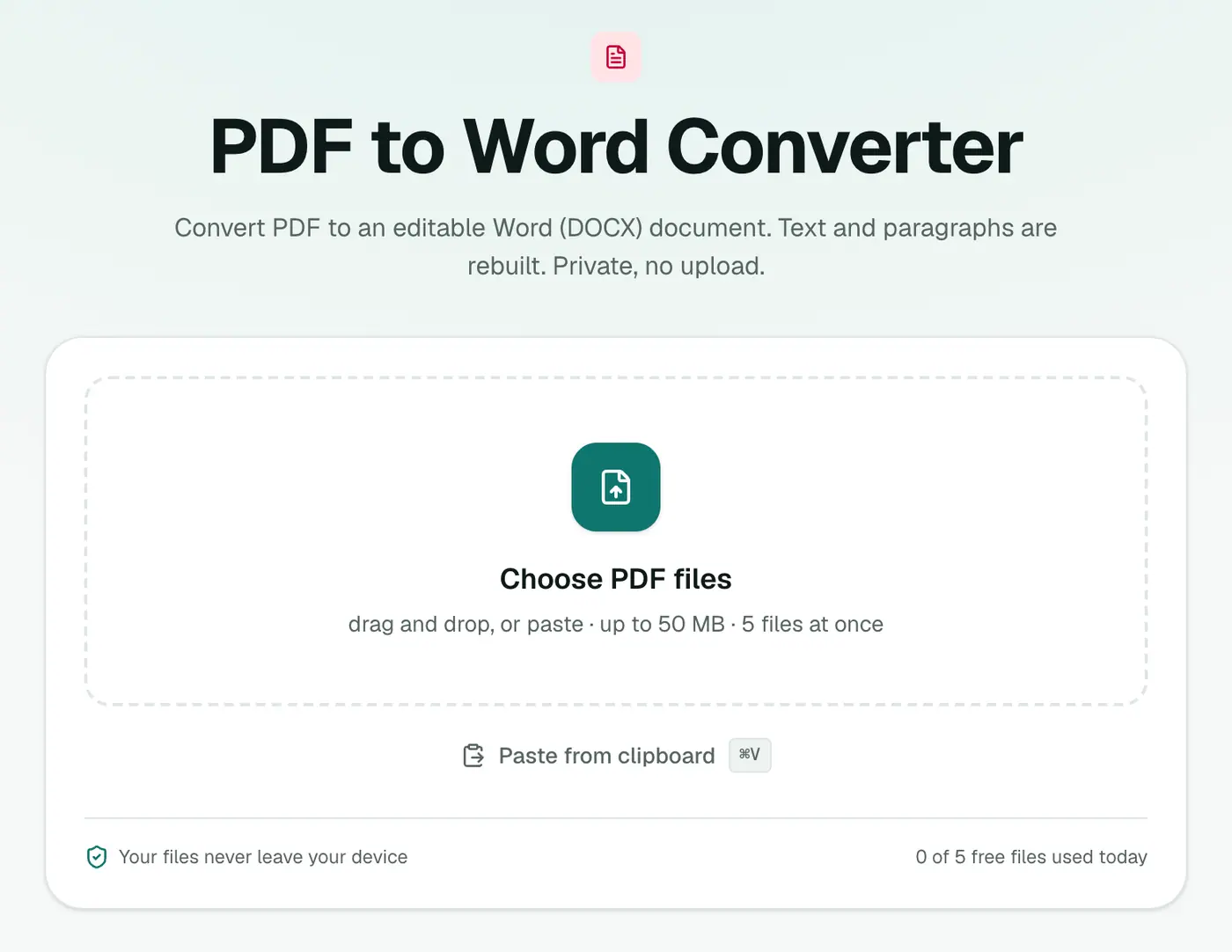
1. Open PDF to Word
Go to the PDF to Word converter.
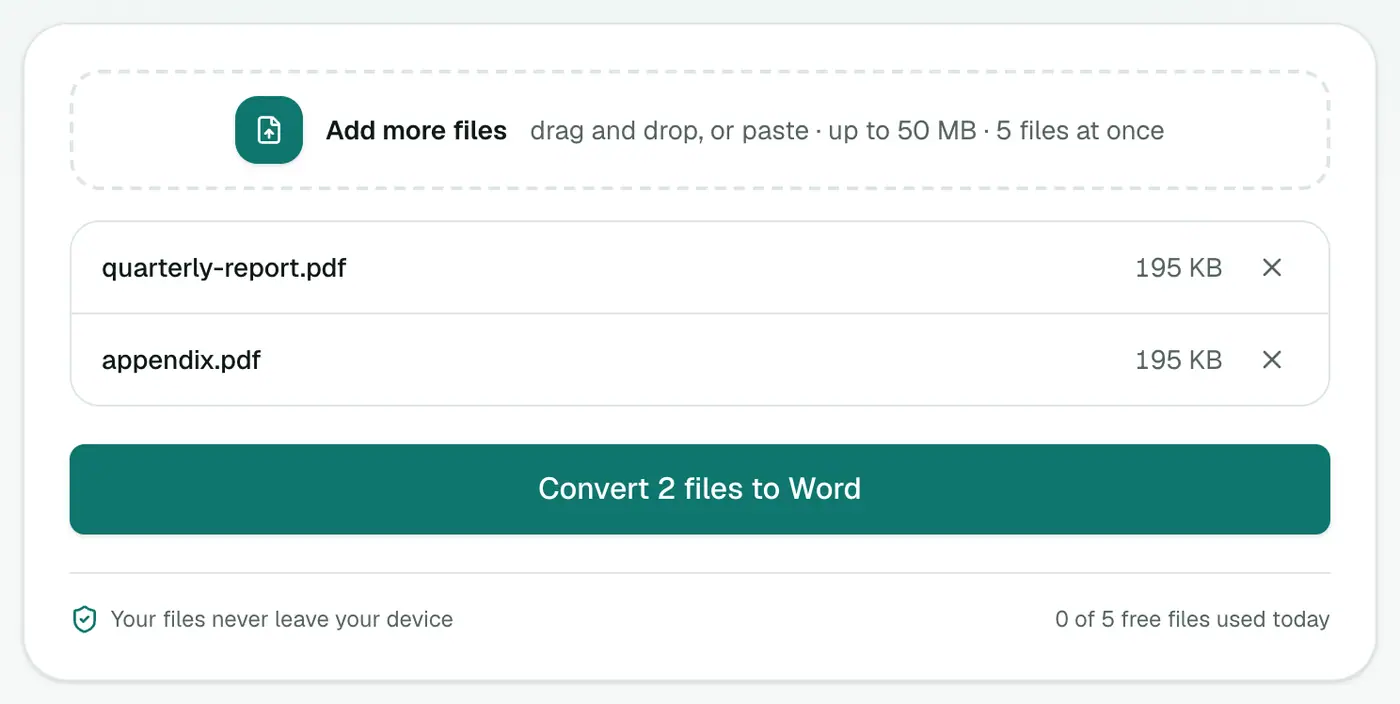
2. Add your PDF
Drop it in. Several PDFs at once is fine.
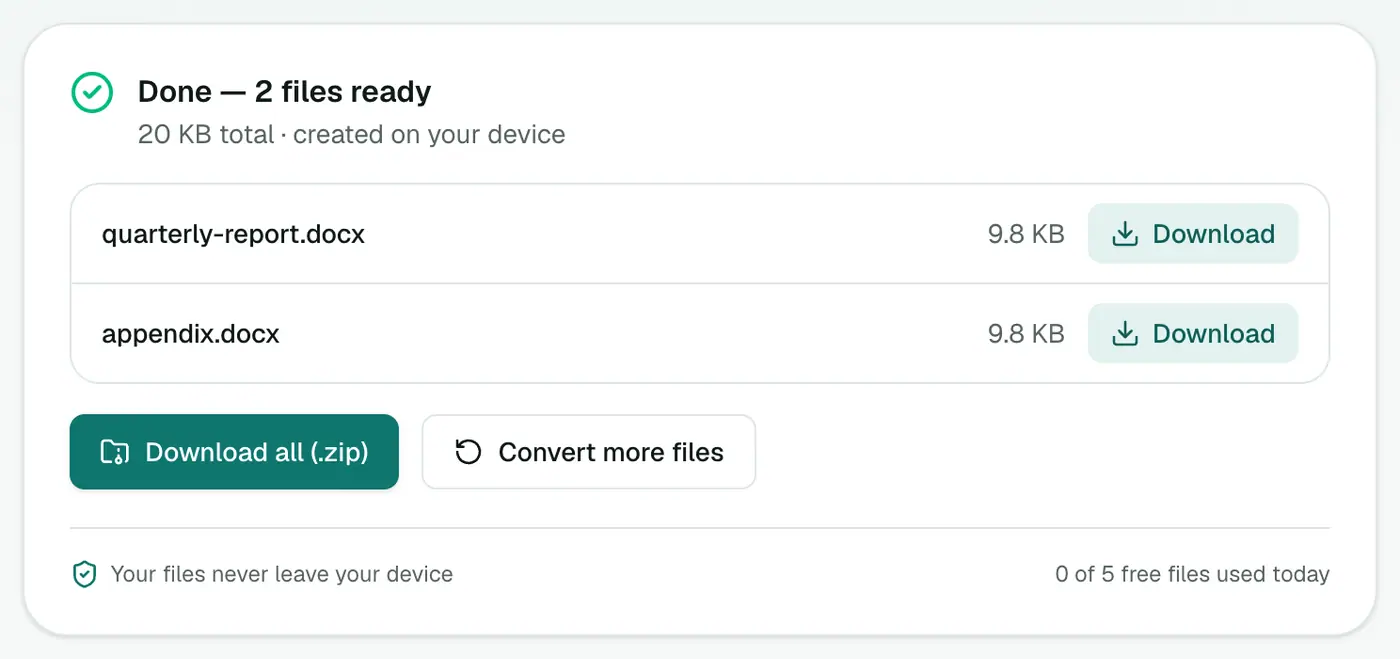
3. Convert and download
Click Convert to Word and open the DOCX in Word, Google Docs or Pages.
If your PDF is a scan
If you can't select text in your PDF reader, it's a scan. Two options:
- OCR PDF to Text extracts the words, which you can paste into a new document.
- Make PDF Searchable adds a text layer, and you can then convert that PDF to Word.
Small edits? Maybe skip Word entirely
If you only need to fix a typo, add a date or fill in a field, Edit PDF lets you add text and white-out boxes directly on the PDF. For signatures, use Sign PDF.
Other ways
- Microsoft Word (2013+) opens PDFs directly: File → Open and choose the PDF. It's often quite good.
- Google Docs: upload the PDF to Drive, then Open with → Google Docs. That uploads your file to Google.
- Acrobat Pro: Export PDF → Microsoft Word. The most faithful layout, but paid.
Tips
- Check fonts and spacing after converting, especially in headers and footers.
- Re-export to PDF when you're done with Word to PDF.
- Need just the words? PDF to Text is cleaner.
Which PDFs convert well
| Result | |
|---|---|
| Exported from Word or Google Docs | Good: text and headings come back cleanly |
| Reports and articles | Good |
| Scans | Run OCR PDF first |
| Brochures and complex designs | Text comes across; layout won't match |
| Forms | Consider Edit PDF to fill them instead |
After converting
- Apply Word styles to headings if you'll build a table of contents.
- Check tables and numbers carefully.
- Turn it back into a PDF with Word to PDF.
Summary
For text-based PDFs, the PDF to Word converter gets you an editable DOCX in seconds without uploading anything. For scans, run OCR first.
FAQs
Will the Word document look exactly like the PDF?
Not exactly. The converter rebuilds the text, paragraphs and headings so you can edit them, one PDF page per section. Complex layouts, columns and images are simplified.
Why is the Word file empty?
The PDF is probably a scan, with pictures of text and no text layer. Run it through OCR PDF to Text first, or make it searchable with Make PDF Searchable.
Can I open the result in Google Docs?
Yes. DOCX opens in Word, Google Docs, Pages and LibreOffice.
Is my document uploaded?
No. The conversion runs in your browser.
Can I convert several PDFs at once?
Yes. Add several files and each becomes its own Word document.
Try the PDF to Word Converter
Free to start, no install, and your files never leave your device.