PDF2 min read
How to Convert PDF to PNG for Sharp Text and Diagrams
Convert PDF pages to lossless PNG images at up to 216 DPI. The best choice for documents, slides, charts and diagrams where text needs to stay crisp.
By the ZapMorph team
On this page
Just want it done?
Open the PDF to PNG Converter — it runs in your browser and nothing is uploaded.
When a PDF page is mostly text, tables, charts or diagrams, PNG is the better image format. JPG is built for photos and tends to leave faint smudges around sharp edges. PNG keeps every pixel exact, so a page of small print stays readable.
Where PDF to PNG shines
- Documentation and wikis: drop a page of a spec into Confluence or Notion.
- Slides: a chart from a report placed into a presentation.
- Design mock-ups: a page of a brand guide or a wireframe exported as PDF.
- Archiving a page exactly as it looks.
How to convert PDF to PNG with ZapMorph
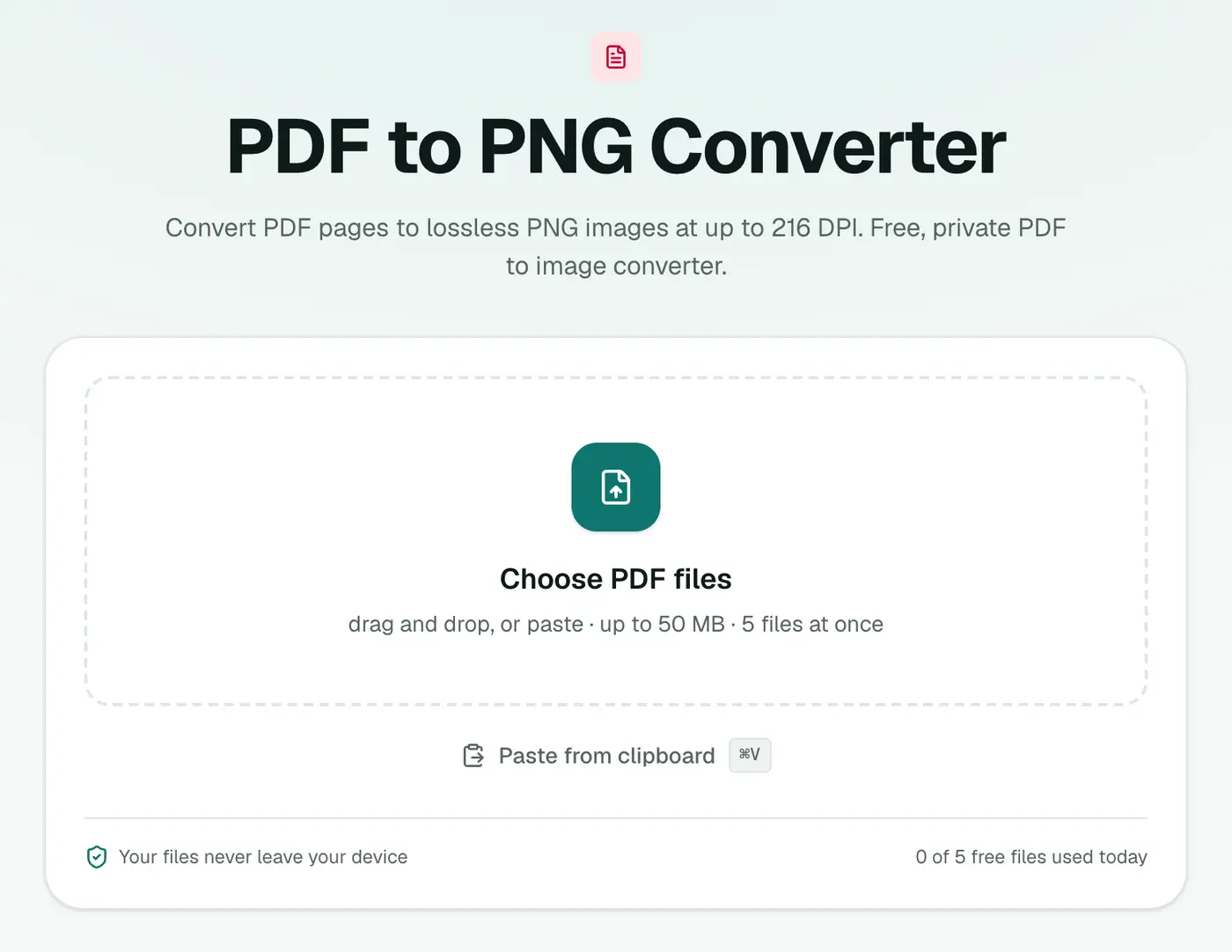
1. Open the converter
Go to the PDF to PNG converter.
2. Add the PDF and choose a resolution
Drop in your PDF and pick Resolution: Standard (72 DPI), High (144 DPI) or Print (216 DPI).
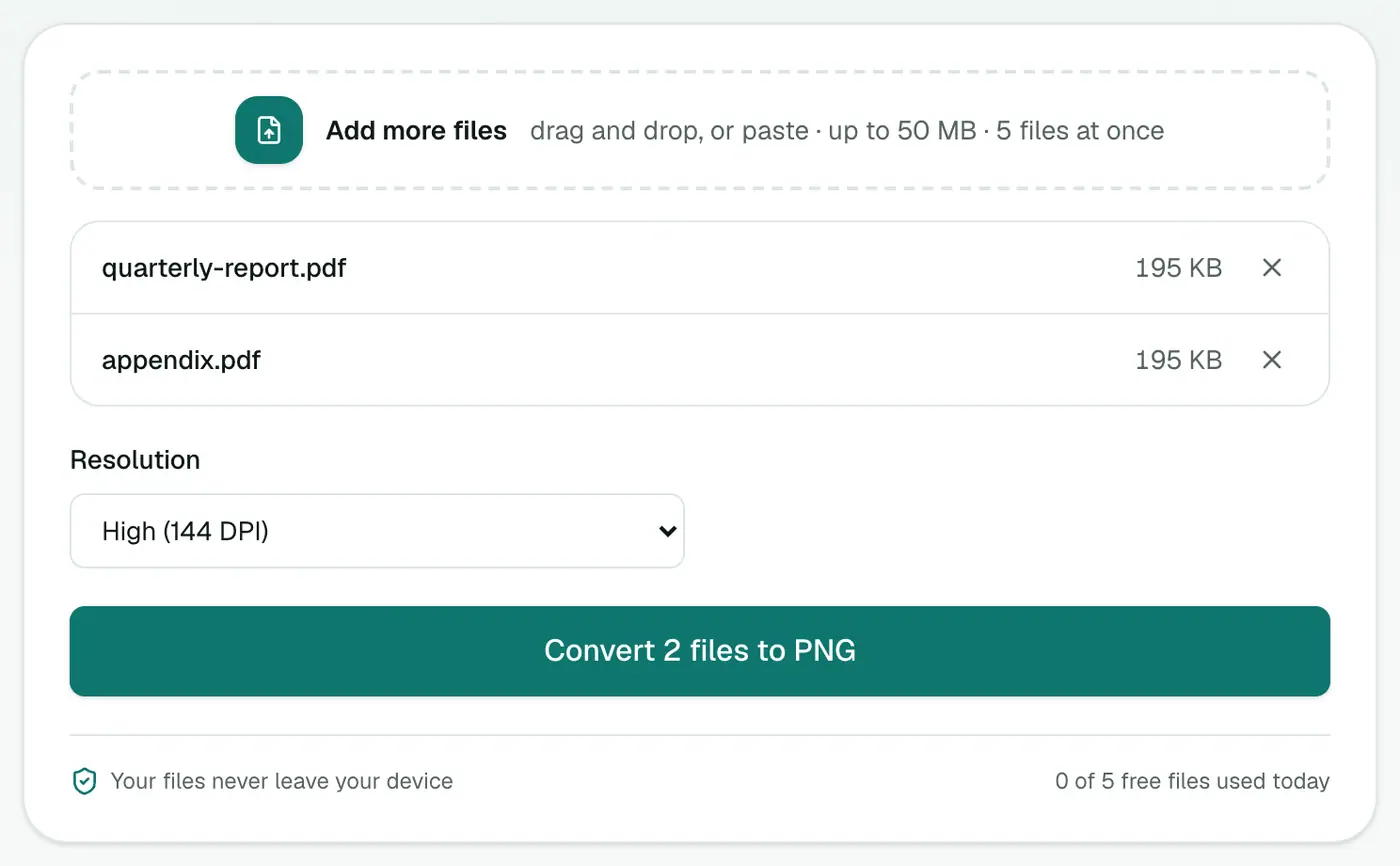
3. Convert and download
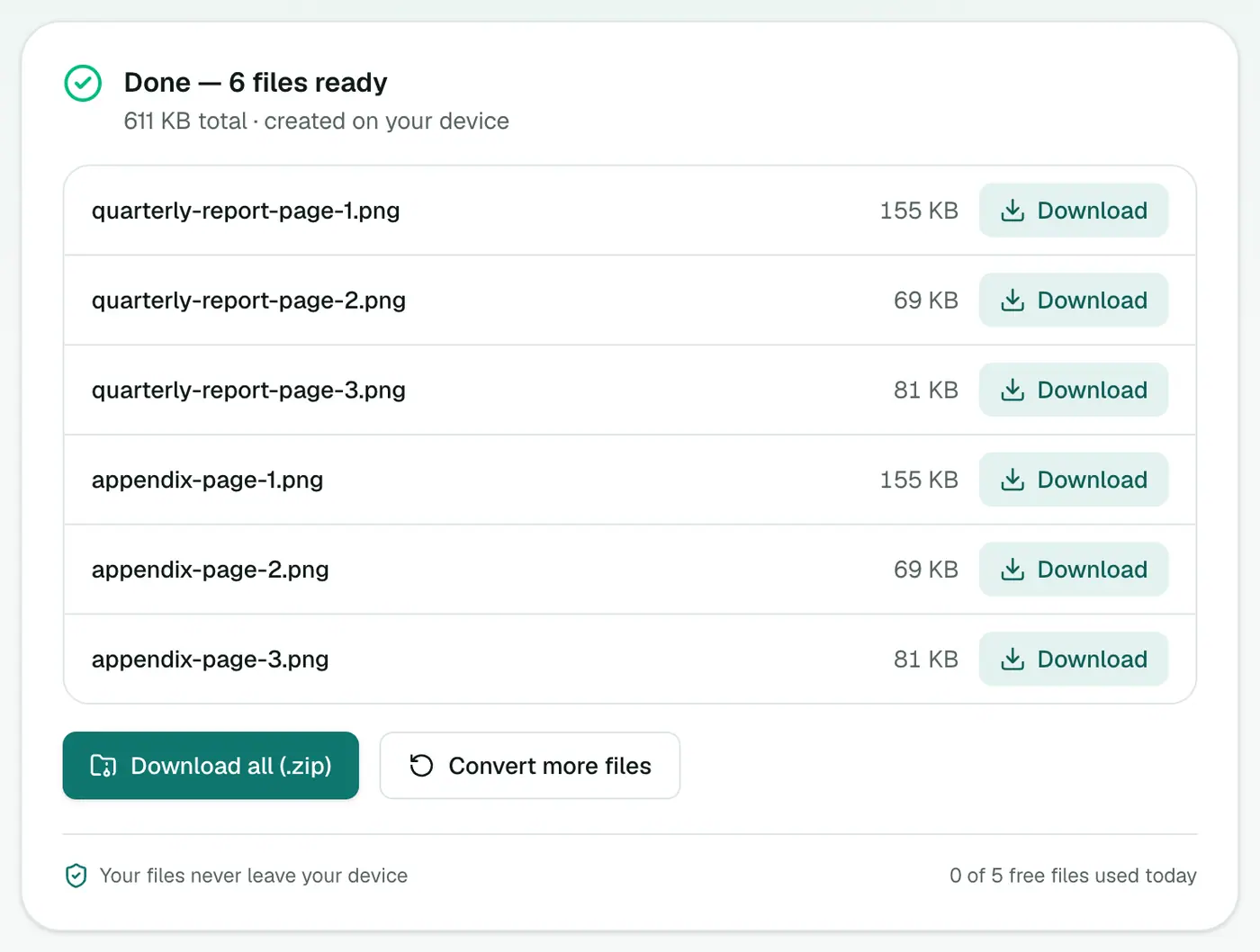
Click Convert to PNG. Each page becomes a PNG. Download individually or as a ZIP.
Tips
- Files too big? PNG pages at Print resolution can be a few MB each. Use High unless you really need print quality.
- Page full of photos? PDF to JPG gives much smaller files for photo-heavy pages.
- Just one page? Extract it first with Extract PDF Pages.
- Need the text, not a picture of it? Use PDF to Text.
PNG or JPG?
| PNG | JPG | |
|---|---|---|
| Text and line art | Perfectly sharp | Slight blur around edges |
| Photos | Large files | Much smaller |
| Best for | Slides, diagrams, documents | Brochures, photo-heavy pages |
Choosing the resolution
- Screen and web: the standard setting is enough.
- Presentations and print: pick a higher resolution for crisp text when zoomed or printed.
- Higher resolution means bigger files, so don't go higher than you need.
Common uses
- Slides from a PDF deck into Keynote, Google Slides or social posts.
- Diagrams for documentation or wikis.
- A page preview for a website or email.
In a nutshell
For pages of text and graphics that must stay crisp, the PDF to PNG converter is the right tool, with lossless output at up to print resolution and no uploading.
FAQs
Why PNG instead of JPG for PDFs?
PNG is lossless, so text and thin lines stay perfectly sharp without the fuzzy halos JPG compression can add.
What resolution should I use?
High (144 DPI) for screens, slides and documentation. Print (216 DPI) for printing or zooming in.
Are the backgrounds transparent?
Pages are rendered as they appear in a PDF reader, which normally means a white page.
Is my PDF uploaded?
No. Pages are rendered in your browser.
Does every page become an image?
Yes. Each page becomes its own PNG, and you can download them all as a ZIP.
Try the PDF to PNG Converter
Free to start, no install, and your files never leave your device.