PDF2 min read
How to Convert PDF to JPG (Every Page as an Image)
Turn PDF pages into JPG images for social posts, slides or quick previews. Choose standard, high or print resolution, and get one image per page.
By the ZapMorph team
On this page
Just want it done?
Open the PDF to JPG Converter — it runs in your browser and nothing is uploaded.
Sometimes a PDF is the wrong shape for the job. You want page 3 of a report in a PowerPoint deck, a flyer posted on Instagram, or a preview for someone whose phone opens images but fumbles PDFs. Converting the pages to JPG solves all of those.
How to convert PDF to JPG with ZapMorph
1. Open the converter
Go to the PDF to JPG converter.
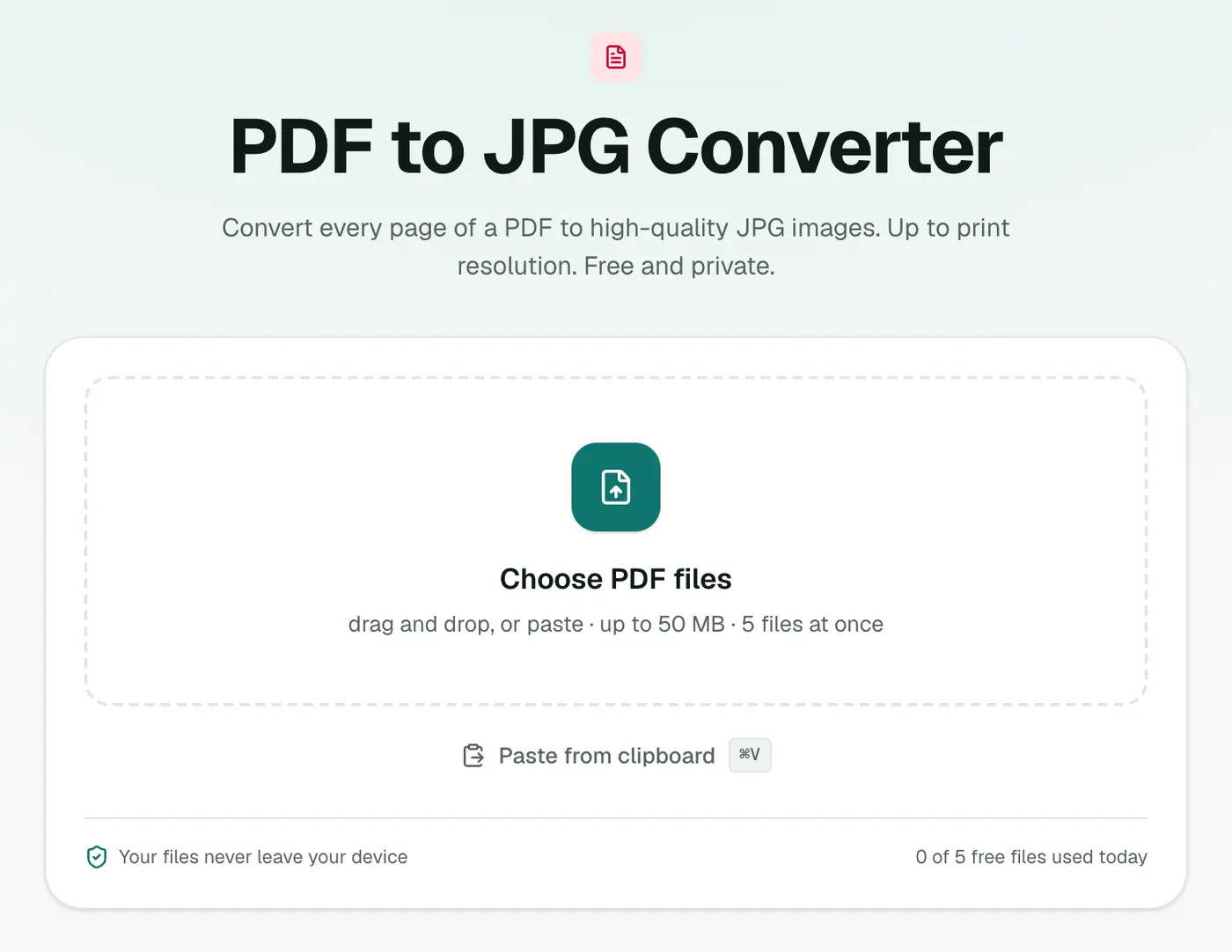
2. Add your PDF and pick a resolution
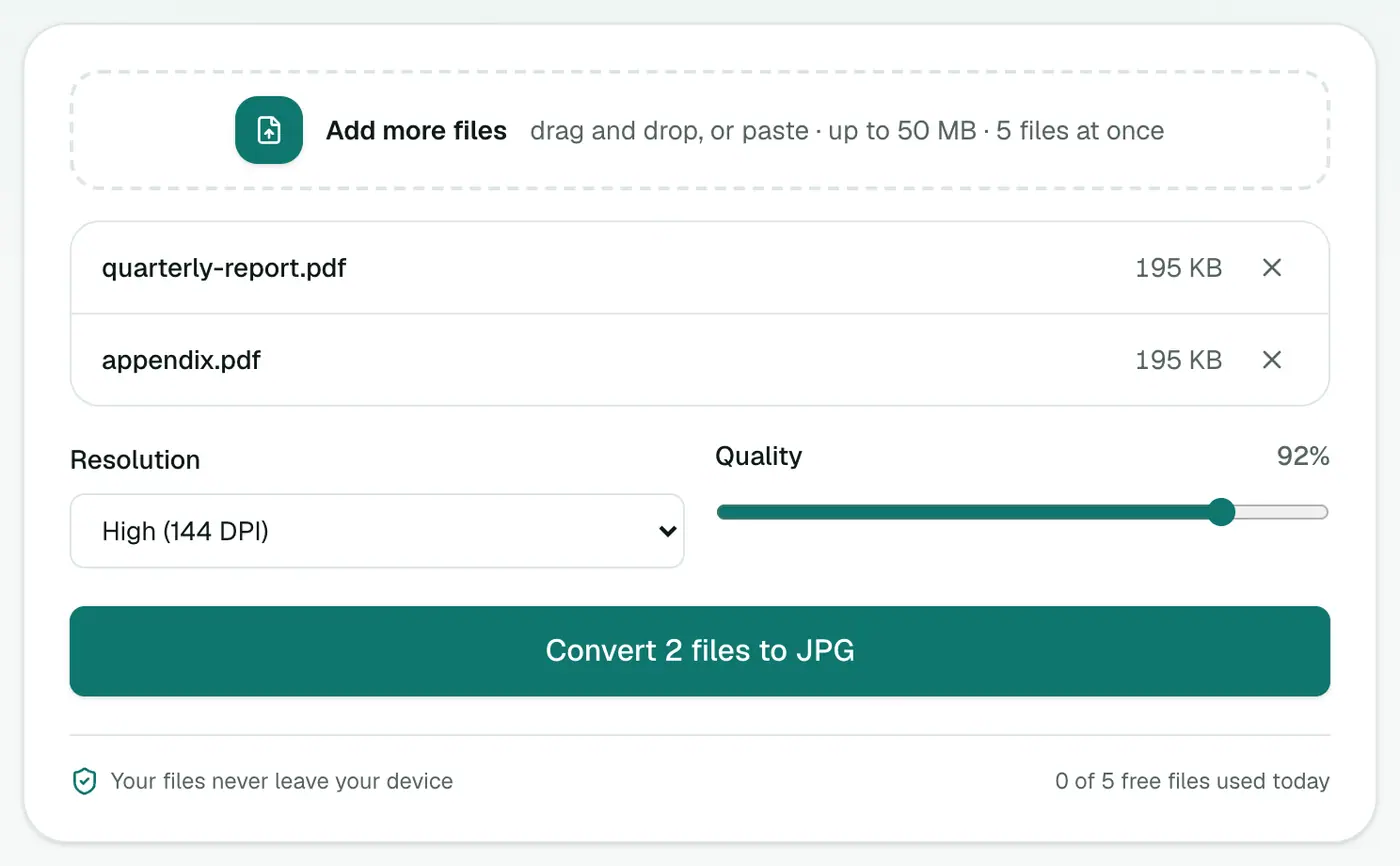
Drop in one or more PDFs, then choose:
- Resolution: Standard (72 DPI), High (144 DPI) or Print (216 DPI). High is the sweet spot for slides and screens.
- Quality: 92% by default. Lower it for smaller images.
3. Convert and download
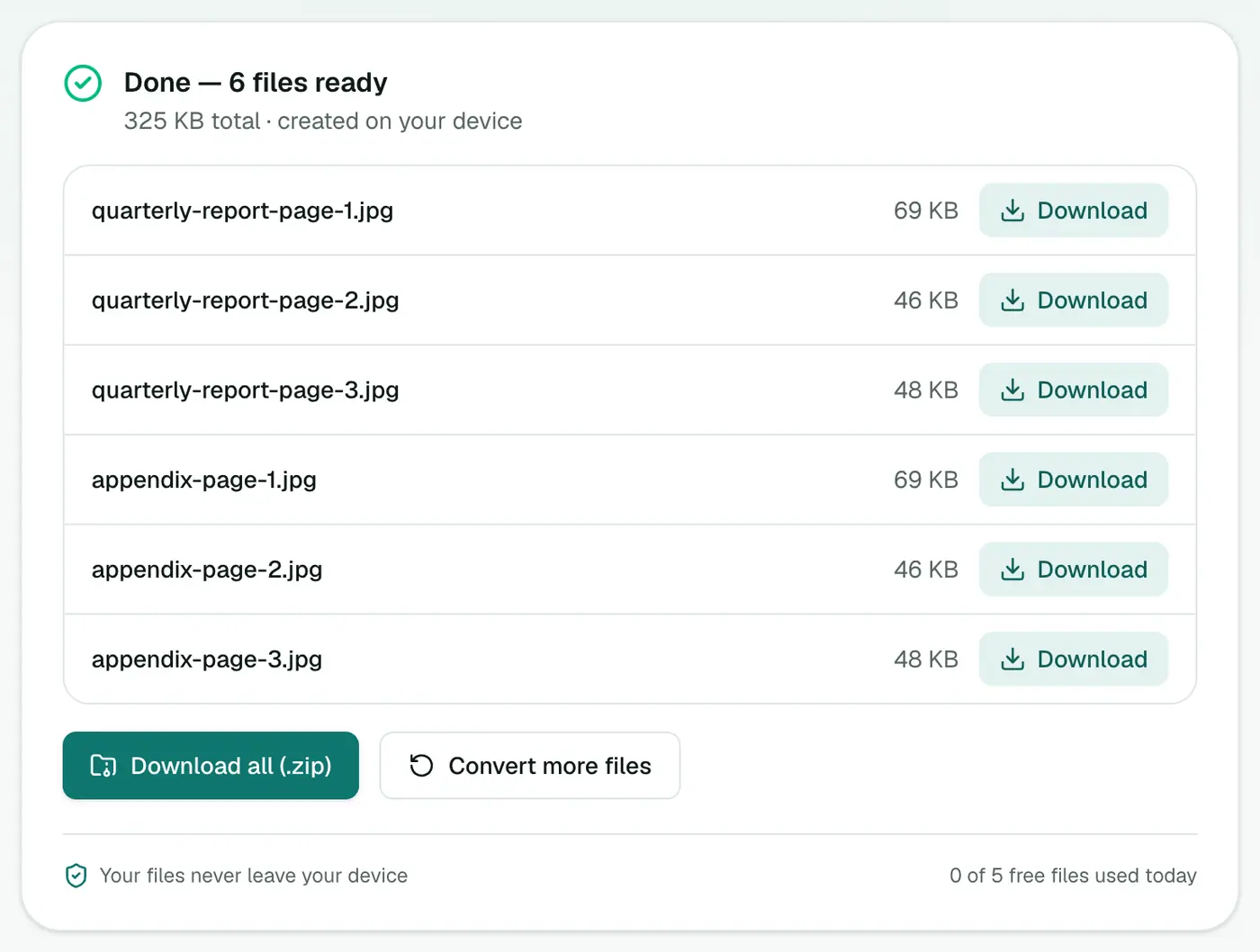
Click Convert to JPG. You'll get one image per page. For more than a couple, the ZIP is easiest.
Which resolution, really?
| You want to… | Choose |
|---|---|
| Post a page on social media | High (144 DPI) |
| Put a page into slides | High (144 DPI) |
| Print the image, or zoom into small text | Print (216 DPI) |
| Make quick thumbnails | Standard (72 DPI) |
JPG or PNG?
JPG is great for pages with photos and keeps files small. If the pages are mostly text, charts or line drawings, PDF to PNG keeps edges sharper.
Other ways
- Mac Preview: open the PDF, File → Export, choose JPEG. It only exports the current page, one at a time.
- Windows: no built-in option. People usually screenshot each page, which works but looks blurry.
- Adobe Acrobat Pro: Export PDF → Image. Excellent, but paid.
Tips
- Only need a few pages? Run Extract PDF Pages first, then convert just those.
- Want the photos inside the PDF, not the pages? Extract images from PDF pulls out the original embedded pictures.
- Instagram carousel? Convert at High, then crop to 1080×1350 with the image resizer using "Fill and crop".
Common uses
| Use | Tip |
|---|---|
| Instagram or LinkedIn carousel | Higher resolution, then crop to square or 4:5 |
| Slides in a presentation | Standard resolution is enough |
| Upload forms that only take images | Check the size limit; use Compress Image if needed |
| WhatsApp a single page | Standard resolution |
Only need one page?
Use Extract PDF Pages to keep that page, then convert it.
Summary
The PDF to JPG converter turns every page into an image at the resolution you need, privately and in one go.
FAQs
Do I get one JPG per page?
Yes. Every page becomes its own image, numbered in order. Download them individually or as a ZIP.
Which resolution should I pick?
Standard (72 DPI) for quick previews, High (144 DPI) for screens and slides, Print (216 DPI) when you need to zoom in or print.
Can I convert only one page?
Convert the PDF and keep the image you need, or first pull out that page with Extract PDF Pages.
Is it safe for confidential PDFs?
Yes. Pages are rendered in your browser and never uploaded.
Can I convert on my phone?
Yes. Open the converter in your phone's browser, pick the PDF and download the images.
Try the PDF to JPG Converter
Free to start, no install, and your files never leave your device.