Email2 min read
How to Extract Text From an Outlook OST File
Pull the sender, date, subject and body of every email in an OST into one plain text file you can search. No Outlook or account needed, nothing uploaded.
By the ZapMorph team
On this page
Just want it done?
Open the OST to Text Converter — it runs in your browser and nothing is uploaded.
When you need to find something specific in an orphaned mailbox, like a contract number, a client's name or a date, a plain text dump of the whole OST is the fastest thing to search.
What the text file looks like
From: Ana Silva <ana.silva@company.com>
To: Legal <legal@company.com>
Date: Friday, November 4, 2022 at 3:30 PM
Subject: Contract signed
Attachments: contract.pdf (236 KB)

Please find the signed contract attached.
Then a line of = characters, and the next email.
How to convert OST to text with ZapMorph
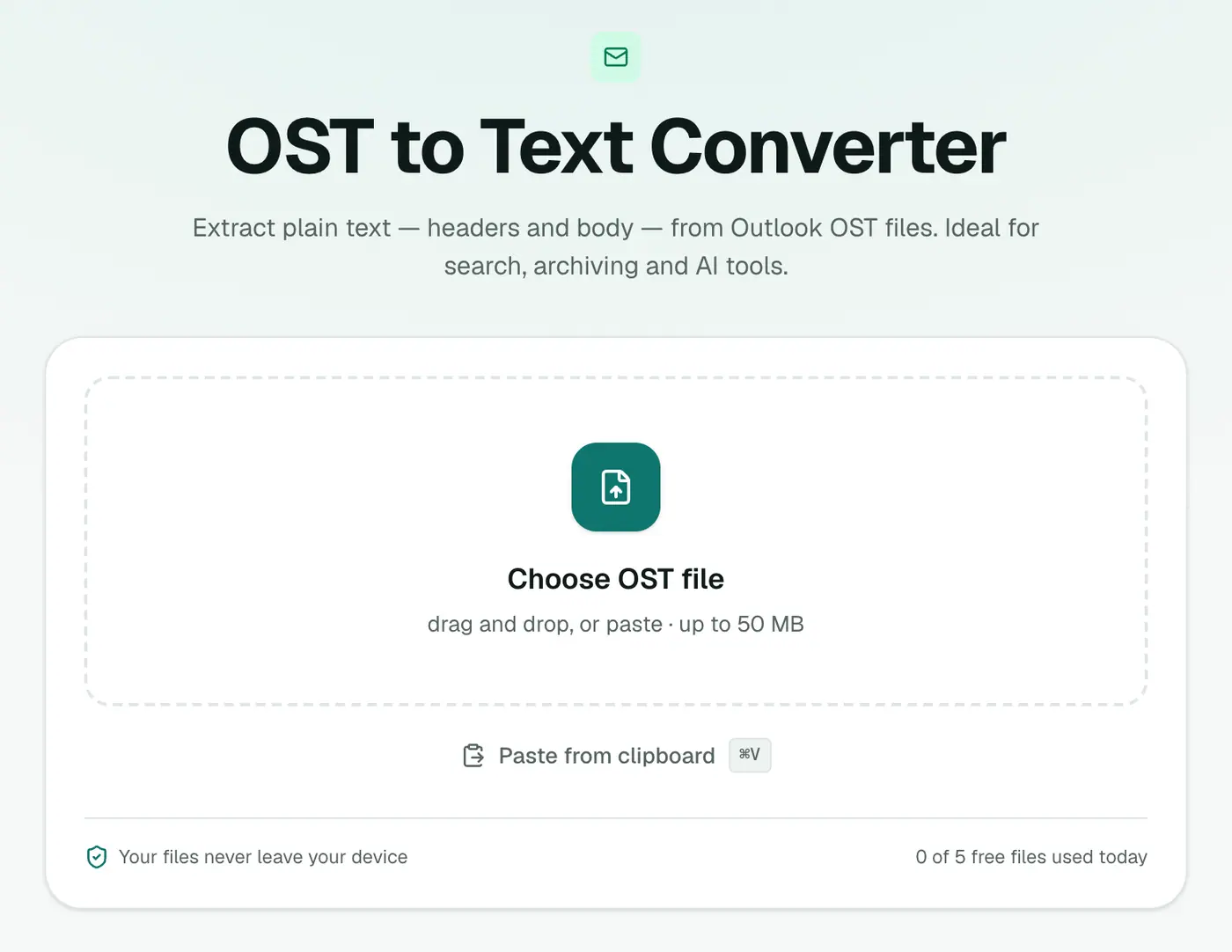
1. Open the converter
Go to the OST to Text converter.
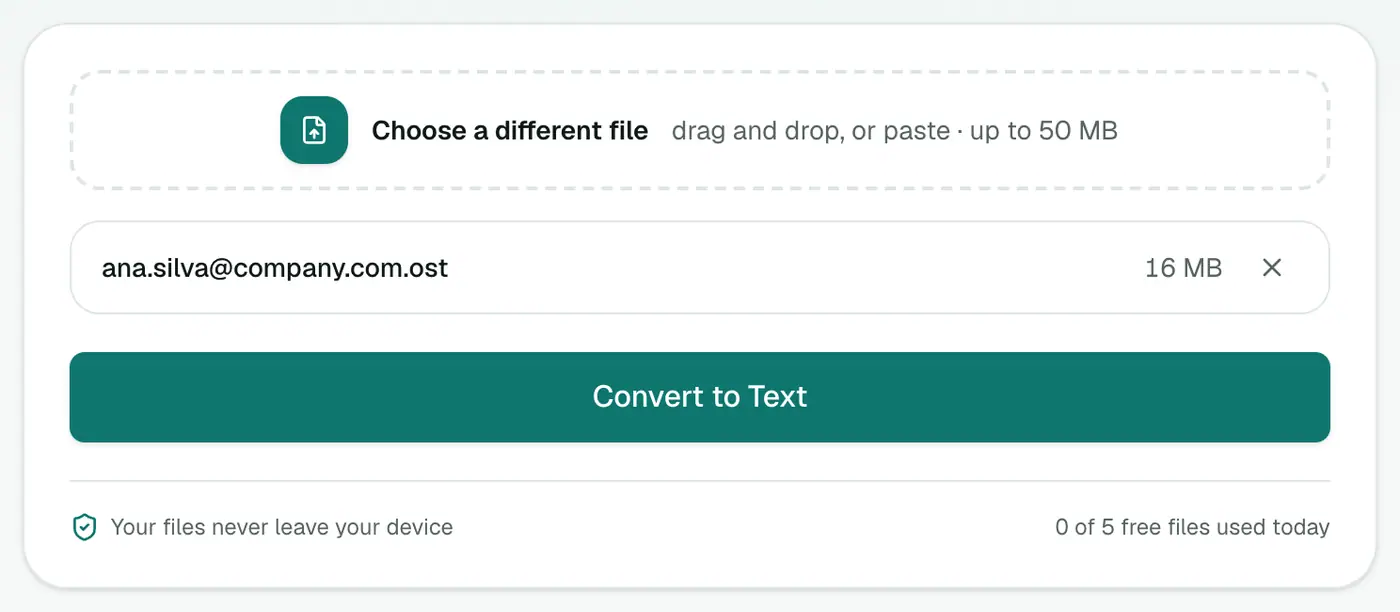
2. Add the OST
Drop in the .ost file. Close Outlook first if it's open, because it locks the file.
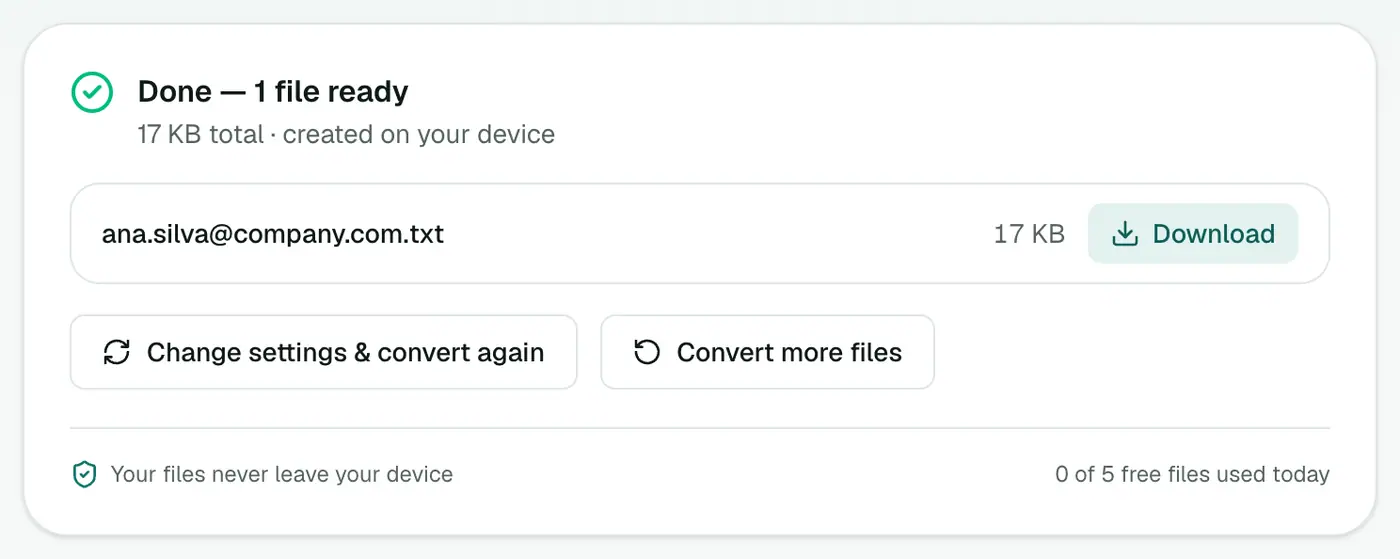
3. Convert and download
Click Convert to Text.
Searching it well
- Exact phrases: Ctrl+F in Notepad++, VS Code or TextEdit.
- Patterns: VS Code's search supports regular expressions, e.g.
INV-\d{5}to find invoice numbers. Test patterns first with the regex tester. - Command line:
grep -n -i "penalty clause" mailbox.txtshows every match with its line number. - Count mentions:
grep -c -i "acme" mailbox.txt.
When to use text vs other formats
- Text: searching, keyword review, AI summaries.
- CSV: filtering by sender or date in Excel.
- PDF: a formal record or printing.
- EML: recovering the original emails with attachments.
Finding the OST
Press Win+R, type %localappdata%\Microsoft\Outlook and press Enter. The file is named after the email address.
Troubleshooting
"Isn't a readable Outlook data file." The OST is damaged or uses a newer Outlook 2013+ internal format that can't be read here.
"Password-protected." The OST uses encryption that can't be read outside Outlook. If the account still exists, export from Outlook or webmail instead.
Huge file, slow to open. Notepad struggles with very large files. VS Code, Notepad++ or a terminal handle them easily.
Next steps
Found the email you need? Get it as a proper file with OST to EML, or as a record with OST to PDF.
Summary
The OST to Text converter turns an Outlook offline mailbox into one searchable text file, privately and without the original account.
FAQs
How are emails separated in the text file?
Each email starts with its headers and is separated from the next by a line of = characters.
Why plain text?
It's the fastest format to search, and it works with any editor or tool.
Are HTML emails converted?
Yes. HTML-only emails are turned into clean, readable text without tags.
Are attachments included?
Their names and sizes are listed under each email. To get the files, use OST to EML or the OST viewer.
Can I feed the text into an AI tool?
Yes. Plain text is ideal for AI assistants. For a big mailbox, split it into chunks, since most tools limit how much text they accept at once.
Is the OST uploaded?
No. It's processed in your browser.
Try the OST to Text Converter
Free to start, no install, and your files never leave your device.