Email2 min read
How to Read an OST File Without Outlook (OST to HTML)
Convert an Outlook offline mailbox (.ost) into an HTML file you can open in any browser, with every email's formatting kept. Works on Windows, Mac and Linux.
By the ZapMorph team
On this page
Just want it done?
Open the OST to HTML Converter — it runs in your browser and nothing is uploaded.
An OST file is Outlook's local cache of an online mailbox, and Outlook won't open it on its own. If you've been handed one from an old computer and simply need to read what's inside, HTML is the quickest way: one file, any browser, searchable with Ctrl+F.
When you'd need this
- An employee has left and their Microsoft 365 licence was removed, but their laptop still has the OST.
- A profile broke after a Windows reinstall and Outlook created a fresh, empty OST.
- You're on a Mac or Linux and someone sent you an OST to look at.
- A migration went wrong and some mail never reached the new server.
How to convert OST to HTML with ZapMorph
1. Open the converter
Go to the OST to HTML converter.
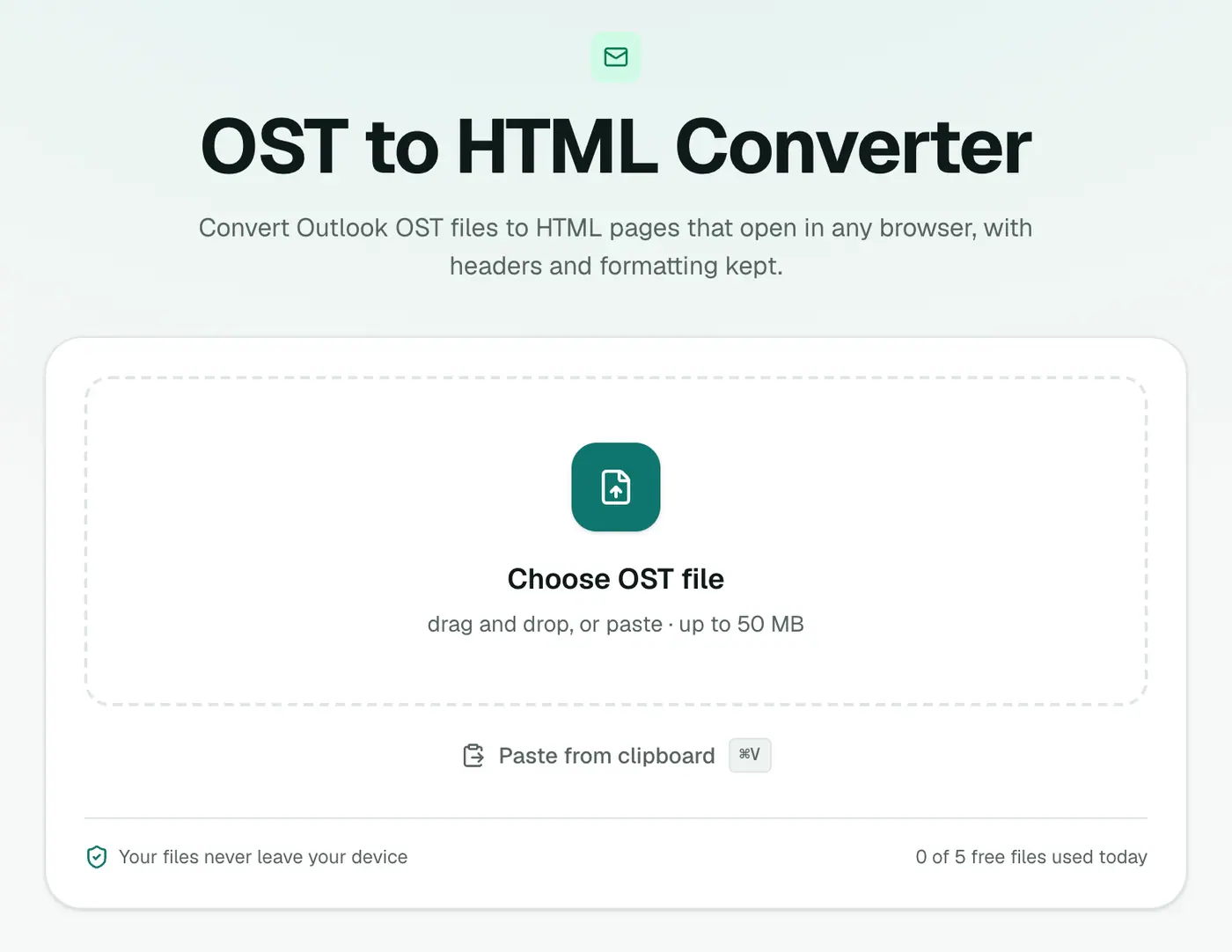
2. Add the OST
Drop in the .ost file. Close Outlook first if it's open on the same computer.
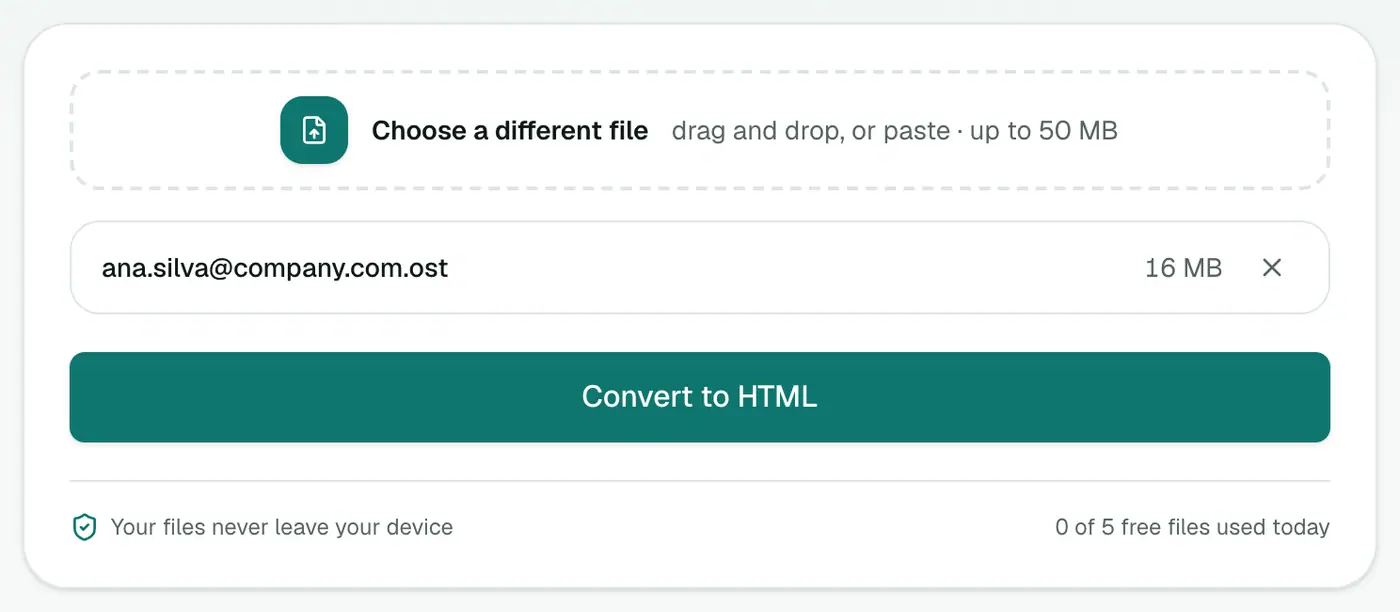
3. Convert and download
Click Convert to HTML and open the result in your browser.
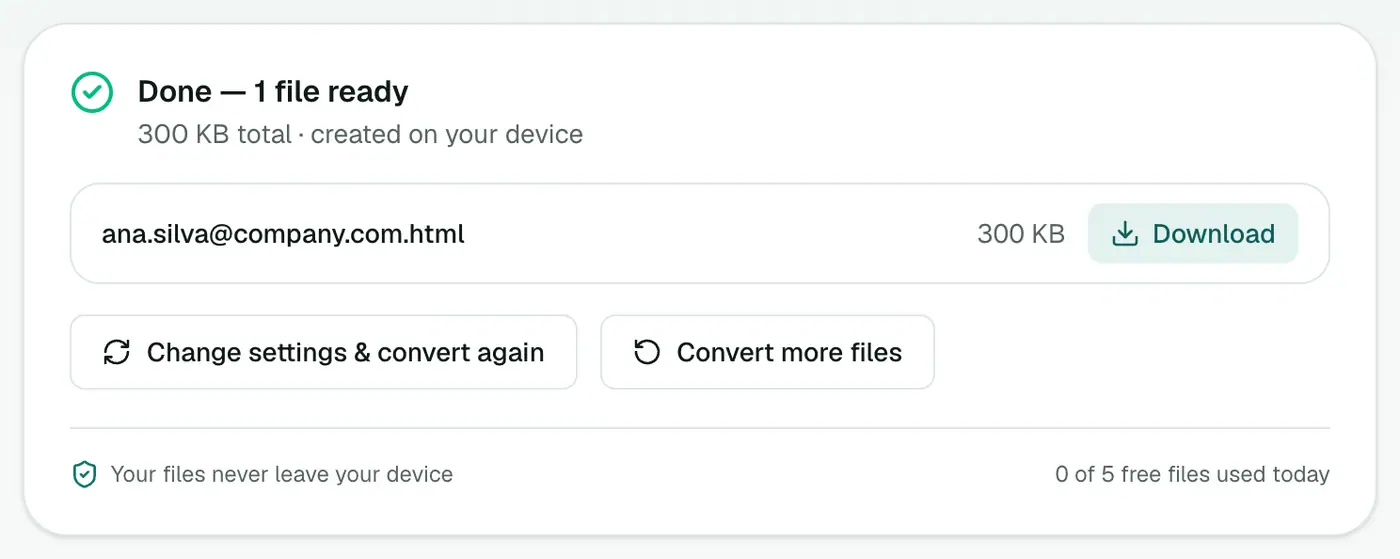
Each email shows its subject, a header table (From, To, Cc, Date, Attachments) and the body as it was sent: tables, colours, signatures and all.
Tips for working with the HTML
- Search everything: Ctrl+F / Cmd+F, then Enter to step through matches.
- Print one email: select it, then print with Selection (in Chrome, under More settings).
- Keep it: the file is self-contained and opens without the internet, apart from web-linked images.
Finding the OST
Press Win+R, type %localappdata%\Microsoft\Outlook and press Enter. OST files are named after the email address. On an old drive connected to another PC, look in Users\<name>\AppData\Local\Microsoft\Outlook.
Troubleshooting
"Isn't a readable Outlook data file." The OST may be damaged or in a newer Outlook 2013+ format that can't be read here. If the account still works, use Outlook's own export or webmail instead.
The page is huge and slow. Big mailboxes make big pages. For browsing, the OST viewer is lighter. For records, use OST to PDF.
Related
- Browse by folder: the OST viewer.
- A printable record: OST to PDF.
- Move the mail into Thunderbird or Apple Mail: OST to MBOX.
Summary
The OST to HTML converter makes an orphaned Outlook mailbox readable in any browser, with formatting intact and nothing uploaded.
FAQs
Can I read an OST on a Mac?
Yes. The conversion runs in the browser, so any computer works.
Does it need the original account?
No. That's the point. It reads the OST file directly.
What's in the HTML file?
Every email in the OST, one after another, each with a header and its original formatting.
Do embedded images show?
Yes. Images inside emails, like signatures and pasted screenshots, are built into the HTML file. Images linked from websites need an internet connection.
Is it safe to open old emails in a browser?
Scripts, forms and embedded frames are stripped from every email during conversion, so nothing in an old message can run.
Is the OST uploaded?
No. The conversion happens on your computer.
Try the OST to HTML Converter
Free to start, no install, and your files never leave your device.