Email2 min read
How to Convert OST to EML (Recover Individual Emails)
Extract every email from an Outlook .ost file as a standard .eml, named by folder and subject, ready to open, forward or import. No account needed.
By the ZapMorph team
On this page
Just want it done?
Open the OST to EML Converter — it runs in your browser and nothing is uploaded.
Recovering a few important emails from an orphaned OST, like a signed contract or a key approval, is easiest when each email is its own file. EML opens in any mail app and can be forwarded like a normal message.
Why EML?
EML is the standard format for a single email: headers, body and attachments in one file, exactly as mail servers handle it. It isn't tied to Outlook, to Windows or to any account.
- Evidence: keep the exact message, with its original date and sender.
- Forwarding: send a recovered email to a colleague or a client.
- Selective import: drag only the emails you need into a new mailbox.
- File storage: keep emails in folders alongside the project documents they belong to.
How to convert OST to EML with ZapMorph
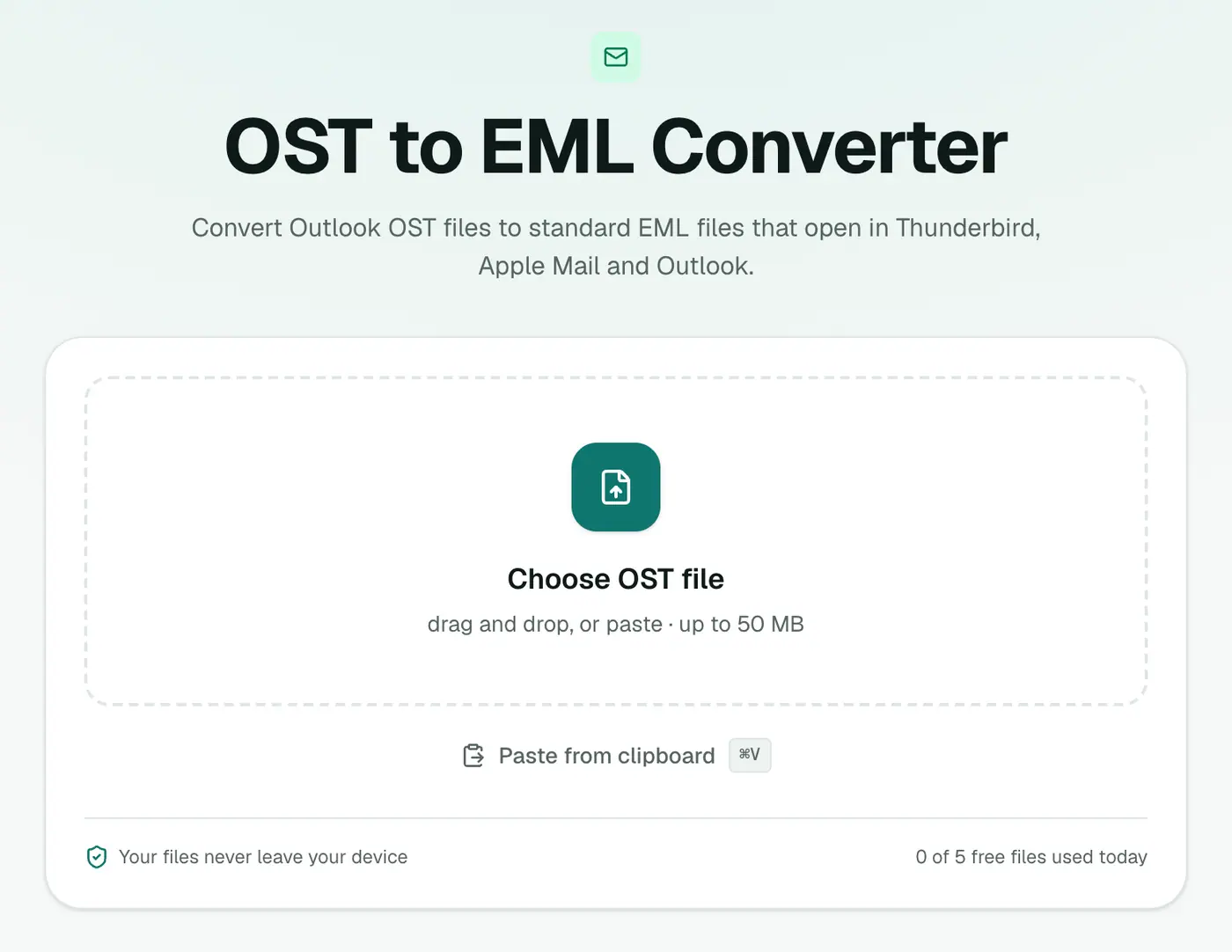
1. Open the converter
Go to the OST to EML converter.
2. Add the OST
Drop in the .ost file. If Outlook is open on the same machine, close it first, because it locks the file.
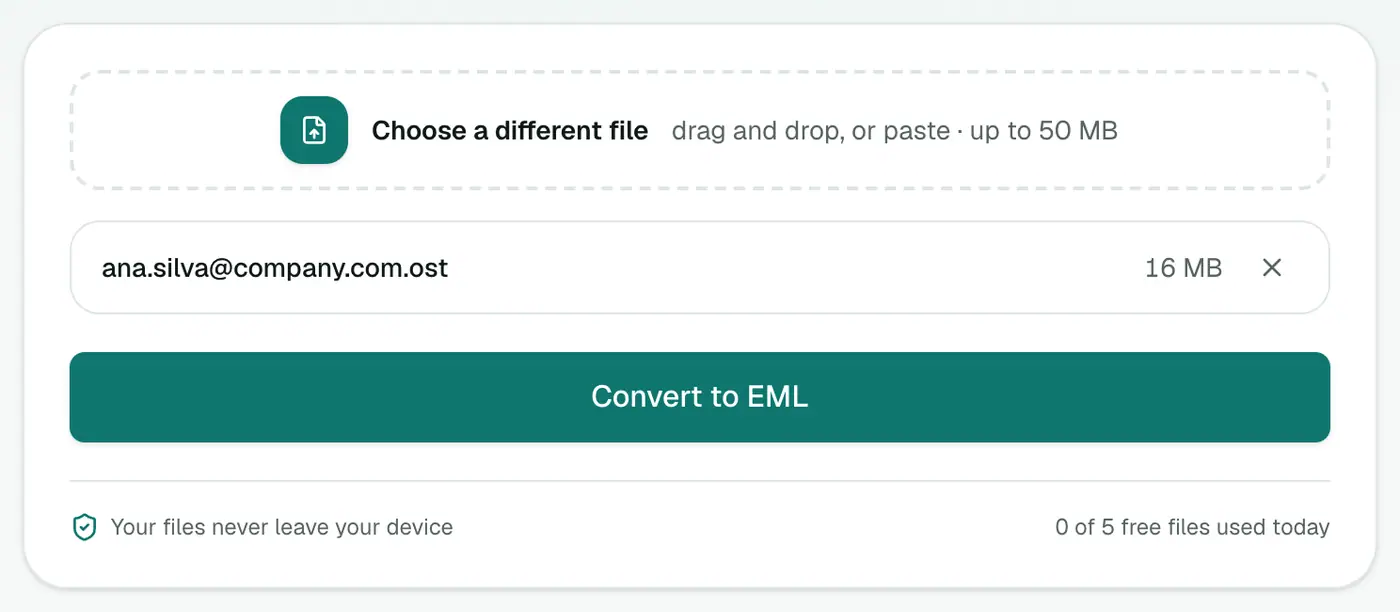
3. Convert and download
Click Convert to EML and use Download all for a ZIP.
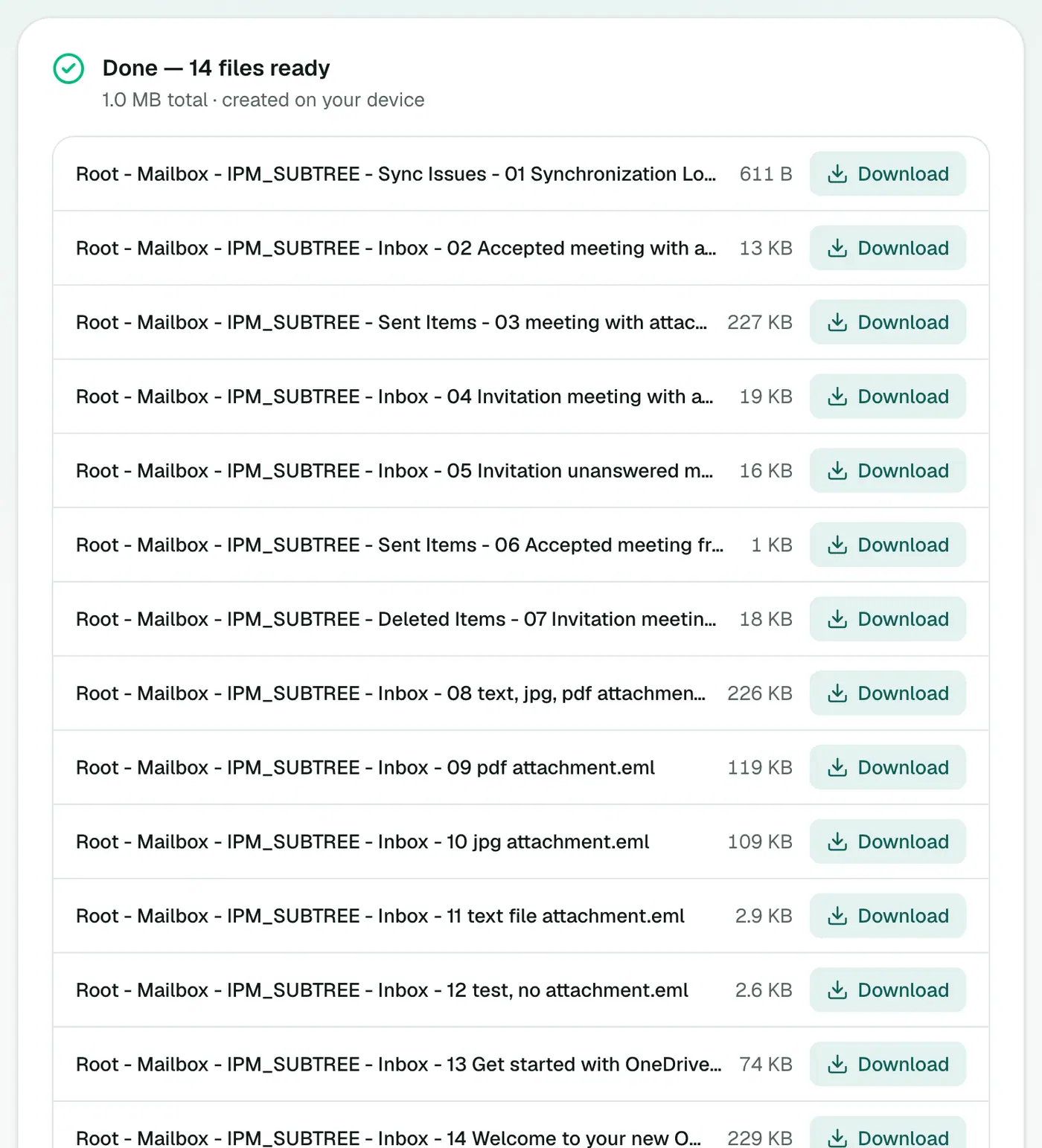
The file names start with the folder (Inbox, Sent Items, a project folder…) followed by a number and the subject. Sorting by name keeps each folder together.
Opening and importing the EMLs
- Outlook for Windows (classic): create a folder, select the EMLs in File Explorer and drag them onto it.
- Apple Mail / Thunderbird: double-click to open, or drag into a folder.
- Several emails as one document: run them through EML Merge for a single PDF, oldest first.
Finding the right emails quickly
An OST from a busy mailbox can produce thousands of files. To find what you need first:
- Open the OST in the OST viewer and search by sender or subject.
- Or convert to CSV and filter in Excel.
- Then pick the matching EML files from the ZIP by folder and subject.
Where OST files live
Press Win+R, type %localappdata%\Microsoft\Outlook and press Enter. The OST is named after the mailbox's email address.
Troubleshooting
"Isn't a readable Outlook data file." The OST may be damaged, or it may use a newer internal format from Outlook 2013 or later that can't be read here. If the account still exists, export from Outlook or webmail instead.
"Password-protected." The OST uses encryption that can't be read outside Outlook. If the account still exists, export from Outlook or webmail instead.
BCC recipients are missing. Only To and Cc are rebuilt. On received mail, BCC isn't stored at all.
Related
- Whole mailbox into another app: OST to MBOX.
- Several emails into one PDF: EML Merge.
Summary
The OST to EML converter recovers every message from an Outlook offline mailbox as a standard, portable email you can open, forward or import anywhere.
FAQs
How are files named?
By folder, a sequence number and subject, like "Sent Items - 015 Quote for March.eml".
Are attachments included?
Yes. Each EML is a complete message with its attachments and inline images.
Can I import the EMLs into Outlook?
You can drag EML files into an Outlook folder on Windows, or open them individually.
Can I forward a recovered email?
Yes. Open the EML in your mail app and forward it like any other message, or attach the .eml file itself.
Do I need the original Microsoft 365 or Exchange account?
No. The OST is read directly, which is the point when the account has been deleted.
Is the OST uploaded?
No. Everything happens in your browser.
Try the OST to EML Converter
Free to start, no install, and your files never leave your device.