Audio & video2 min read
How to Convert OGG or OPUS Voice Notes to WAV
Turn OGG and OPUS audio, like WhatsApp and Telegram voice notes, into WAV for editing, transcription and older software. Private, in your browser.
By the ZapMorph team
On this page
Just want it done?
Open the OGG to WAV Converter — it runs in your browser and nothing is uploaded.
A voice note that matters (an instruction from a client, a message from a relative, a witness's account) often needs to go into a tool that doesn't understand OGG or OPUS. WAV is the safe, universal choice for editing and transcription.
Where OGG and OPUS files come from
- WhatsApp voice notes (
.opus, or.oggwhen exported). - Telegram and Signal voice messages.
- Discord recordings and bots.
- Game audio and sound effects.
- Linux and open-source recording apps like Audacity exports and Ardour.
How to convert OGG to WAV with ZapMorph
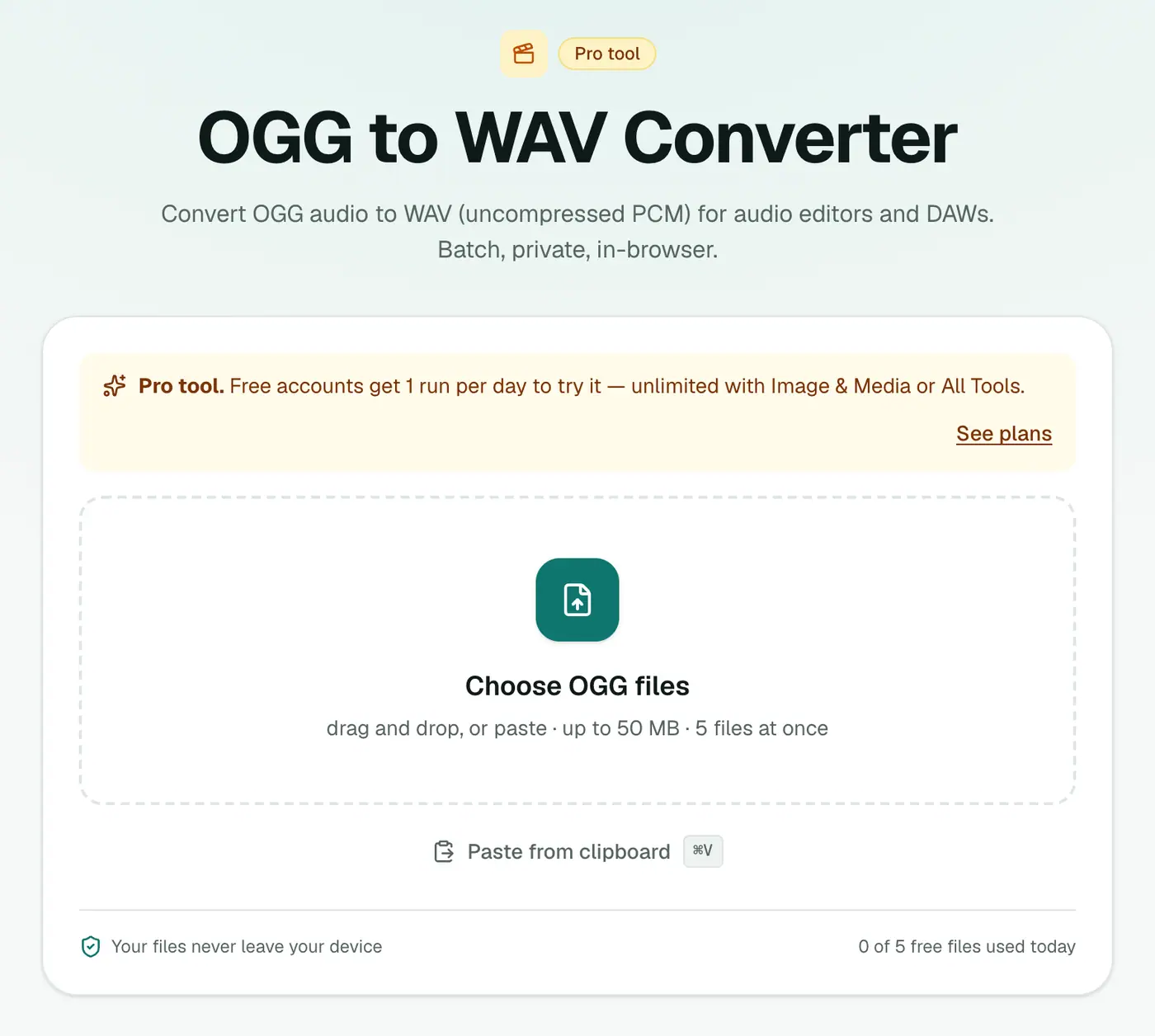
1. Open the converter
Go to the OGG to WAV converter.
2. Add your files
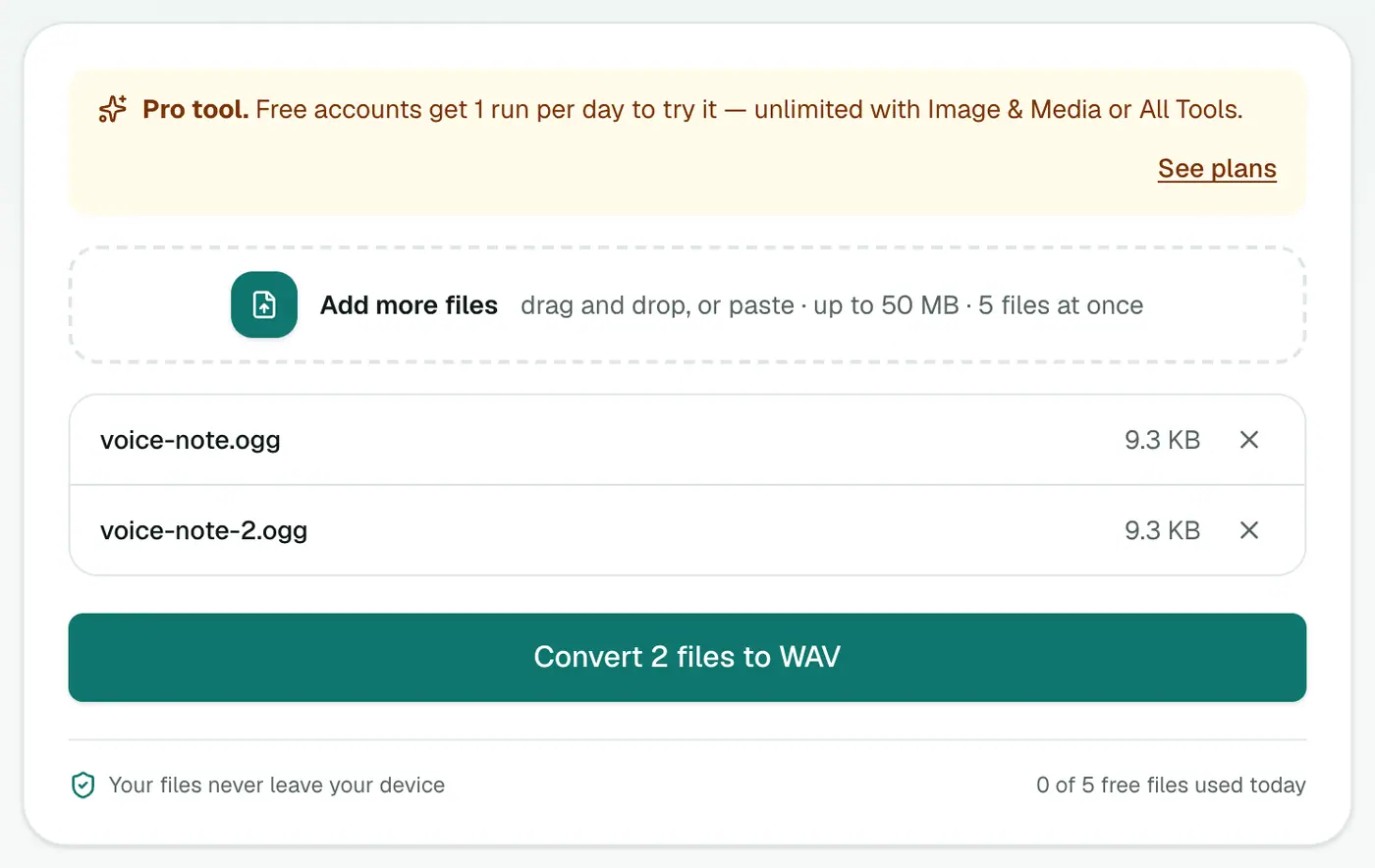
Drop in .ogg, .oga or .opus files. You can add several at once.
3. Convert and download
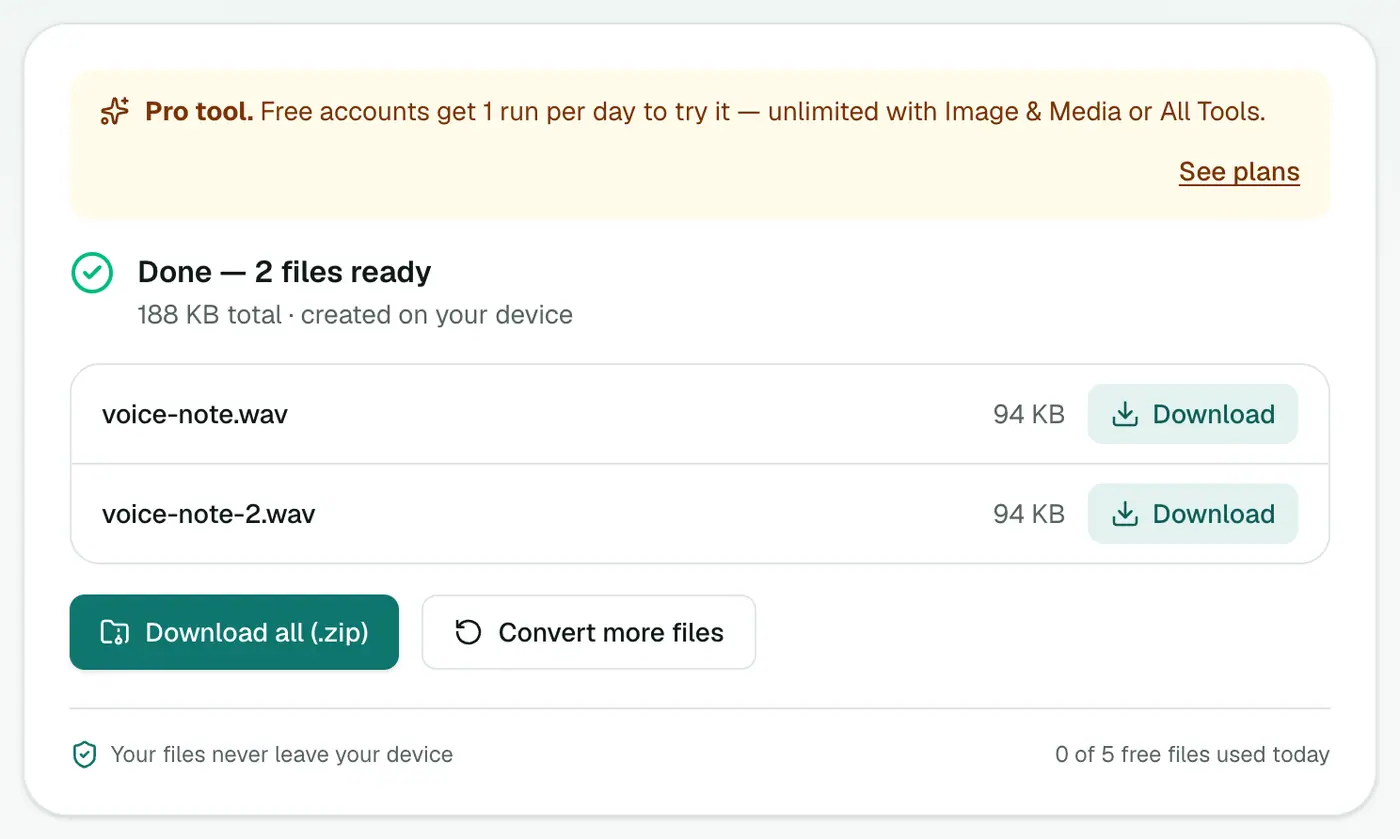
Click Convert to WAV.
Getting voice notes off your phone
- WhatsApp (iPhone): press and hold the voice note → Forward → Share → Save to Files.
- WhatsApp (Android): voice notes are in Internal storage → Android → media → com.whatsapp → WhatsApp → Media → WhatsApp Voice Notes.
- Telegram: right-click the message in Telegram Desktop → Save As.
- Whole chat with voice notes: export the chat with media. The voice notes are inside the ZIP.
What to expect
| OGG / OPUS | WAV | |
|---|---|---|
| Size of a 1-minute voice note | ~100–200 KB | ~2–10 MB |
| Compatibility | Limited | Everything |
| Quality | Lossy | Same as the source, no further loss |
Next steps
- Edit or clean up in Audacity or another editor.
- Transcribe with a service, or generate captions with the subtitle generator.
- Share a smaller copy with WAV to MP3.
- Lots of formats at once? The audio converter takes almost anything.
Troubleshooting
The file won't convert. Make sure it's the actual audio file, not a shortcut or a chat export .txt. WhatsApp sometimes names files .opus and sometimes .ogg; both work.
It sounds tinny. Voice notes are recorded at low quality to save data. WAV keeps them exactly as they are; it can't add detail.
Summary
The OGG to WAV converter turns voice notes and OGG audio into universally accepted WAV files.
FAQs
Why WAV?
It's uncompressed and accepted by virtually every audio editor, transcription service and hardware device.
Can I convert WhatsApp voice notes?
Yes. WhatsApp voice notes are OPUS/OGG files, and .opus is accepted.
Is it free?
Yes, once a day: one file up to 25 MB with no account. A free account gets one Pro tool run a day, and paid plans are unlimited.
Does converting to WAV improve the sound?
No. WAV stores exactly what's in the OGG, without adding further compression. It's bigger, not better, but it won't lose anything when you edit and re-save.
What format is the WAV?
Standard 16-bit PCM at the same sample rate as the original, which every editor and device accepts.
Are my recordings uploaded?
No. The conversion runs in your browser, on your device.
Try the OGG to WAV Converter
Free to start, no install, and your files never leave your device.