Audio & video2 min read
How to Convert OGG and OPUS Audio (WhatsApp Voice Notes) to MP3
WhatsApp and Telegram voice notes are OGG/OPUS files that many apps won't play. Convert them to MP3 so they open anywhere. Batch, private, in your browser.
By the ZapMorph team
On this page
Just want it done?
Open the OGG to MP3 Converter — it runs in your browser and nothing is uploaded.
OGG (with Vorbis or Opus inside) is efficient and open, and it's what WhatsApp, Telegram, Discord and many games use for audio. Outside those apps, though, it often won't play: Windows Media Player, older iPhones, car stereos and lots of editing tools struggle.
MP3 plays everywhere.
How to convert OGG to MP3 with ZapMorph
1. Open the converter
Go to the OGG to MP3 converter.
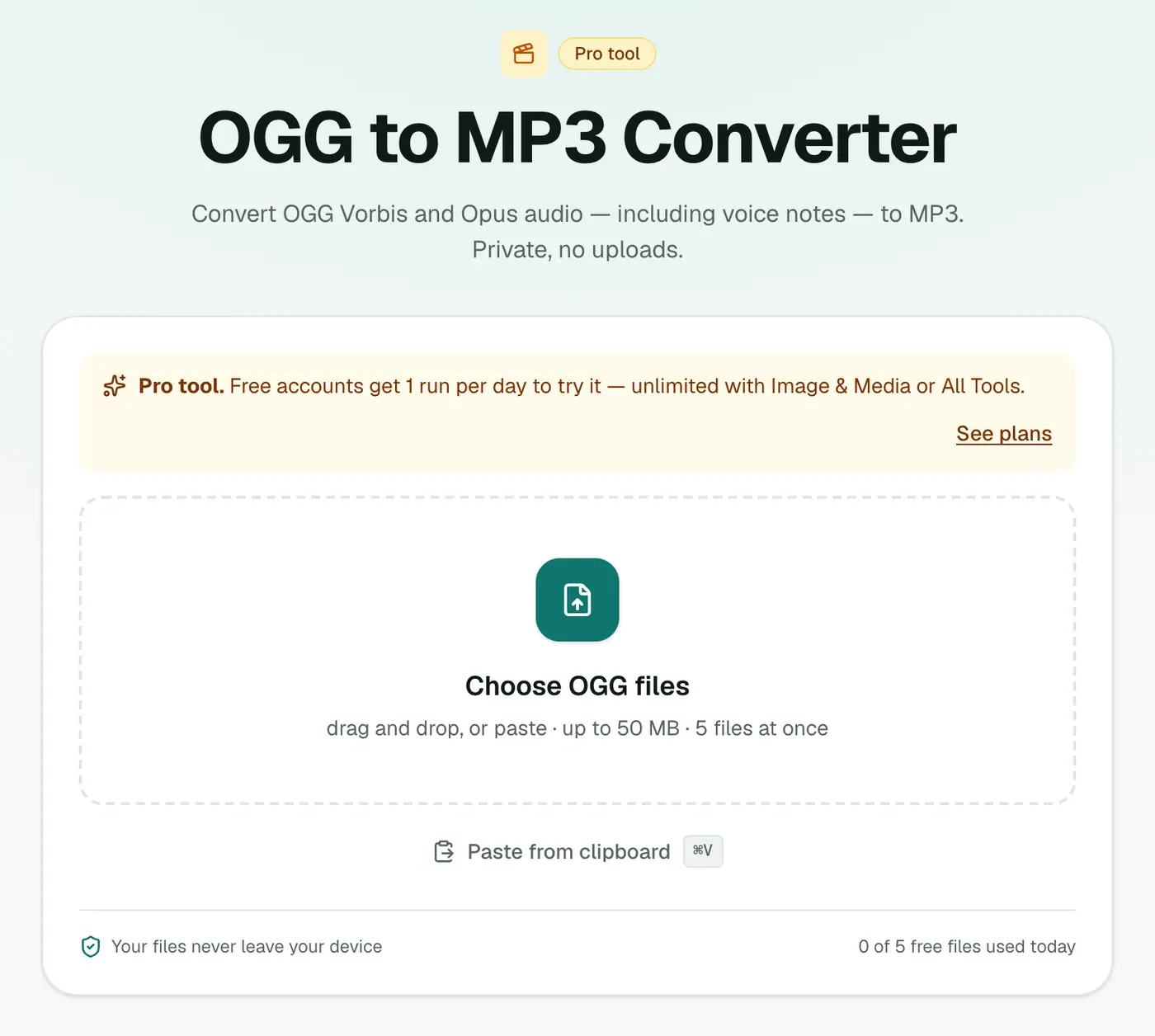
2. Add files and pick the quality
Drop in .ogg, .oga or .opus files. Choose 128 kbps for voice notes or 192 kbps (recommended) for music.
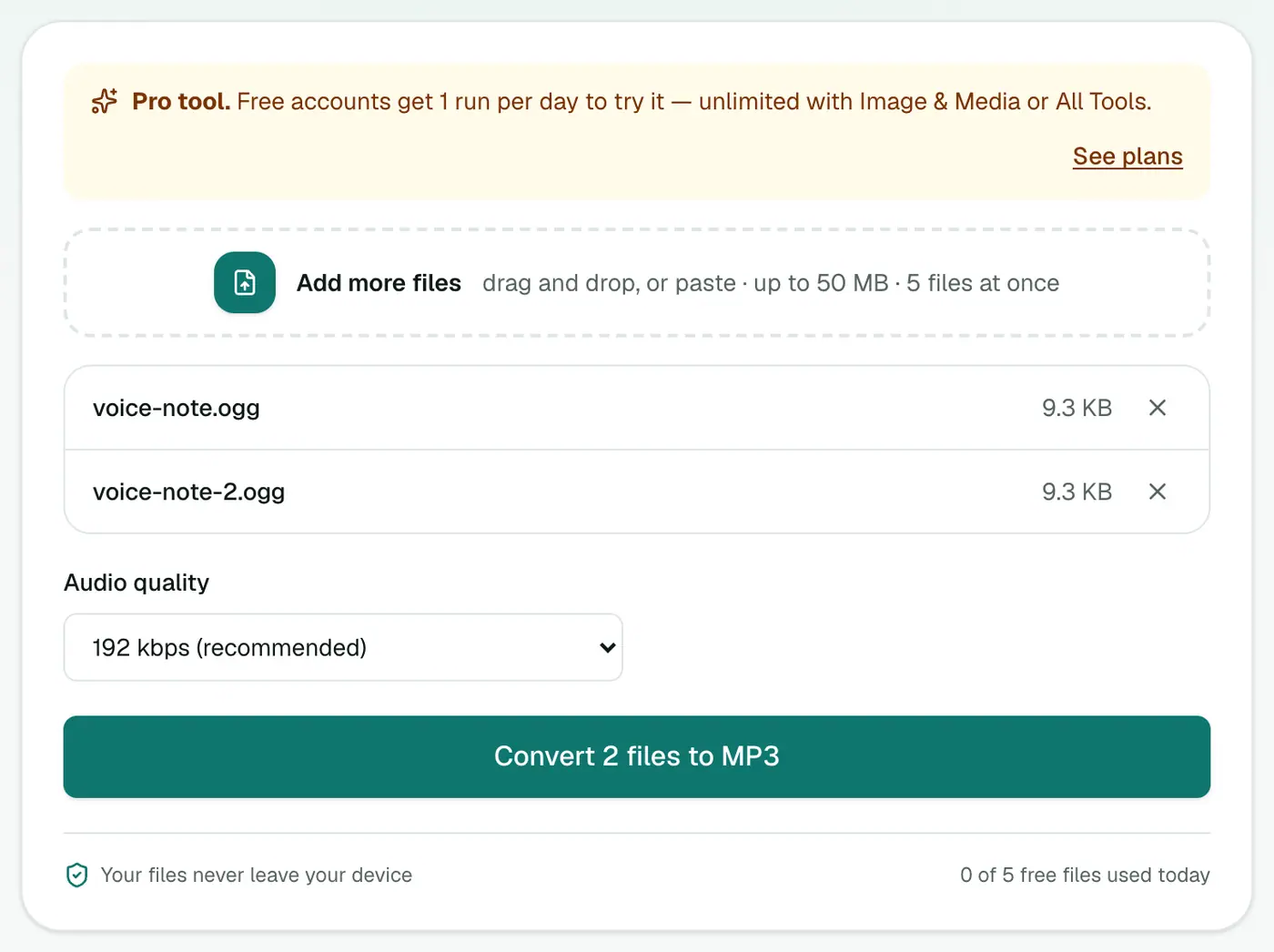
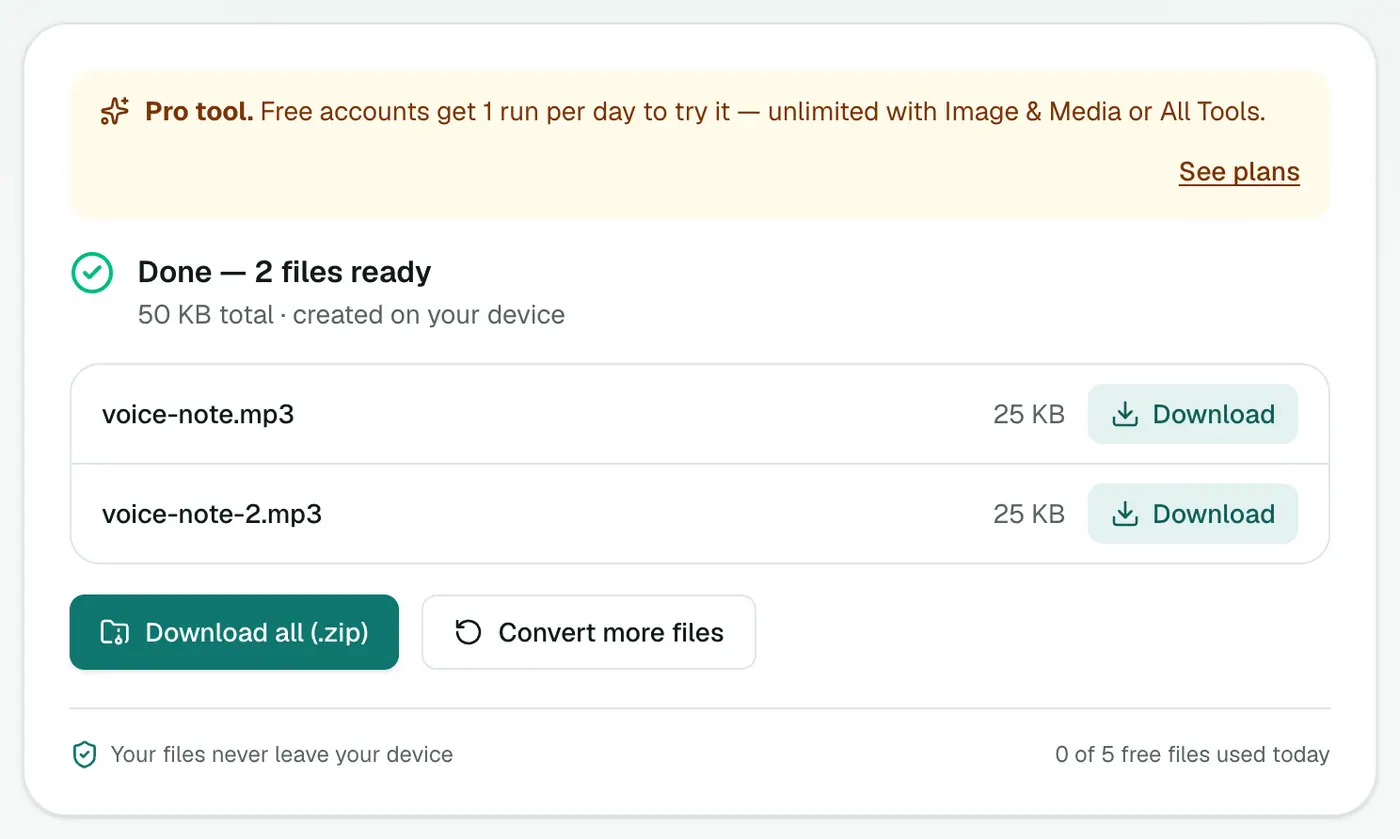
3. Convert and download
Click Convert to MP3.
Getting voice notes out of your apps
| App | iPhone | Android / desktop |
|---|---|---|
| Long-press → Forward → Share → Save to Files | Android/media/com.whatsapp/WhatsApp/Media/WhatsApp Voice Notes | |
| Telegram | Long-press → Forward to Saved Messages, then share | Desktop app: right-click → Save As |
| Signal | Long-press → Save | Long-press → Save |
| Whole chat | Export Chat → Attach Media | ⋮ → More → Export chat → Include media |
Why convert voice notes?
- Keeping them: a voice message from someone you love, saved somewhere permanent.
- Evidence or records: an MP3 is easier to hand to a lawyer or HR.
- Transcribing: many transcription tools want MP3 or WAV. Or use our subtitle generator.
- Sharing outside the app: email, Google Drive or a website.
Tips
- Name them after converting, e.g.
2026-05-02 Mum birthday message.mp3, so they're easy to find later. - Back them up in two places (phone storage gets wiped).
- For a full transcript of a chat, see WhatsApp Chat to PDF.
Troubleshooting
"File not supported." Make sure you have the audio file itself. Some apps share a link or a .txt instead.
The MP3 sounds quiet. Voice notes are recorded at modest levels. Normalise the volume in Audacity if needed.
Summary
The OGG to MP3 converter turns WhatsApp, Telegram and other OGG/OPUS audio into MP3s that play on anything.
FAQs
Are WhatsApp voice notes OGG?
Yes. WhatsApp voice notes are usually .opus or .ogg files using the Opus codec. Telegram uses OGG too.
How do I get a voice note out of WhatsApp?
On Android, the files are in WhatsApp's Media → Voice Notes folder. On iPhone, long-press the voice note and choose Forward → Share, or export the chat with media.
Which bitrate should I use?
128 kbps is plenty for voice. Use 192 kbps or higher for music.
Is it free?
Yes, once a day: one file up to 25 MB with no account. A free account gets one Pro tool run a day, and paid plans are unlimited.
Can I convert many voice notes at once?
Yes. Add them all and download a ZIP. How many per batch depends on your plan.
Are my voice notes uploaded?
No. They're converted in your browser, which matters for private conversations.
Try the OGG to MP3 Converter
Free to start, no install, and your files never leave your device.