Audio & video2 min read
How to Convert Any Audio File (WMA, AIFF, AAC, OPUS and More)
Convert WMA, AIFF, AAC, OPUS, FLAC, OGG and other audio, even the soundtrack of a video, to MP3, M4A, WAV, OGG or FLAC in your browser. Private, batch.
By the ZapMorph team
On this page
Just want it done?
Open the Audio Converter — it runs in your browser and nothing is uploaded.
Old WMA files from Windows Media Player, AIFF from a Mac recording app, AAC from a dictaphone, OPUS from a messaging app: audio formats pile up. The audio converter takes almost any of them and gives you the format you need.
Picking an output format
| Format | Best for |
|---|---|
| MP3 | Plays on everything: car stereos, old players, websites |
| M4A (AAC) | iPhone, iTunes/Music, slightly better than MP3 at the same size |
| WAV | Editing in a DAW or audio editor, CDs |
| FLAC | Lossless archiving at about half the size of WAV |
| OGG (Vorbis) | Games, Linux apps, open-source tools |
How to convert audio with ZapMorph
1. Open the audio converter
Go to the audio converter.
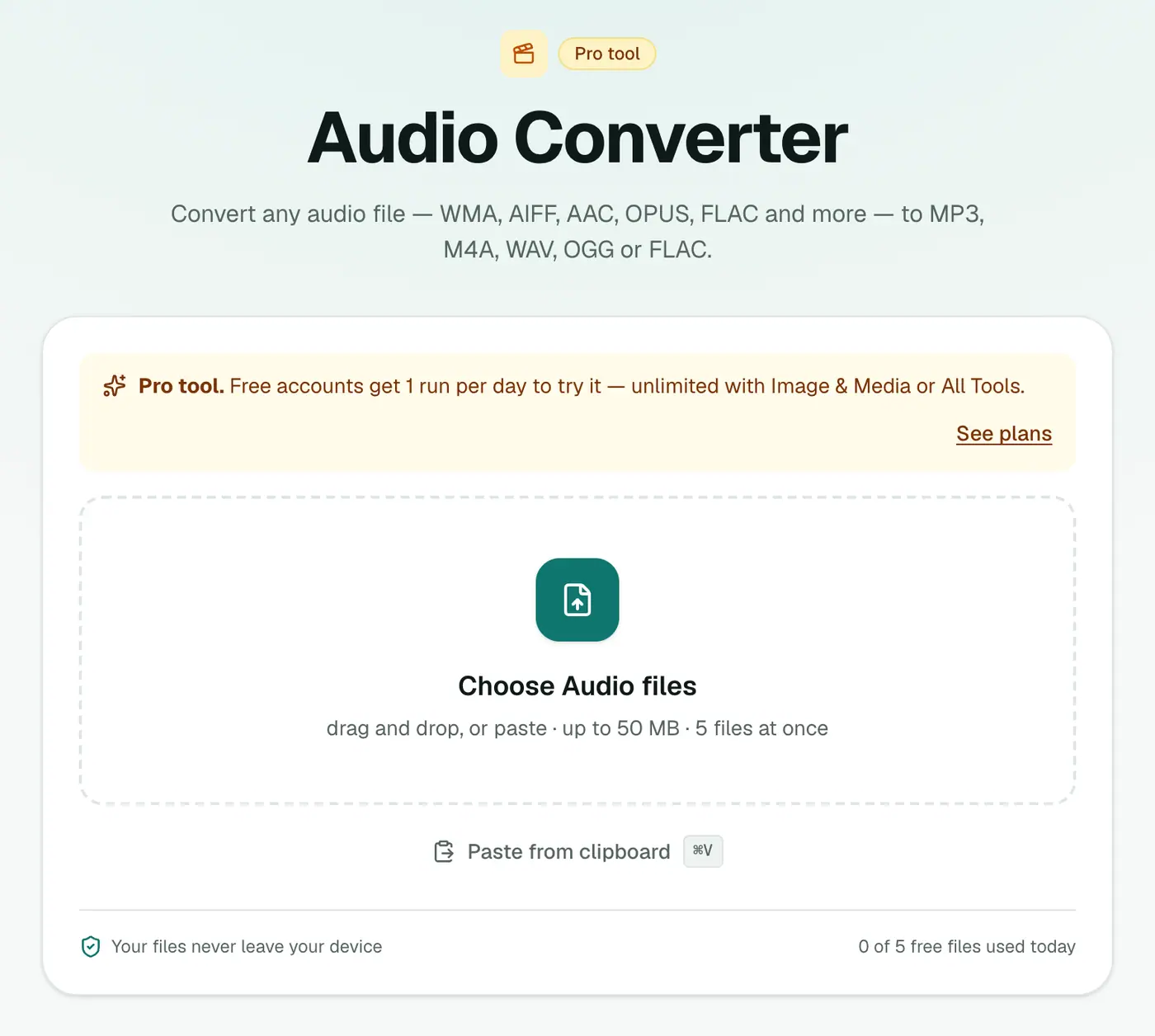
2. Add files, choose the format and quality
Drop in your audio or video files, pick an output format and, for MP3, M4A or OGG, a quality.
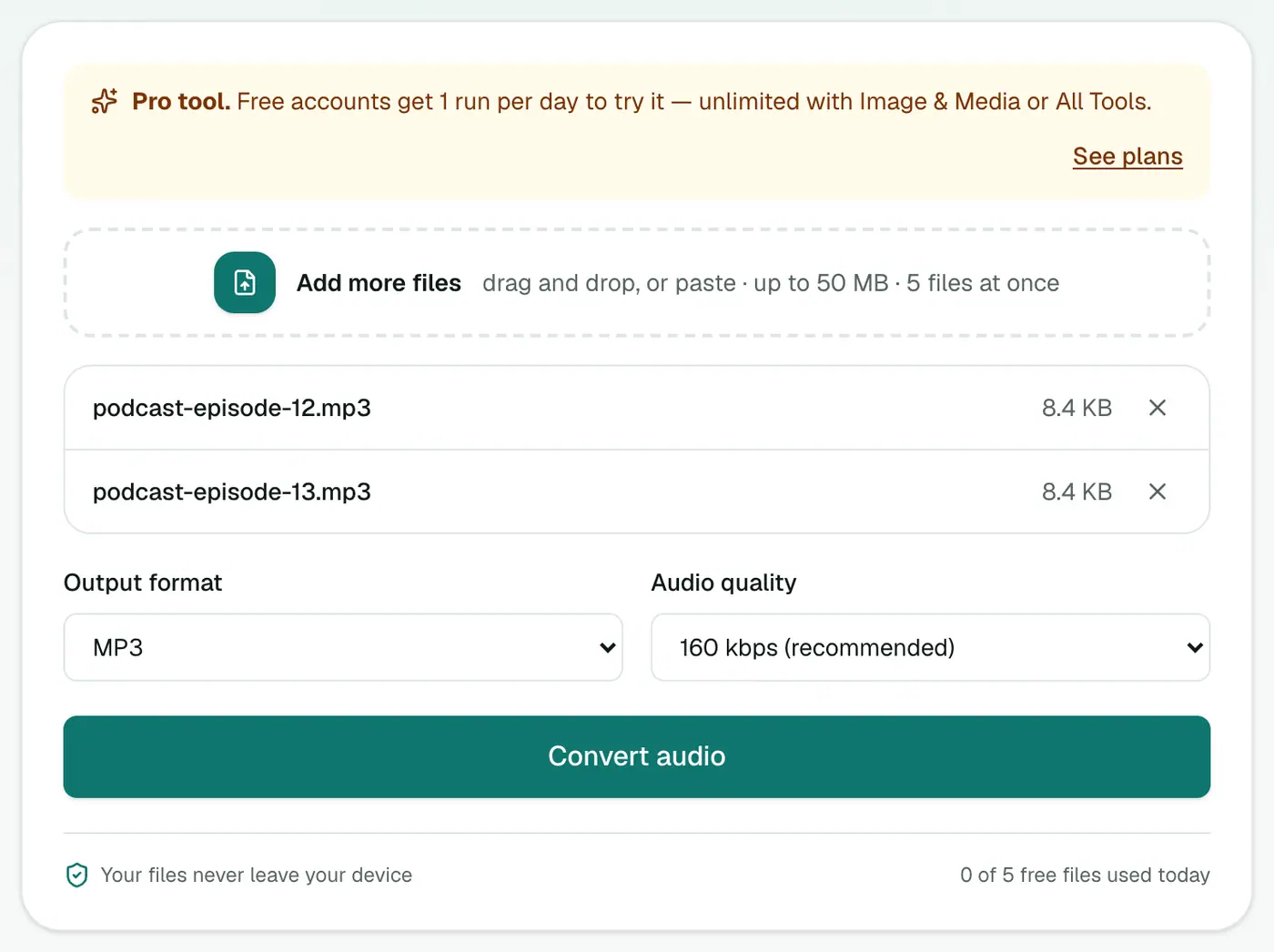
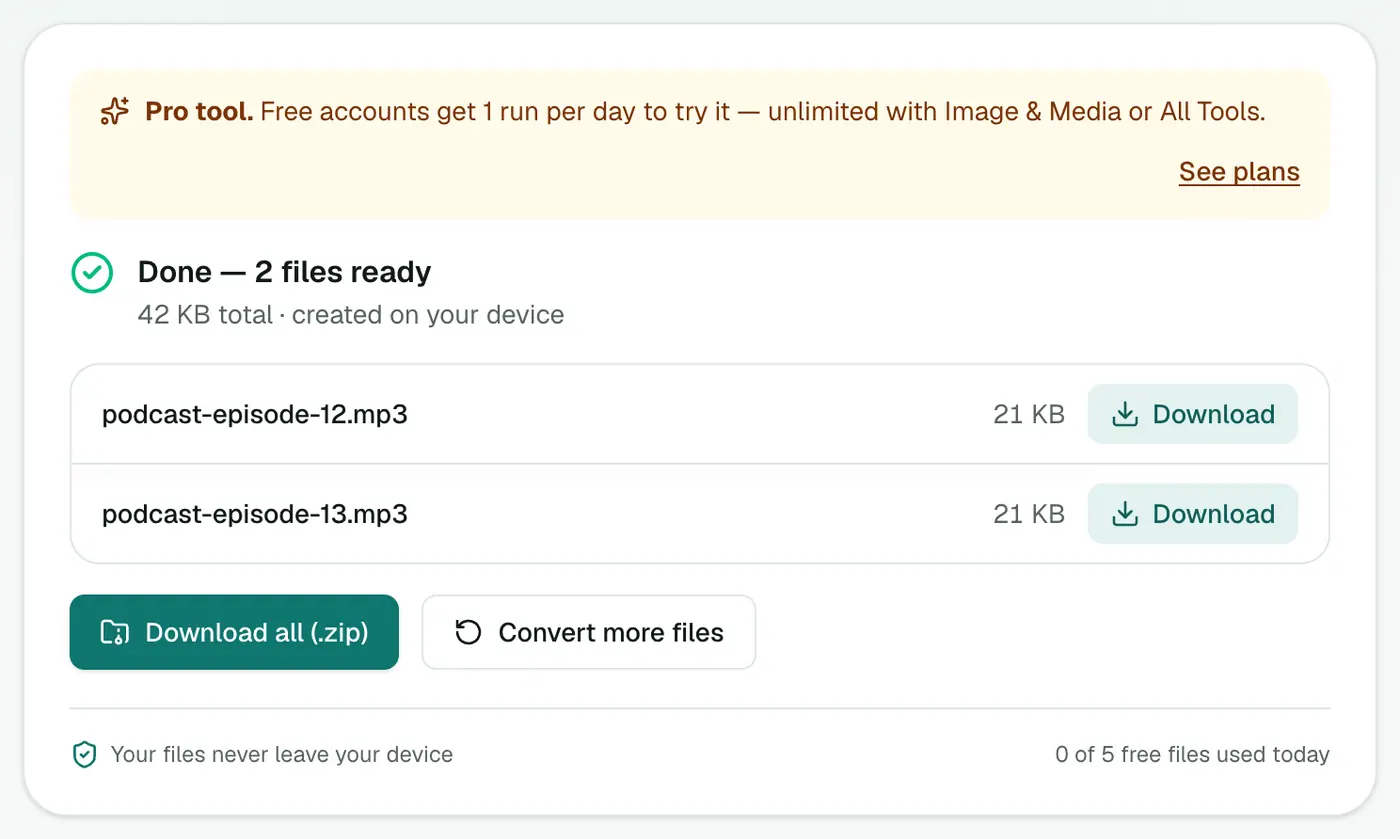
3. Convert and download
Click Convert audio.
Formats you might be dealing with
| Input | Where it comes from |
|---|---|
| WMA | Windows Media Player rips, old Windows recorders |
| AIFF | Mac recording apps, GarageBand, Logic exports |
| AAC / M4A | iPhones, dictaphones, iTunes |
| OPUS / OGG | WhatsApp, Telegram, Discord, games |
| FLAC | Lossless downloads and CD rips |
| MP4, MOV, MKV, WebM | Video files: the soundtrack is extracted |
A rule worth remembering
Converting from one lossy format (MP3, AAC, OGG, WMA) to another always loses a little more quality. If you have a lossless original (WAV, FLAC, AIFF), convert from that.
Specific converters
If you know exactly what you need, these have the right settings built in:
- WAV to MP3, M4A to MP3, FLAC to MP3, OGG to MP3
- MP4 to MP3 for music and audio from videos
- WAV to FLAC for lossless archiving
Troubleshooting
A file isn't accepted. Protected files (old iTunes .m4p, Audible .aax, streaming-service downloads) are DRM-locked and can't be converted.
A video converts but there's no sound. The video has no audio track, or the first audio track is silent. Only the first audio track is converted.
It's slow. Everything happens on your device. Long files and lossless output take the longest.
Summary
The audio converter handles just about any audio file and outputs the five formats people actually need, without uploading anything.
FAQs
Which output format should I choose?
MP3 for maximum compatibility, M4A (AAC) for Apple devices and slightly better quality per MB, WAV for editing, FLAC for lossless archiving, OGG for games and open-source apps.
What do the quality options mean?
96 kbps is fine for voice, 160 kbps (recommended) suits most music, 256 kbps is best. They apply to MP3, M4A and OGG. WAV and FLAC are lossless.
Can I convert the audio from a video?
Yes. MP4, MOV, WebM and MKV files are accepted, and their soundtrack is converted.
Is it free?
Yes, once a day: one file up to 25 MB with no account. A free account gets one Pro tool run a day, and paid plans are unlimited.
Can I convert files to different formats in one go?
Each run uses one output format for every file you add. Run it again for a different format.
Are my files uploaded?
No. Audio is converted in your browser.
Try the Audio Converter
Free to start, no install, and your files never leave your device.