Email2 min read
How to Open an Outlook MSG File on a Mac (MSG to HTML)
Convert Outlook .msg emails to HTML pages that open in Safari, Chrome or any browser, with formatting, inline images and headers kept. No Outlook needed.
By the ZapMorph team
On this page
Just want it done?
Open the MSG to HTML Converter — it runs in your browser and nothing is uploaded.
A colleague on Windows forwards you an email "as an attachment", and it arrives as a .msg file. On a Mac, double-clicking does nothing useful. Converting to HTML gives you a page Safari opens instantly, looking like the original email.
Why HTML?
- Looks like the email. Fonts, colours, tables, signatures and embedded images stay.
- Opens anywhere. Safari, Chrome, Firefox, Edge, on a Mac, phone, Chromebook or PC.
- Easy to keep. One self-contained file per email.
- Easy to turn into PDF. Open it and use File → Print → Save as PDF.
How to convert MSG to HTML with ZapMorph
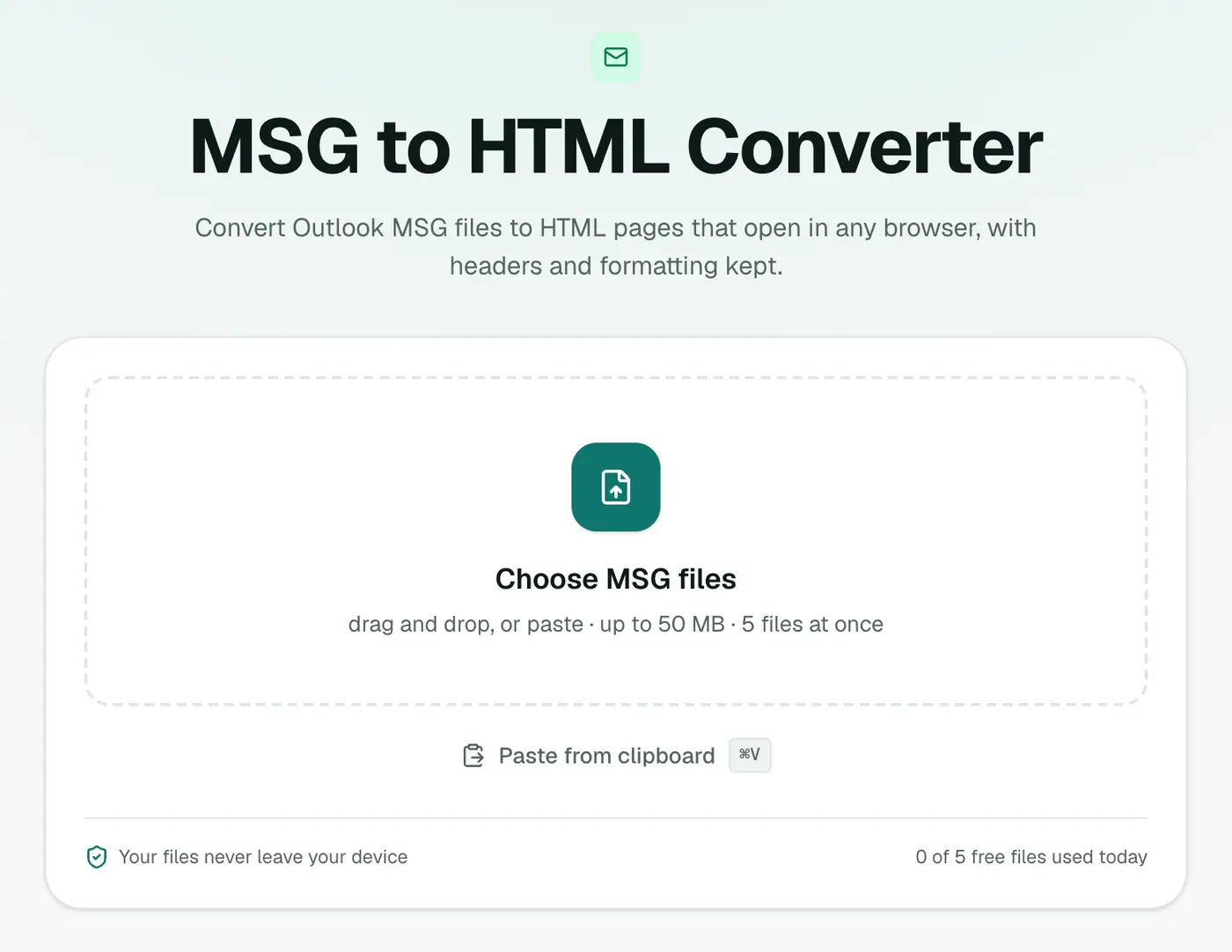
1. Open the converter
Go to the MSG to HTML converter.
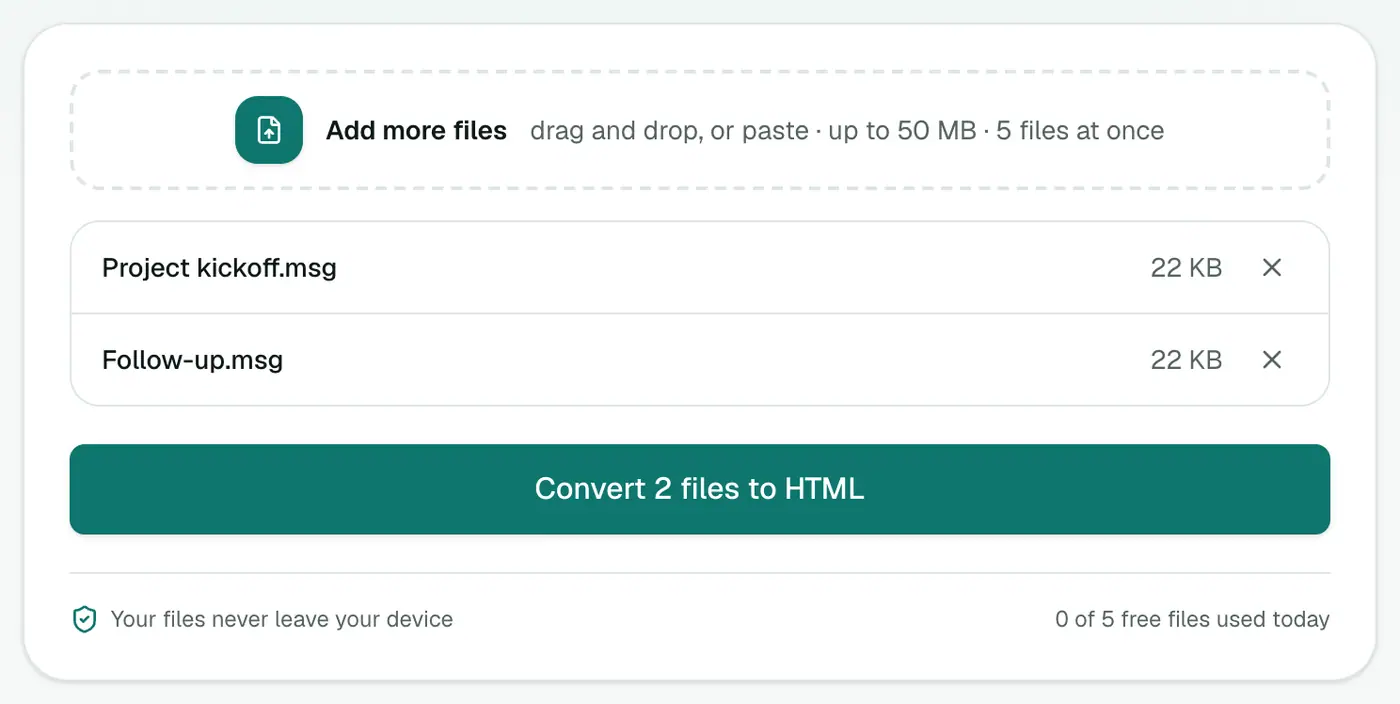
2. Add your MSG files
Drop them in. You can add several.
3. Convert and download
Click Convert to HTML and open the file in your browser.
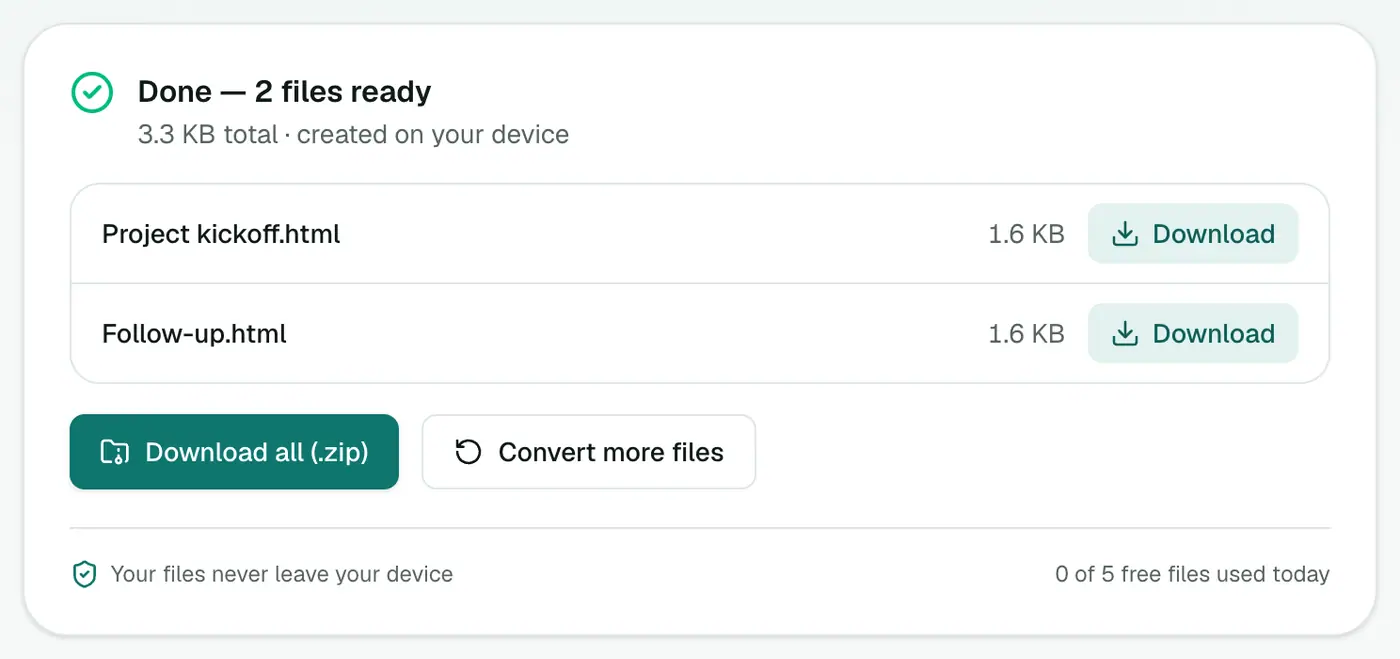
At the top you'll see the subject and a table with From, To, Cc, Date and Attachments, then the message as it was sent.
Getting the attachments
The HTML lists attachment names but doesn't include the files. To save them:
- Open the MSG in the MSG viewer and download each one, or
- Use the Email Attachment Extractor to get all attachments from many MSGs as a ZIP.
Other options on a Mac
- Quick look only? The MSG viewer reads it in the browser, no download.
- Want it in Apple Mail? Convert to EML and double-click.
- Ask the sender to forward the email normally instead of "as attachment" next time.
Troubleshooting
"Isn't a readable Outlook MSG file." The file is damaged or not a real MSG. Ask for it to be sent again.
The email looks plain. Some older Outlook emails are stored only as rich text (RTF), and those come through as plain text. The wording is all there.
Images from the web don't show offline. Only images embedded in the email are saved. Linked ones load when you're online.
Summary
The MSG to HTML converter turns Outlook emails into pages any browser can open, on any computer.
FAQs
Why can't my Mac open MSG files?
MSG is a Windows Outlook format. Apple Mail can't read it, and Outlook for Mac often won't open dragged-in MSG files either.
Is the formatting kept?
Yes. The HTML body is kept as sent, with a header block on top.
Can I convert many at once?
Yes. Each MSG becomes its own HTML file.
Do inline images show?
Yes. Images embedded in the email, like logos and pasted screenshots, are built into the HTML file.
Is it safe to open?
Scripts, forms and frames are removed from the email during conversion.
Is the MSG uploaded?
No. It's converted in your browser.
Try the MSG to HTML Converter
Free to start, no install, and your files never leave your device.