Audio & video2 min read
How to Extract WAV Audio From a Video for Editing or Transcription
Pull uncompressed WAV audio out of MP4, MOV, MKV, AVI, WebM and other videos, ready for audio editors, podcast tools and transcription services. Private.
By the ZapMorph team
On this page
Just want it done?
Open the MP4 to WAV Converter — it runs in your browser and nothing is uploaded.
Recorded a podcast on video? Filmed an interview you need transcribed? Want to clean up the sound from a clip in Audacity? Start with the audio as WAV: uncompressed, edit-friendly, accepted by everything.
How to extract WAV from video with ZapMorph
1. Open the converter
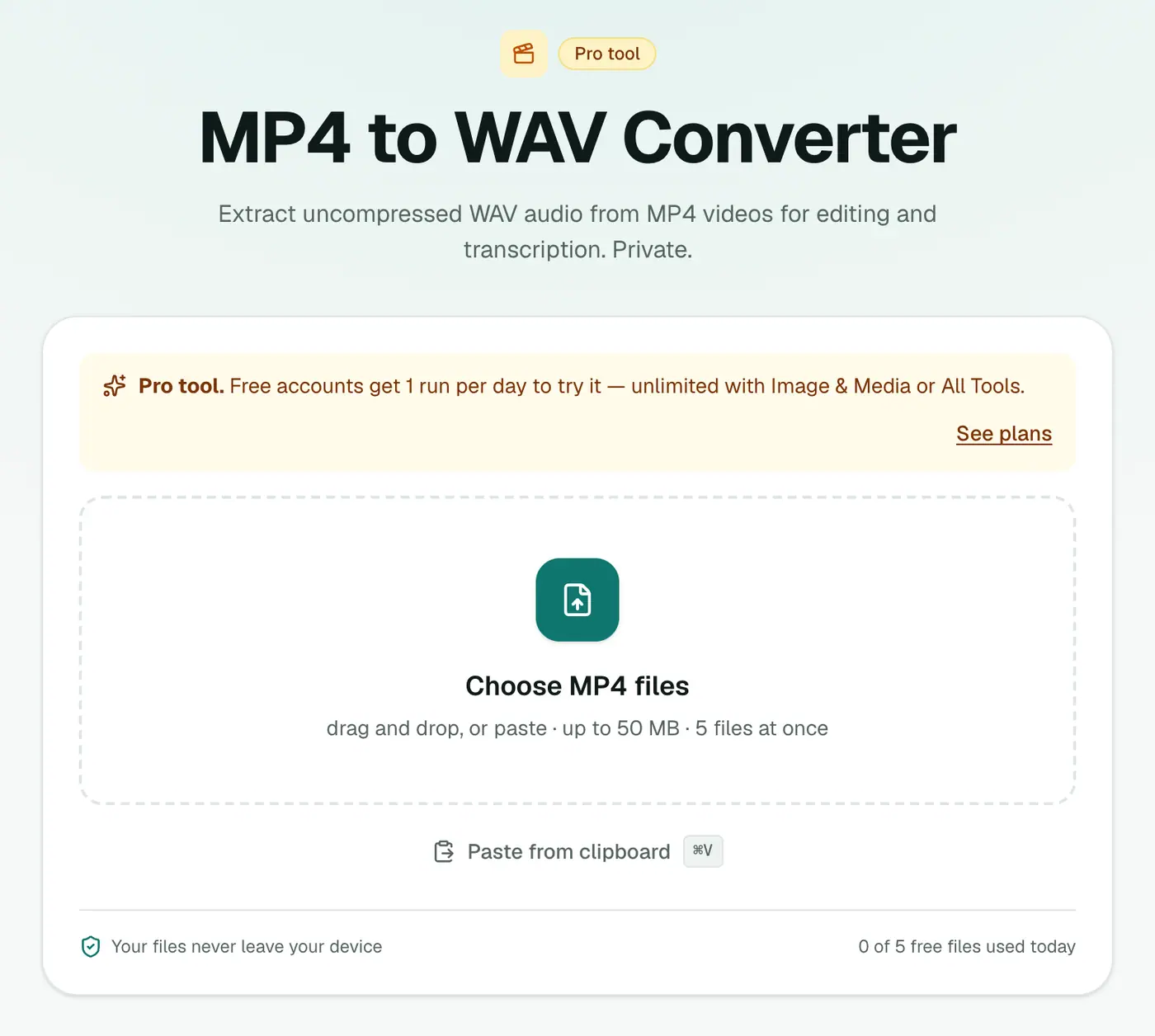
Go to the MP4 to WAV converter.
2. Add your videos
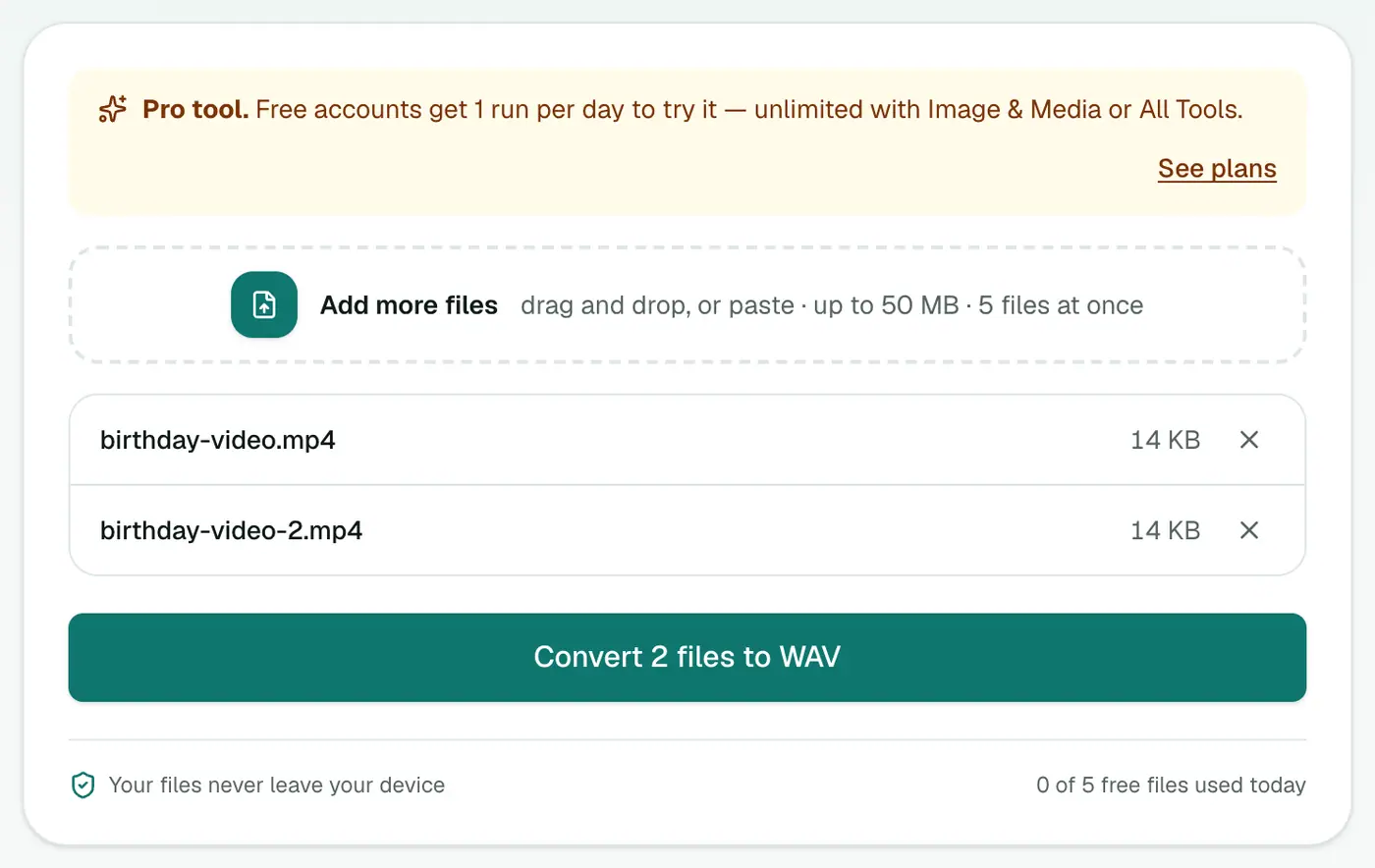
Drop in one or more video files: MP4, MOV, MKV, AVI, WebM and more.
3. Convert and download
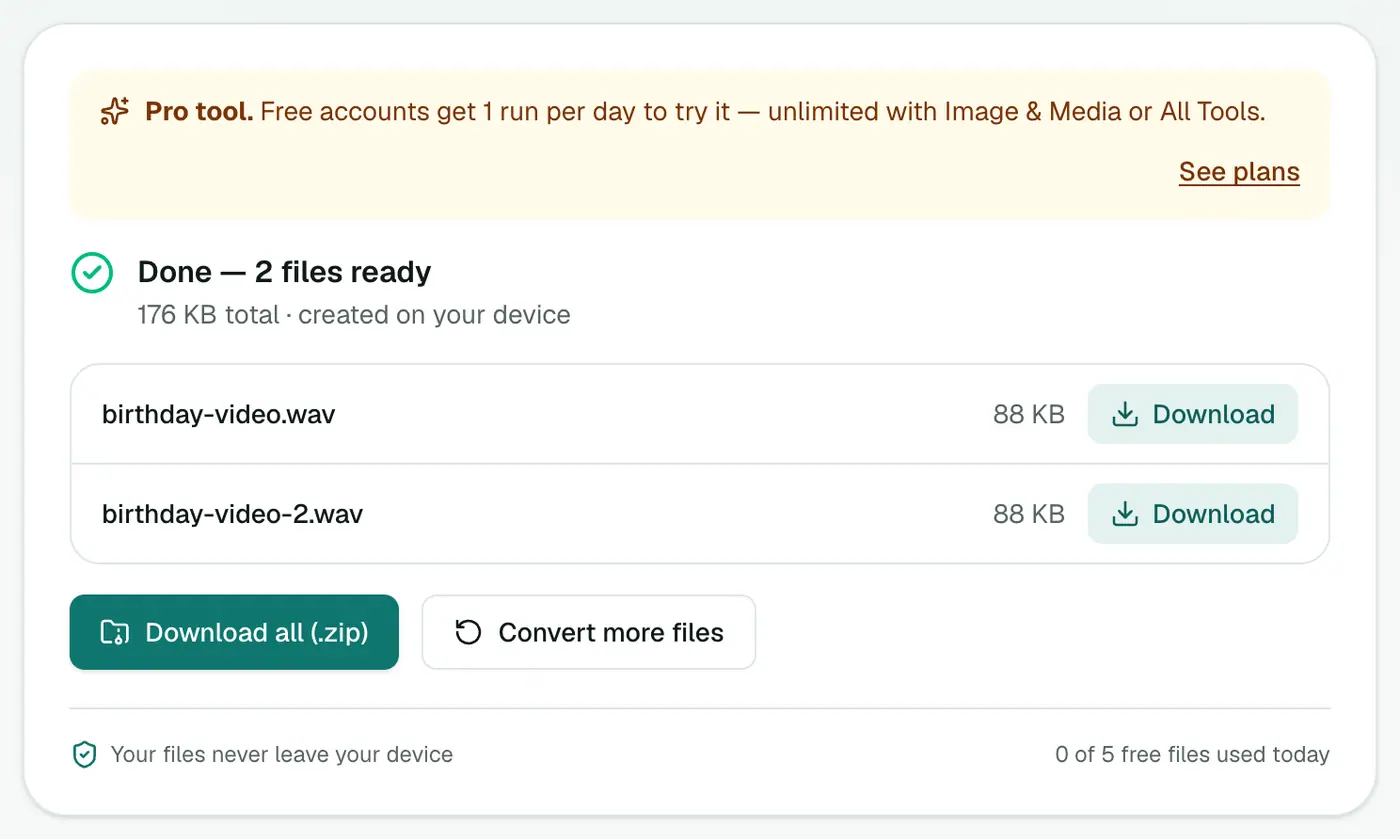
Click Convert to WAV.
What you get
- 16-bit PCM WAV, the format every editor and service accepts.
- The original sample rate of the video's audio (usually 44.1 or 48 kHz).
- Mono or stereo, matching the source.
What to do next
- Edit in Audacity, GarageBand, Reaper or Adobe Audition.
- Transcribe, or skip straight to captions with the subtitle generator.
- Share the final mix as MP3 with WAV to MP3.
WAV or MP3?
| You want to… | Choose |
|---|---|
| Edit, clean up or mix the audio | WAV |
| Send to a transcription or broadcast service | WAV (unless they ask for MP3) |
| Listen on your phone or share | MP4 to MP3 |
| Archive losslessly but smaller | WAV, then WAV to FLAC |
Common jobs
- Video podcasts: pull the audio for the audio-only feed.
- Zoom and Teams recordings: get the soundtrack for minutes or transcription.
- Music from a performance video: clean it up in an editor.
- Dialogue for re-editing: sync a clean WAV in your video editor.
Troubleshooting
"Couldn't be converted" or "produced an empty file." The video may have no audio track at all (screen recordings without sound, some security cameras), or its audio is in a separate file.
The WAV is huge. That's normal for uncompressed audio. An hour is around 600 MB. Use MP3 for sharing.
Very long videos are slow. Extraction happens on your device. Close other heavy tabs to speed it up.
Summary
The MP4 to WAV converter gives you clean, uncompressed audio from any video, ready for editing or transcription.
FAQs
Why WAV instead of MP3?
WAV is uncompressed, so editing and re-saving won't stack up compression artefacts. Many transcription and broadcast tools also prefer WAV.
Which video formats work?
MP4, M4V, MOV, MKV, AVI, WebM, WMV, FLV and 3GP.
How big is the WAV?
About 10 MB per minute for CD-quality stereo.
Is it free?
Yes, once a day: one file up to 25 MB with no account. A free account gets one Pro tool run a day, and paid plans are unlimited.
What if the video has several audio tracks?
The first audio track is extracted. Most phone, camera and screen recordings only have one.
Is my video uploaded?
No. The audio is extracted in your browser.
Try the MP4 to WAV Converter
Free to start, no install, and your files never leave your device.