Email2 min read
How to Split an MBOX File Into Individual EML Emails
Break an MBOX mailbox into separate .eml files, one per message, named by number and subject, so you can open, forward or import single emails. Private, free.
By the ZapMorph team
On this page
Just want it done?
Open the MBOX to EML Converter — it runs in your browser and nothing is uploaded.
An MBOX is one big file. Sometimes you need just one email out of it, to forward to someone, attach to a case, or open in a mail app without importing everything. Splitting it into .eml files makes each message independent.
How to convert MBOX to EML with ZapMorph
1. Open the converter
Go to the MBOX to EML converter.
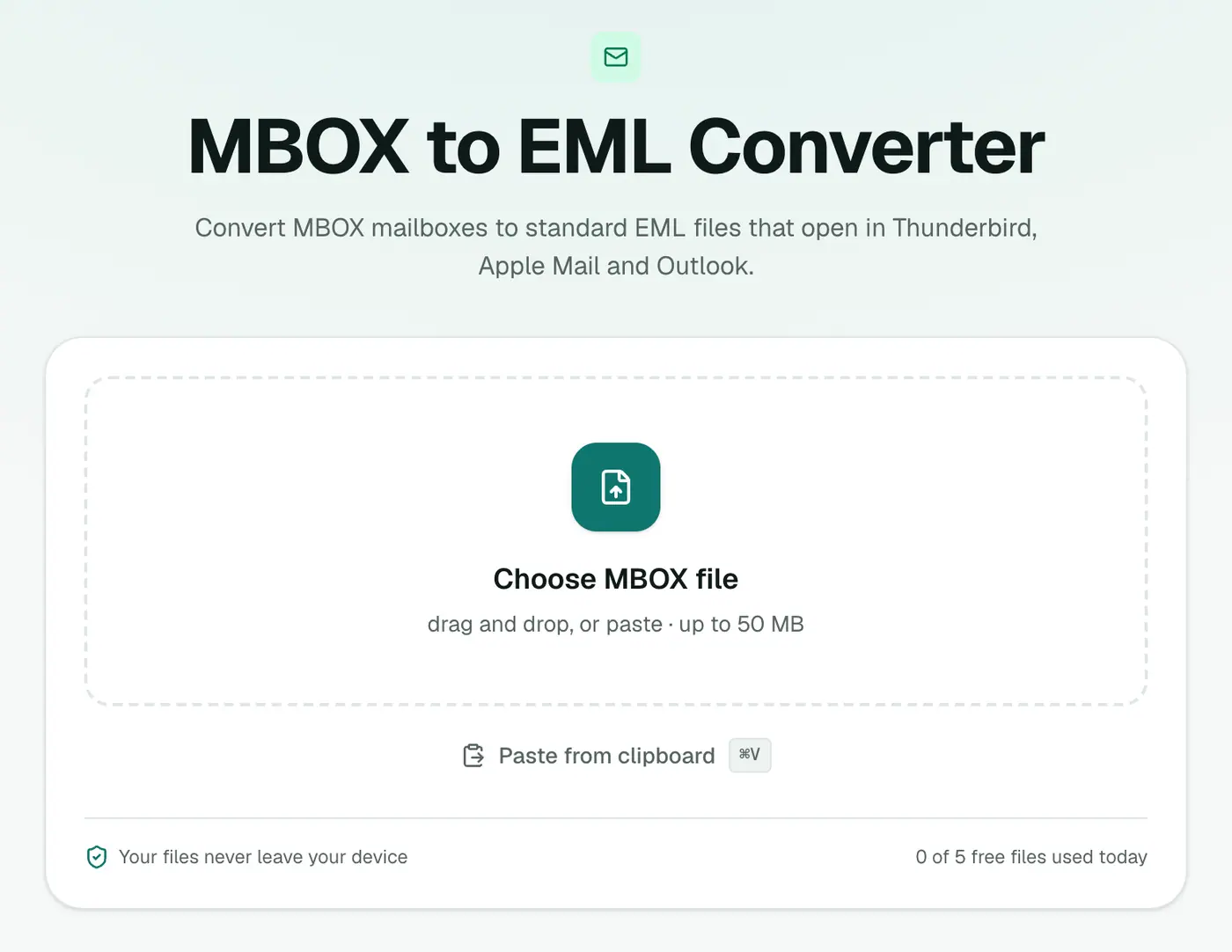
2. Add your mailbox
Drop in the .mbox file (from Gmail Takeout, Apple Mail or Thunderbird).
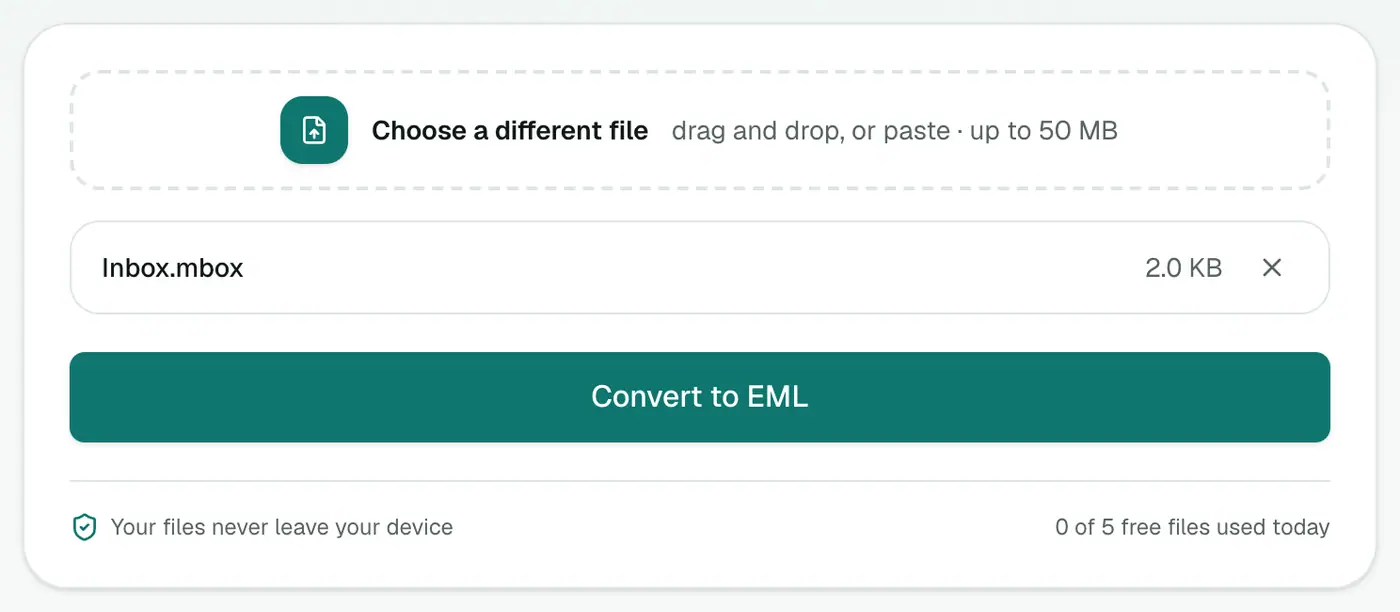
3. Convert and download
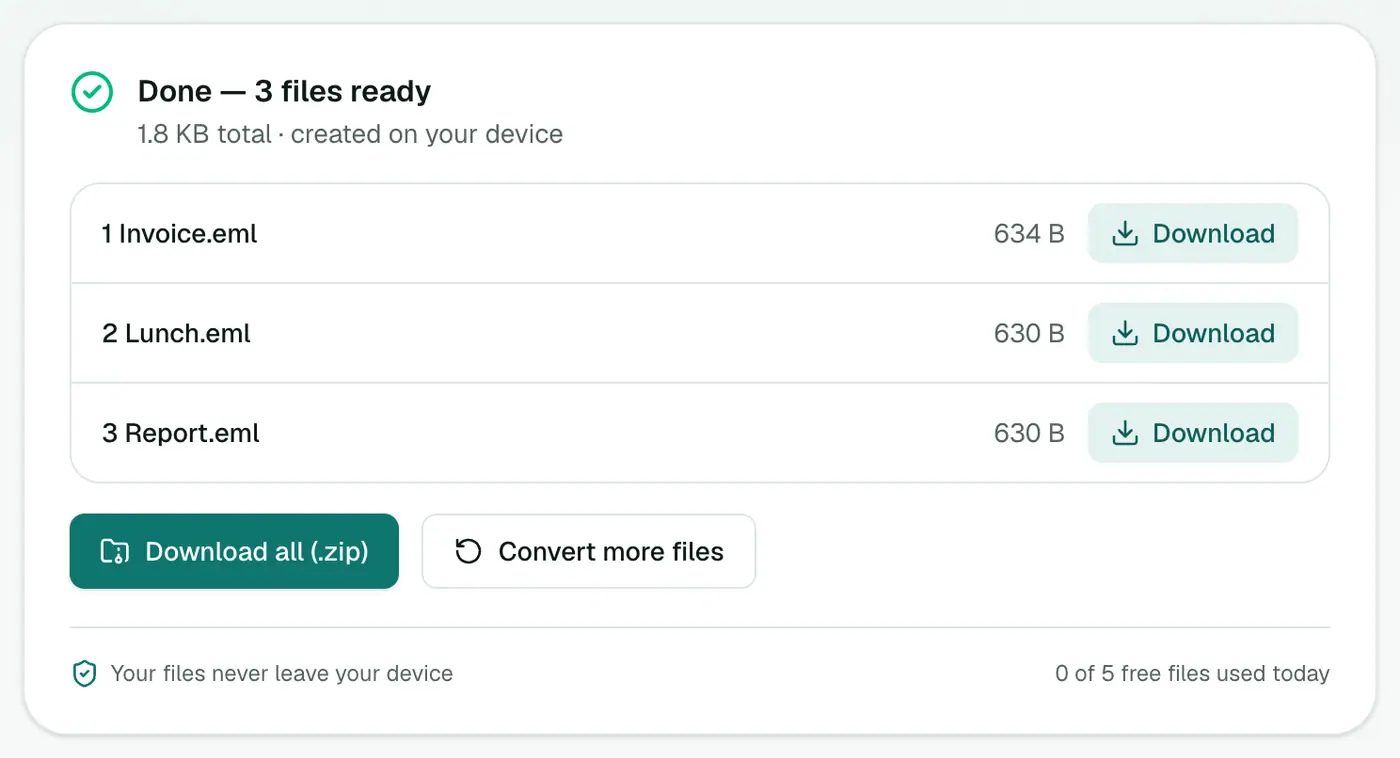
Click Convert to EML. You'll get one file per message. Download all gives you a ZIP.
What you can do with the EML files
- Double-click to open in Apple Mail, Outlook or Thunderbird.
- Forward an old email from your current account.
- Attach the original email to a support ticket or legal file.
- Merge selected ones into a chronological PDF with EML Merge.
- Pull out attachments in bulk with the Email Attachment Extractor.
Finding a specific email in hundreds of files
- Search the mailbox in the MBOX viewer to note the subject.
- In the unzipped folder, use File Explorer or Finder search for a word from the subject.
- Or sort by name: files are numbered in the order they appear in the mailbox.
Tips
- Find the right message first in the MBOX viewer. You might only need to download one attachment from there.
- Moving to Apple Mail? MBOX to EMLX creates Apple Mail's native format.
- Combine them again later with EML to MBOX.
Troubleshooting
"Has no messages in it." The file isn't an MBOX. Apple Mail exports are folders: use the mbox file inside.
Windows opens EMLs in a text editor. Right-click → Open with → Choose another app, pick your mail app and tick Always.
Summary
The MBOX to EML converter splits a mailbox into individual, portable emails with sensible file names.
FAQs
How are the files named?
With a sequence number and the subject, like "007 Invoice for January.eml", so they sort in mailbox order.
How do I download hundreds of files?
Use Download all to get them in one ZIP.
Why split a mailbox?
Single emails are easier to forward, attach to a ticket, hand to someone, or import selectively.
Are attachments kept?
Yes. Each EML is a complete email with its attachments.
What if a message in the MBOX is damaged?
Unreadable messages are skipped and the rest are converted.
Is the mailbox uploaded?
No. It's split in your browser.
Try the MBOX to EML Converter
Free to start, no install, and your files never leave your device.