Audio & video2 min read
How to Convert M4A to WAV (Voice Memos for Editing and Transcription)
Turn iPhone voice memos and other M4A/AAC audio into uncompressed WAV for audio editors, transcription services and tools that only accept WAV. Private, batch.
By the ZapMorph team
On this page
Just want it done?
Open the M4A to WAV Converter — it runs in your browser and nothing is uploaded.
Journalists, researchers and students record interviews on their iPhones all the time. The Voice Memos app produces M4A, and the transcription service, the editing software or the university's archive wants WAV.
How to convert M4A to WAV with ZapMorph
1. Open the converter
Go to the M4A to WAV converter.
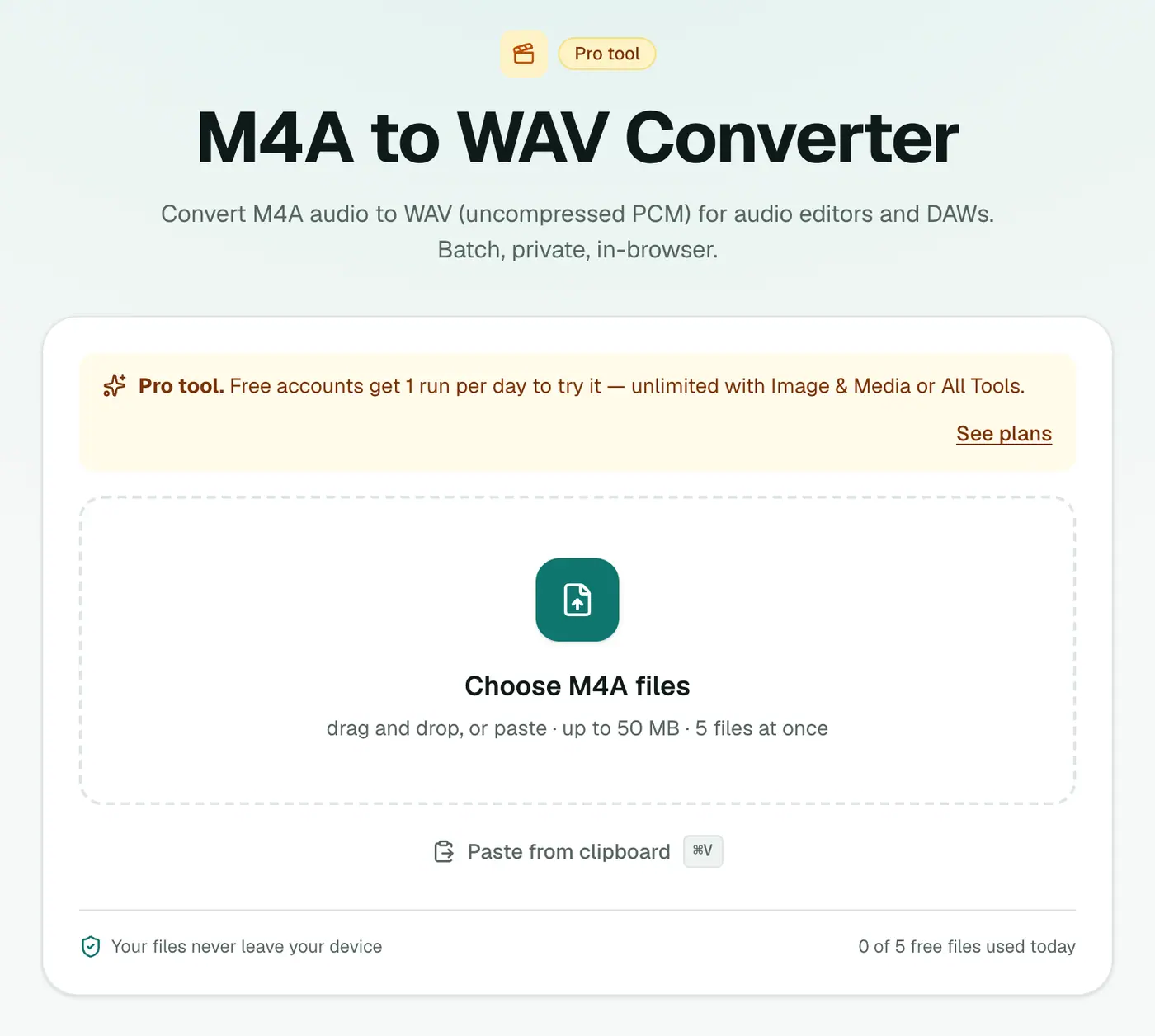
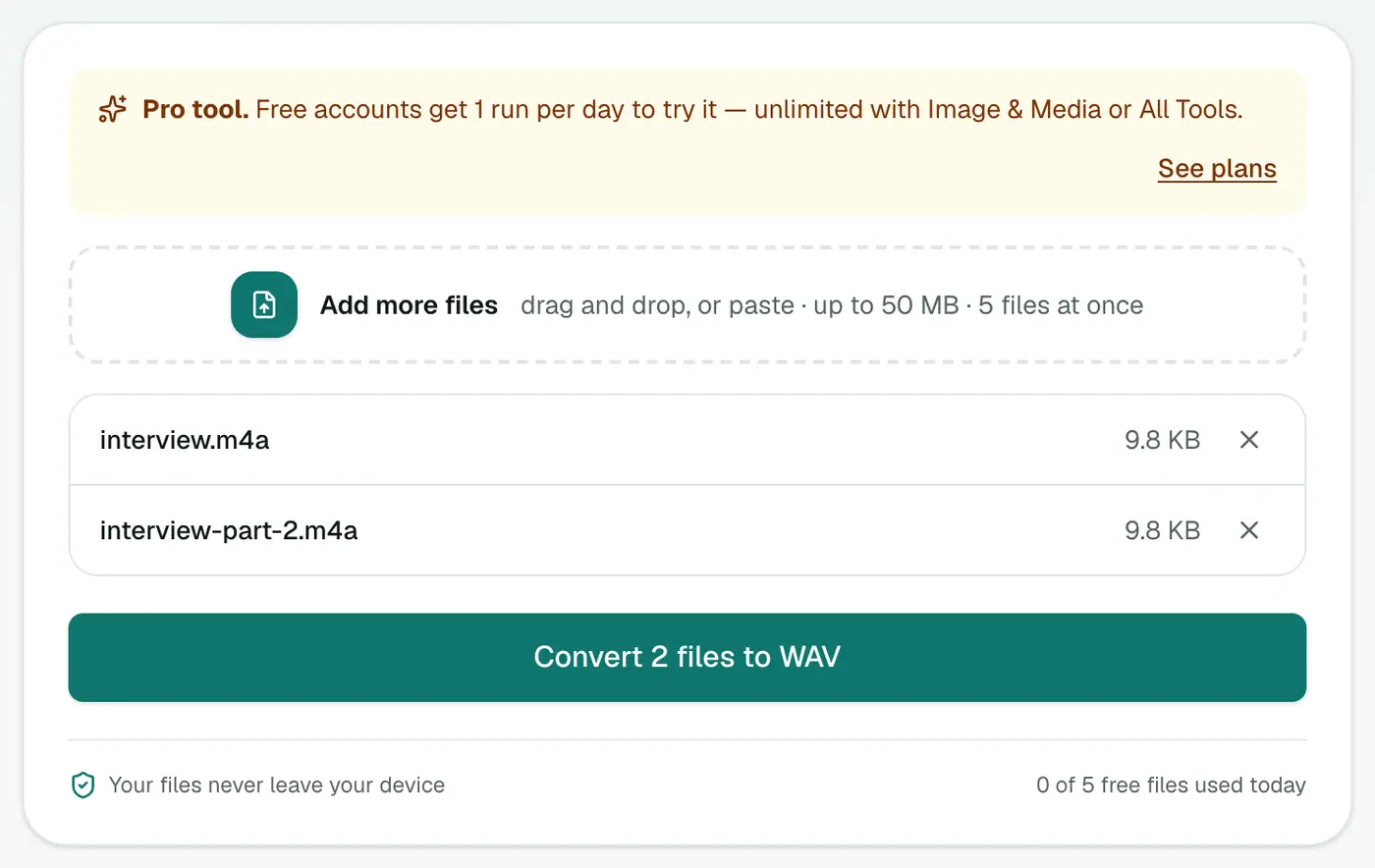
2. Add your recordings
Drop in .m4a or .aac files. Several at once is fine.
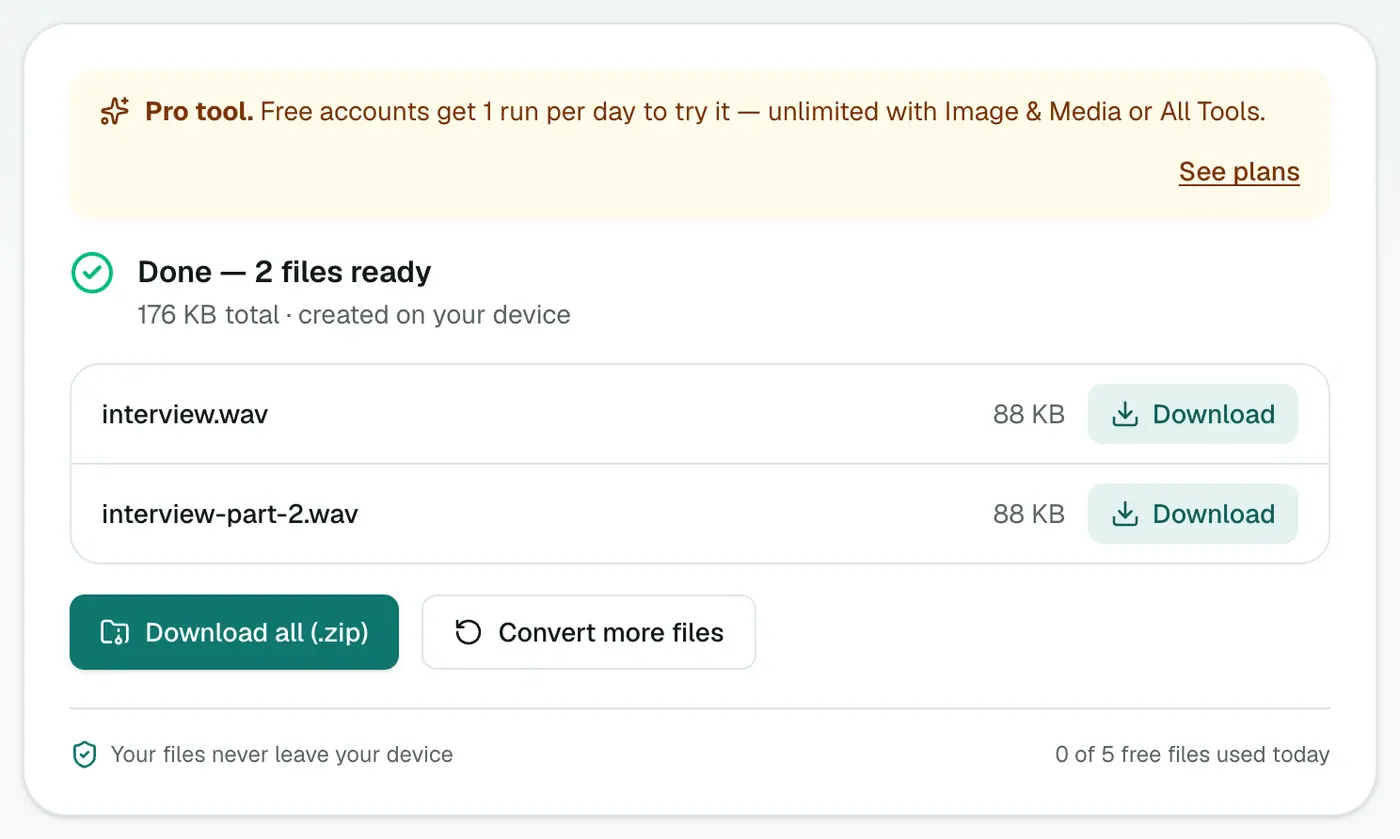
3. Convert and download
Click Convert to WAV.
Getting recordings off your iPhone
- AirDrop to a Mac: in Voice Memos, tap the recording → ⋯ → Share → AirDrop.
- Save to Files: ⋯ → Save to Files, then upload to iCloud Drive or a USB drive.
- Email: works for short memos, but large files may be too big.
- Mac Voice Memos app: if iCloud sync is on, recordings appear on your Mac too. Drag them to Finder.
Interview workflow
- Share the recording from Voice Memos to your computer.
- Convert to WAV here.
- Clean it up (noise reduction, levels) in Audacity if needed.
- Send it for transcription, or create captions yourself with the subtitle generator.
File size to expect
| Length | M4A (Voice Memos) | WAV |
|---|---|---|
| 10 minutes | ~5–10 MB | ~50–100 MB |
| 1 hour | ~30–60 MB | ~300–600 MB |
Upload limits on transcription services can be tight. If the WAV is too big, ask whether they accept FLAC, which is lossless and about half the size.
Tips
- Privacy: interview audio never leaves your device during conversion.
- Keep the original M4A as a backup. It's smaller and sounds the same.
- Mixed formats? The audio converter handles M4A, MP3, OGG, WMA and more in one go.
Troubleshooting
"Can't convert" on an iTunes purchase. Old protected .m4p files are DRM-locked and can't be converted.
Silence or very low volume. The recording itself is quiet. Use Audacity's Effect → Normalize after converting.
Summary
The M4A to WAV converter gives you an uncompressed copy of any M4A for editing, archiving or transcription.
FAQs
Why do some tools need WAV?
WAV is uncompressed and universally understood, so many transcription services, broadcast systems and older editors ask for it.
Will the WAV sound better than the M4A?
No, it sounds the same. But editing and re-saving a WAV won't add further compression loss.
Can I convert .aac files?
Yes, .m4a and .aac are both accepted.
Is it free?
Yes, once a day: one file up to 25 MB with no account. A free account gets one Pro tool run a day, and paid plans are unlimited.
What kind of WAV do I get?
Standard 16-bit PCM WAV at the recording's original sample rate, which every editor and transcription service accepts.
Are my recordings uploaded?
No. The conversion happens in your browser, which matters for confidential interviews.
Try the M4A to WAV Converter
Free to start, no install, and your files never leave your device.