Audio & video2 min read
How to Convert M4A to OGG
Convert M4A (AAC) audio, like iPhone recordings or GarageBand exports, to OGG Vorbis for games, Linux apps and open-source tools. Private, in your browser.
By the ZapMorph team
On this page
Just want it done?
Open the M4A to OGG Converter — it runs in your browser and nothing is uploaded.
You recorded something on your iPhone or exported a track from GarageBand, and now it's going into a game, a Linux app or an open-source project that wants OGG. Here's the quick conversion.
Why OGG Vorbis?
- Royalty-free: no licensing questions for games and open-source software.
- Game engines: Godot, Unity and others handle OGG Vorbis well, especially for music that loops.
- Linux: supported out of the box by nearly every player.
- Good quality at modest sizes: comparable to AAC and MP3.
How to convert M4A to OGG with ZapMorph
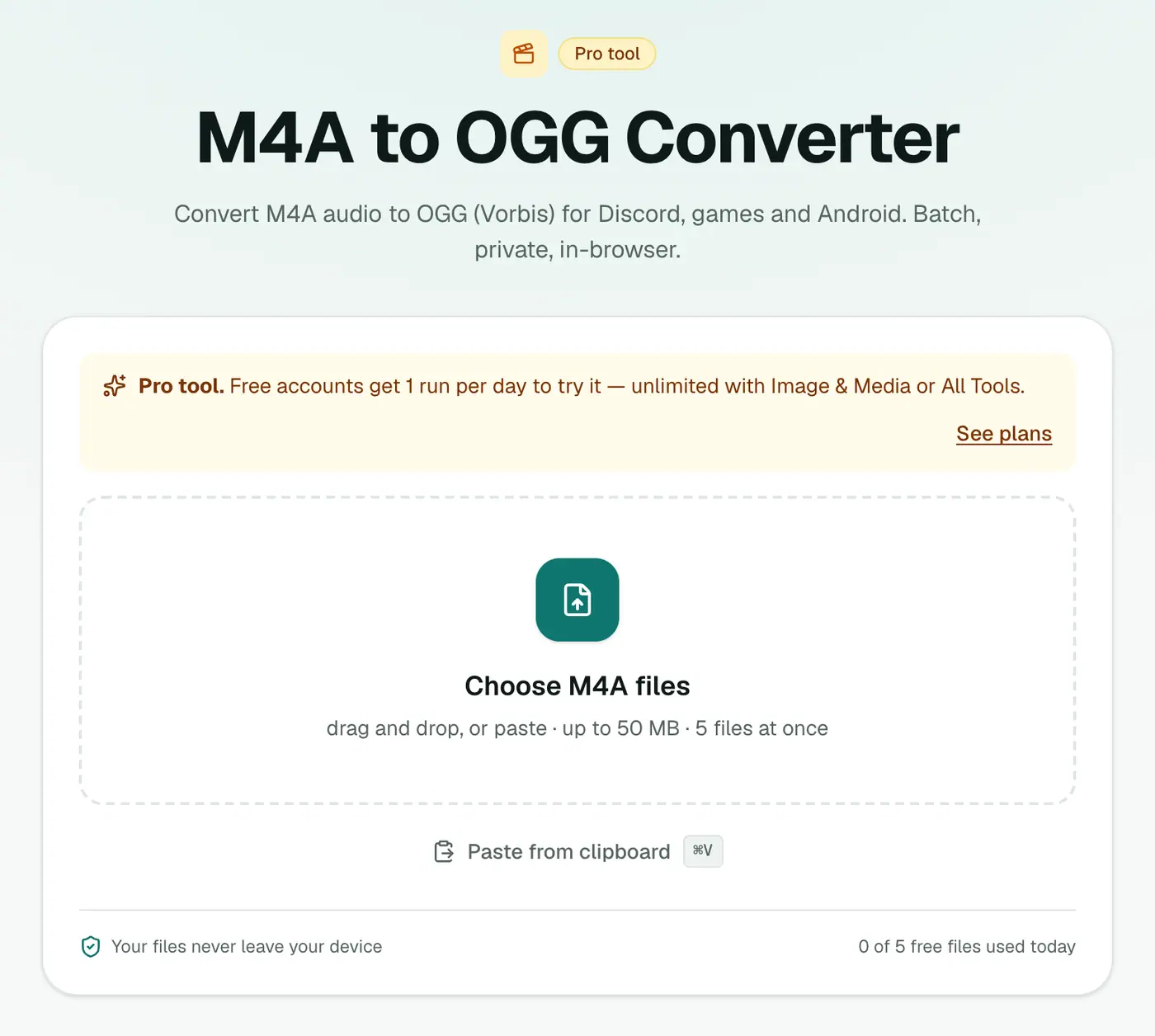
1. Open the converter
Go to the M4A to OGG converter.
2. Add files and choose the quality
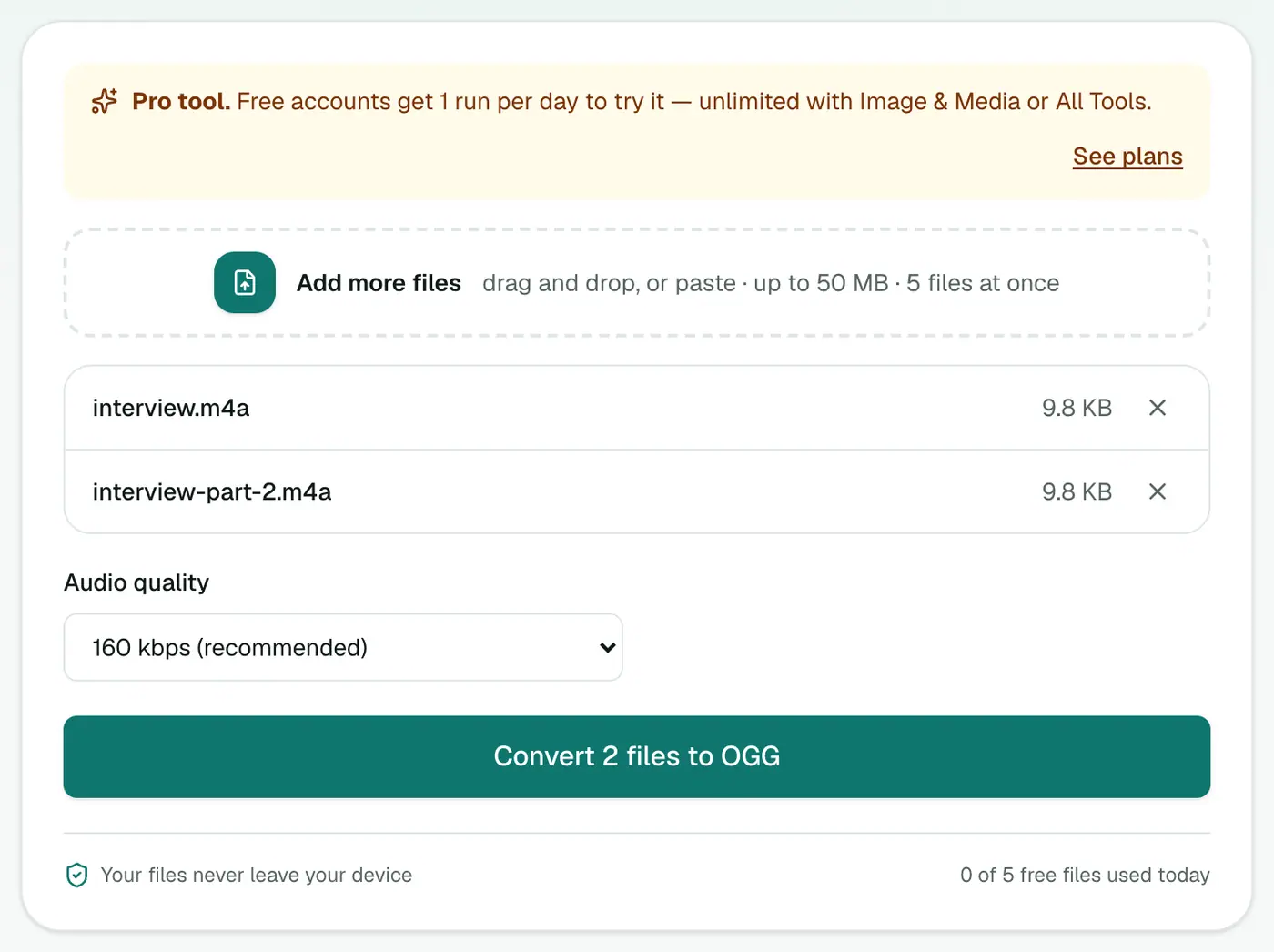
Drop in .m4a or .aac files and pick 96 kbps (voice), 160 kbps (recommended) or 256 kbps (best).
3. Convert and download
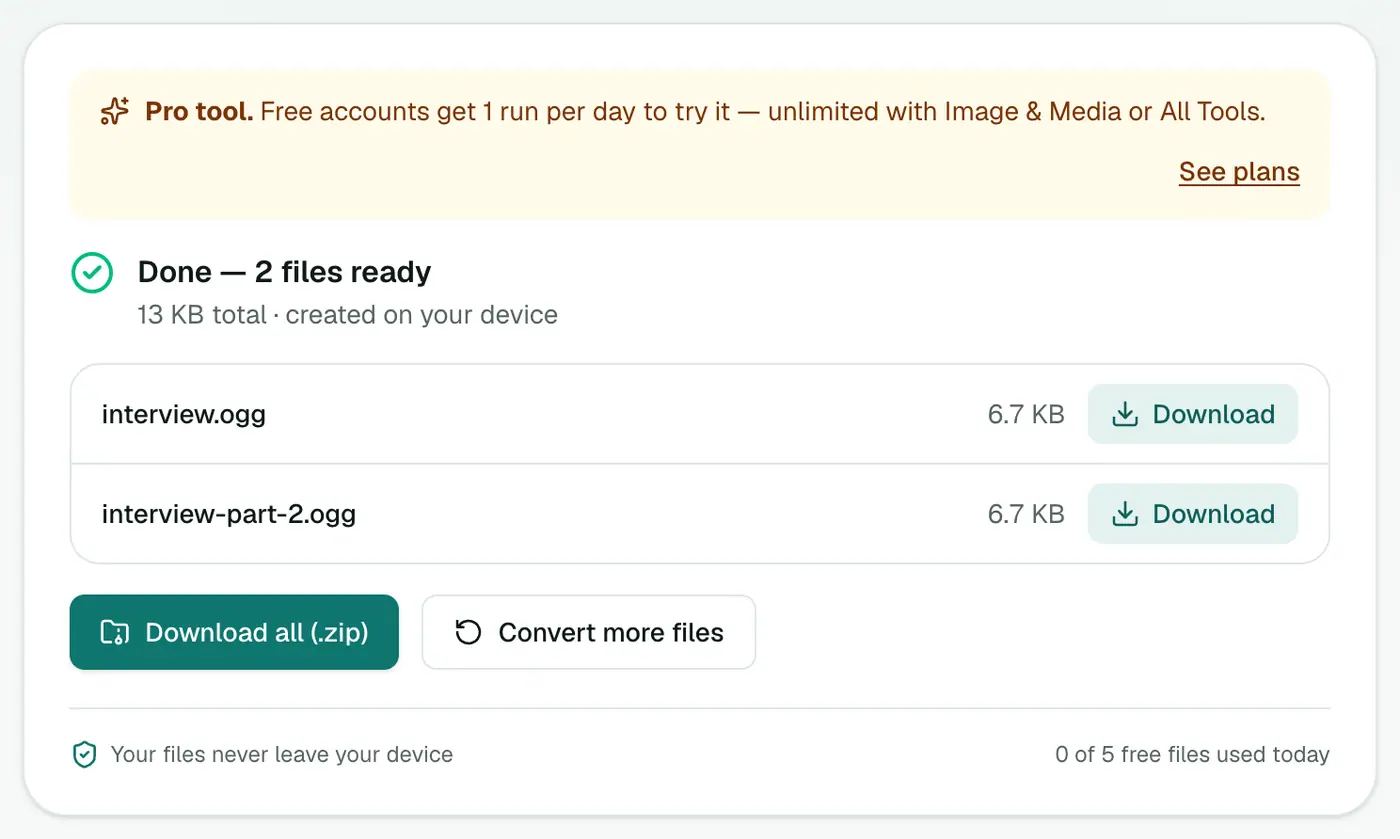
Click Convert to OGG.
Tip
If you have the original project in GarageBand, export it as WAV or AIFF and convert that with WAV to OGG (or the audio converter for AIFF). One compression step sounds better than two.
Tips for game audio
- Music and ambience: 160 kbps is plenty. Players won't hear the difference, and download size matters.
- Short sound effects: many engines prefer WAV for tiny clips because it decodes instantly. Keep OGG for longer sounds.
- Looping music: trim silence at the start and end before converting, so loops are seamless.
- Consistent volume: normalise all tracks in an editor first, so nothing jumps out.
Getting M4A off an iPhone
- Voice Memos: tap a recording → ⋯ → Save to Files, or share it to your Mac with AirDrop.
- GarageBand for iOS: Share → Song → choose AAC (M4A).
Troubleshooting
"The file isn't supported." Protected iTunes Store purchases from before 2009 (.m4p) are DRM-locked and can't be converted.
Output sounds slightly different. Converting from one compressed format to another adds a little loss. Starting from WAV avoids it.
Summary
The M4A to OGG converter takes Apple-format audio into the open OGG format in a couple of clicks.
FAQs
Why would I need OGG?
Game engines like Godot, many Linux apps and some open-source projects work best with OGG Vorbis.
Which quality?
160 kbps (recommended) in most cases, 96 kbps for voice.
Does it accept .aac files?
Yes, .m4a and .aac files are both accepted.
Is it free?
Yes, once a day: one file up to 25 MB with no account. A free account gets one Pro tool run a day, and paid plans are unlimited.
Is the output Vorbis or Opus?
OGG Vorbis, the most widely supported codec inside OGG files, especially in game engines.
Are my files uploaded?
No. They're converted in your browser.
Try the M4A to OGG Converter
Free to start, no install, and your files never leave your device.