Data & docs2 min read
How to Convert JSON to YAML for Config Files
Turn JSON into clean, readable YAML for Kubernetes, Docker Compose, GitHub Actions and other config files. Quick examples and gotchas.
By the ZapMorph team
On this page
Just want it done?
Open the JSON to YAML Converter — it runs in your browser and nothing is uploaded.
A lot of tooling speaks YAML: Kubernetes manifests, Docker Compose, GitHub Actions, Ansible, OpenAPI specs. But APIs and generators often hand you JSON. Converting makes the config far easier to read, review and comment on.
Example
{
  "service": "api",
  "replicas": 3,
  "ports": [8080, 8443],
  "env": { "LOG_LEVEL": "info", "DEBUG": false }
}
becomes:
service: api
replicas: 3
ports:
  - 8080
  - 8443
env:
  LOG_LEVEL: info
  DEBUG: false
How to convert JSON to YAML with ZapMorph
1. Open the converter
Go to the JSON to YAML converter.
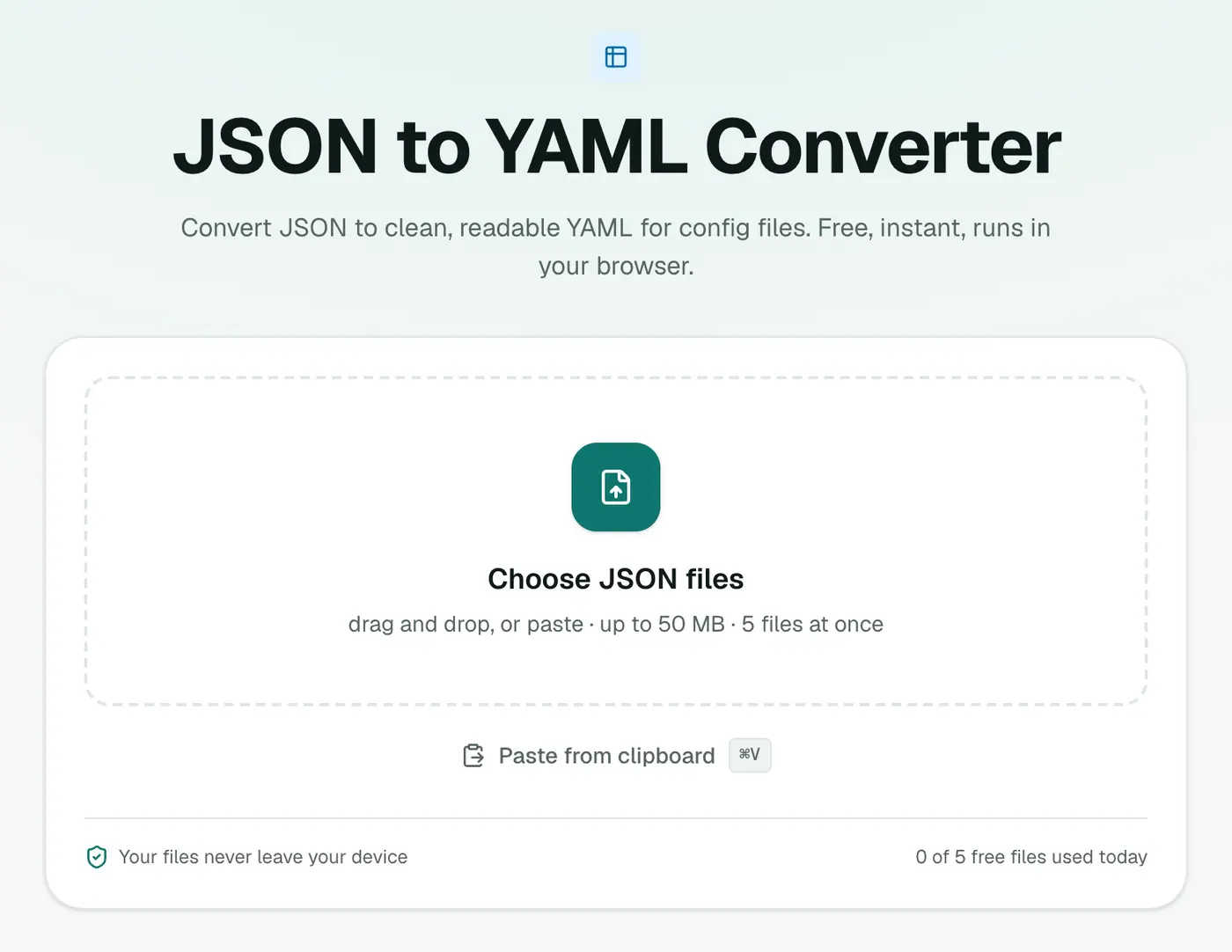
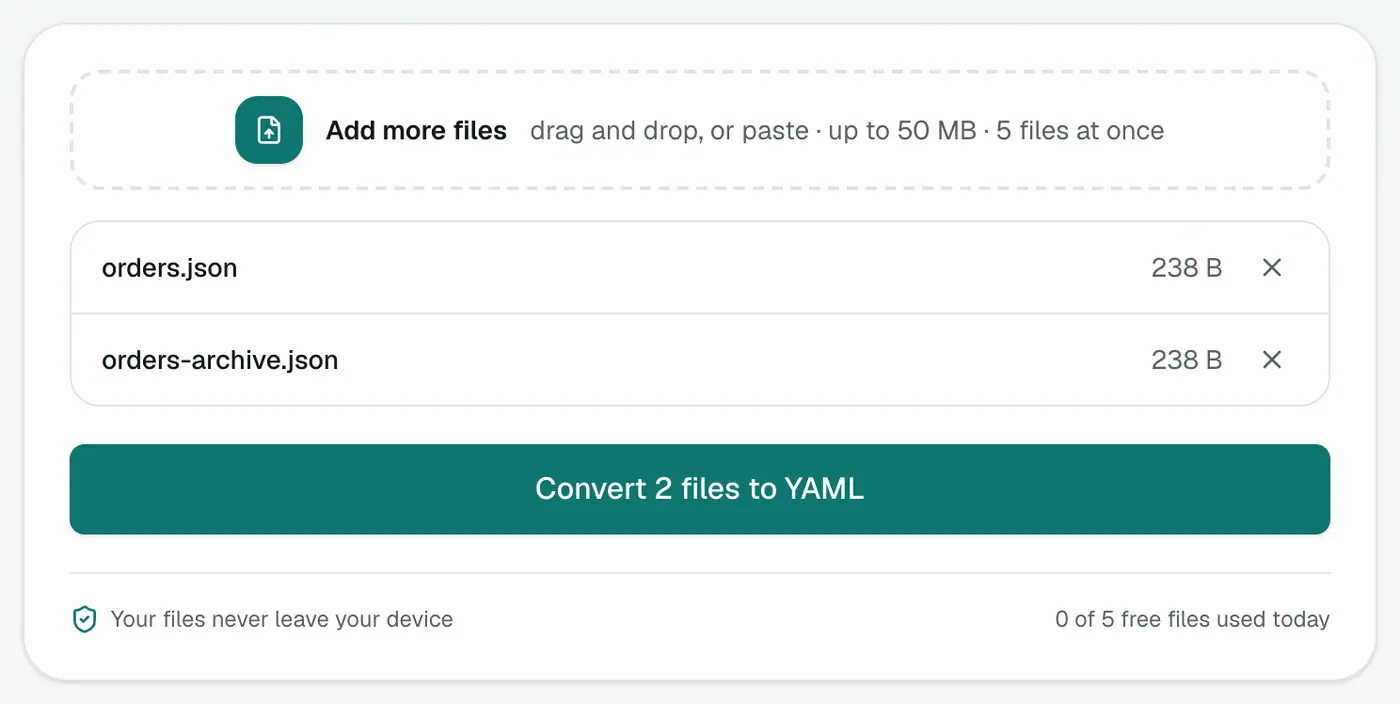
2. Add your JSON
Drop in .json files or paste JSON with Ctrl+V.
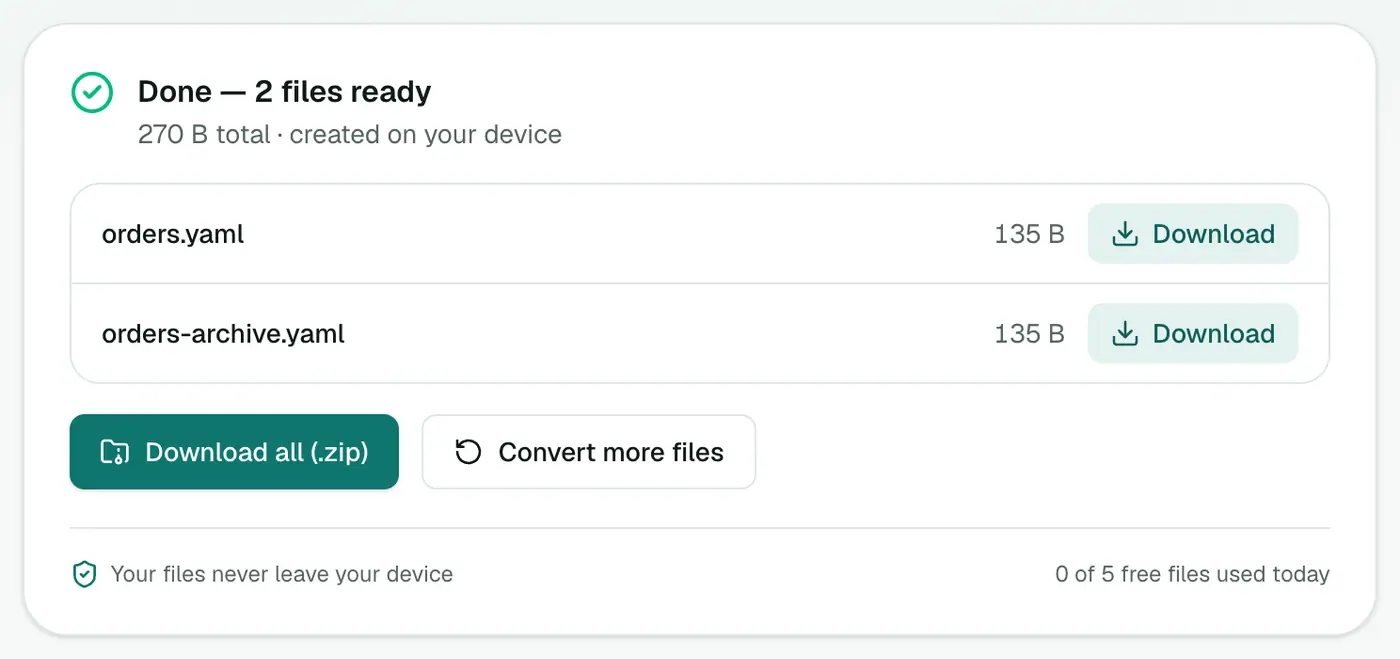
3. Convert and download
Click Convert to YAML.
YAML gotchas worth knowing
- Indentation is meaning. Use spaces, never tabs.
- The "Norway problem": in older YAML parsers,
NO(the country code) was read asfalse. The converter quotes risky values so this doesn't bite. - Version numbers like
1.10can become1.1if unquoted. Quoted strings stay safe.
Other ways
- yq:
yq -P data.json > data.yaml. - Python:
yaml.safe_dump(json.load(f)).
Related
- The reverse: YAML to JSON.
- Validate your JSON first with the JSON formatter.
Example
{ "image": "nginx:1.27", "ports": ["80:80"], "restart": "always" }
image: nginx:1.27
ports:
  - 80:80
restart: always
Where YAML is expected
- Kubernetes manifests and Helm values.
- Docker Compose files.
- CI pipelines: GitHub Actions, GitLab CI.
- Ansible, OpenAPI specs and many app configs.
Tips
- Indentation matters in YAML, and it must be spaces, never tabs.
- Quote ambiguous values like
yes,noor version numbers if you edit by hand. - Going the other way? YAML to JSON.
Summary
For readable, reviewable config, the JSON to YAML converter converts in a click and quotes the values YAML might misread.
FAQs
Is YAML just JSON without brackets?
Roughly. YAML is a superset of JSON, so the same data can be expressed in both. YAML uses indentation instead of braces and is easier to read and comment.
Are comments preserved?
JSON has no comments, so there's nothing to preserve. You can add comments to the YAML afterwards with #.
Will strings like "yes" or "on" stay strings?
The converter quotes values that YAML could misread, so your data round-trips correctly.
Is my data uploaded?
No. It's converted in your browser.
Can I add comments to the YAML?
Yes, after converting. YAML supports # comments; JSON doesn't, so there are none to carry over.
Try the JSON to YAML Converter
Free to start, no install, and your files never leave your device.