Image3 min read
How to Convert JPG to WebP to Speed Up Your Website
Make your site's photos 25–35% smaller by converting them to WebP. A practical guide covering quality settings, batch converting and how to use WebP safely.
By the ZapMorph team
On this page
Just want it done?
Open the JPG to WebP Converter — it runs in your browser and nothing is uploaded.
If you run a website, a blog or an online shop, images are almost certainly the heaviest thing on your pages. Converting them from JPG to WebP is one of the easiest speed wins there is. Same look, noticeably smaller files.
Google's PageSpeed Insights even nags you about it: "Serve images in next-gen formats." This is what it means.
Why bother with WebP
- Smaller files: typically 25–35% smaller than JPG at the same visual quality.
- Faster pages: less to download, especially on mobile data.
- Better Core Web Vitals: your largest image is often the "Largest Contentful Paint" element, and a lighter image helps that score.
- Universal browser support: Chrome, Edge, Firefox and Safari all display WebP.
Where WebP isn't a good idea: images you're emailing, printing or sending to someone who'll open them in older desktop software. Keep those as JPG.
How to convert JPG to WebP with ZapMorph
1. Open the converter
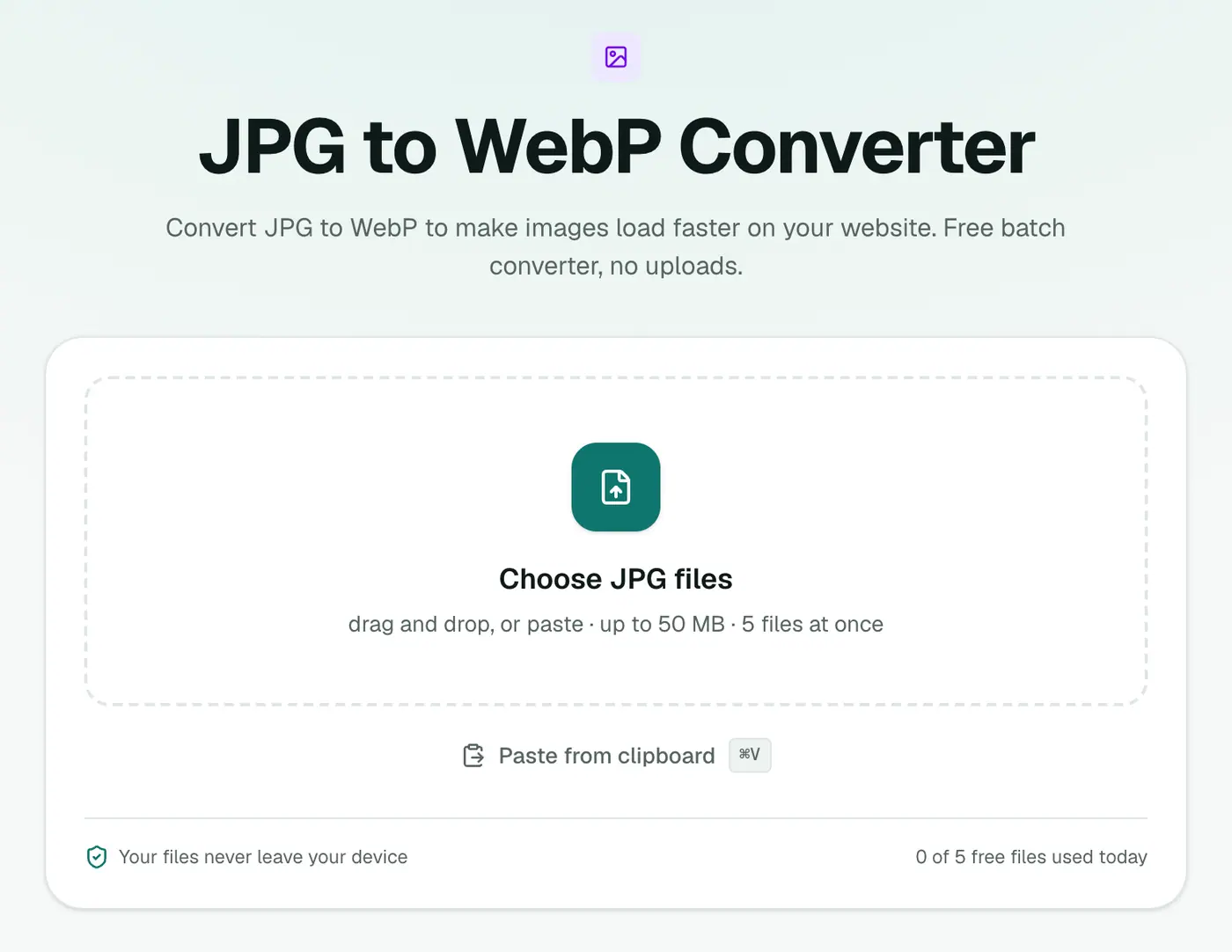
Go to the JPG to WebP converter.
2. Add your photos and set the quality
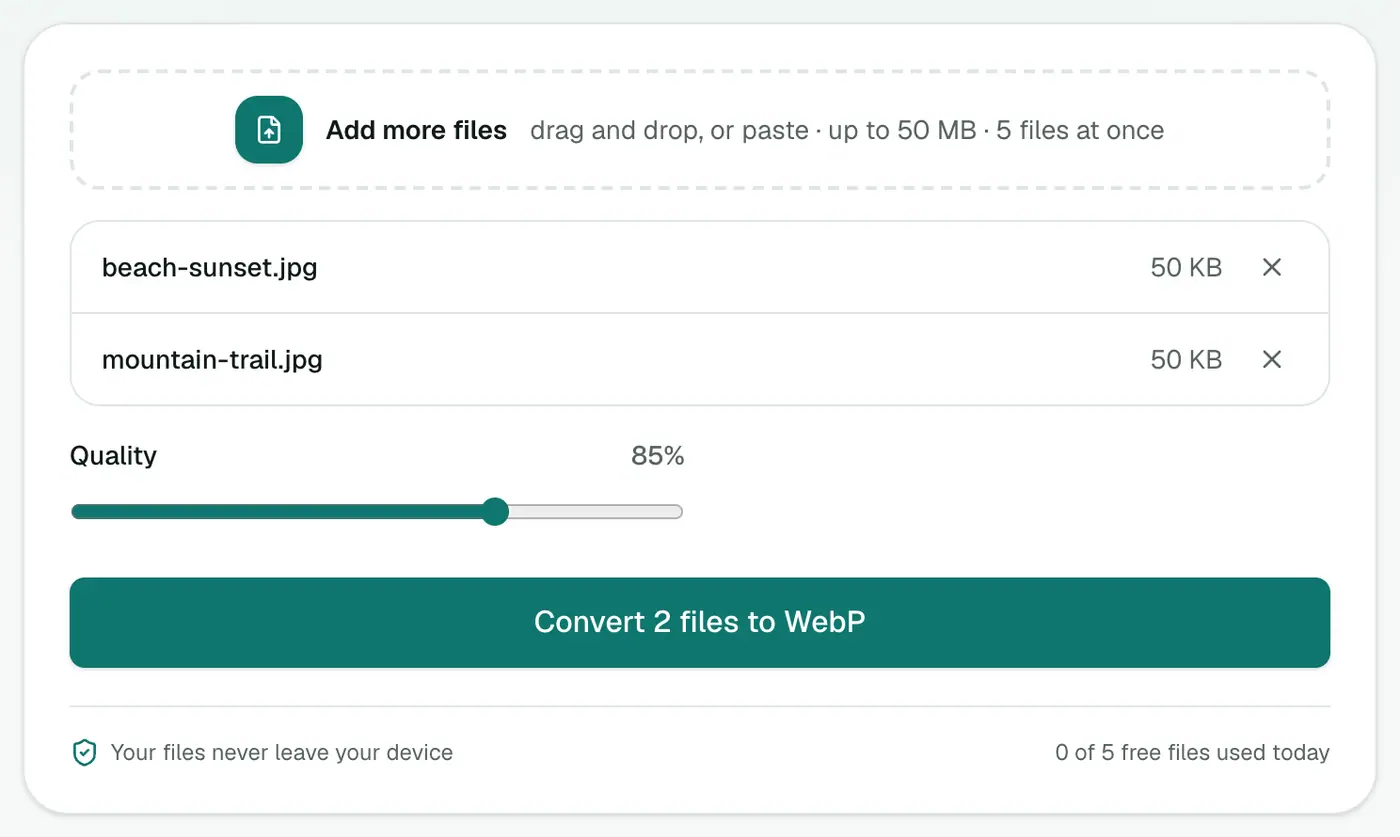
Drag in a batch of JPGs. The Quality slider defaults to 85%, a sensible web setting. A few rules of thumb:
- 85% for most blog and product images.
- 75–80% for big hero or background images where nobody's examining detail.
- 90%+ for photography portfolios or products customers will zoom into.
3. Convert and download
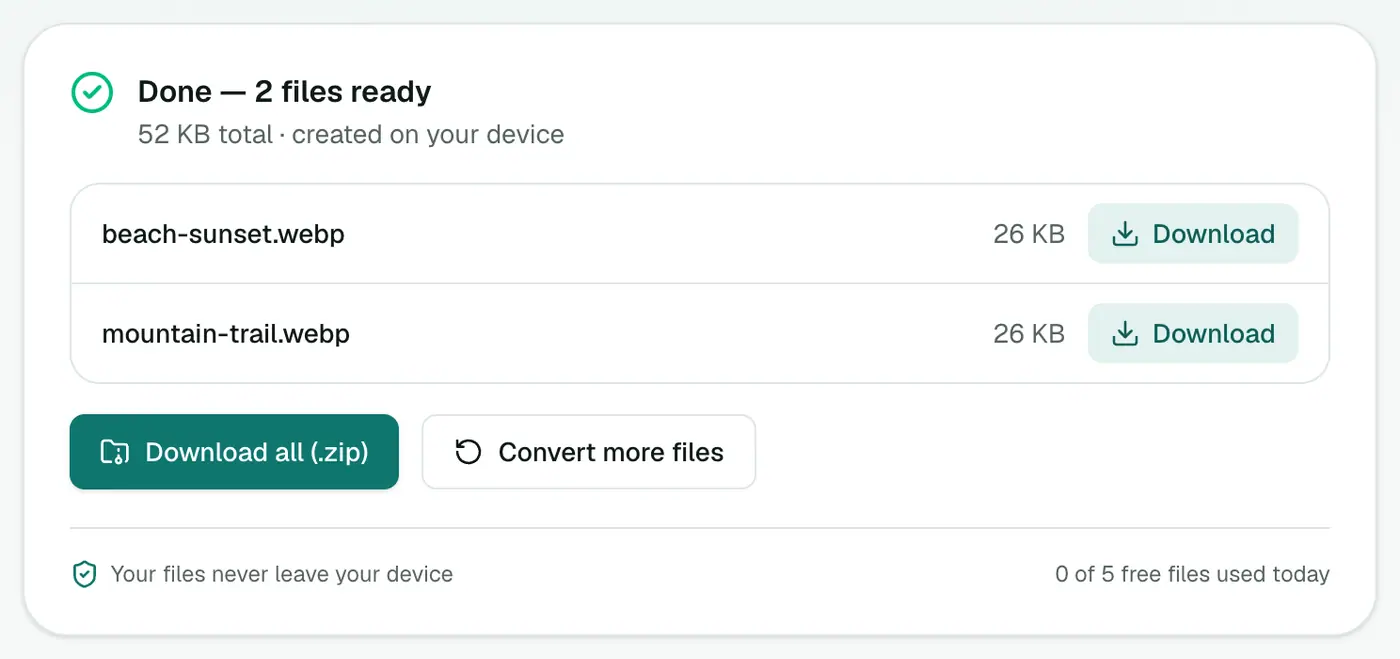
Hit Convert to WebP and download the results. For a batch, the ZIP keeps your original file names, which makes swapping them into your site easier.
Before you upload them
A few things trip people up:
- Resize first. Converting a 6000-pixel camera photo to WebP still gives you a huge file. Your site probably never shows images wider than 1600–2000 pixels. Use the image resizer first, or the image compressor, which can resize and convert to WebP in one step.
- Check your CMS. WordPress (5.8+), Shopify, Squarespace and Wix accept WebP uploads. Some older themes and plugins don't.
- Keep the originals. Store your JPGs somewhere safe. If you ever need to print or re-edit, start from those.
- Email and social posts: most social networks re-encode images anyway, so converting for them doesn't buy you much.
Other tools
If you're a developer, Google's cwebp command-line tool converts whole folders and gives fine control. Image CDNs like Cloudflare Images or Cloudinary can serve WebP automatically without you converting anything.
For everyone else, or for a quick batch of images for a blog post, the browser converter is the least fuss.
Expected savings
| Image | JPG | WebP (85%) |
|---|---|---|
| Hero image, 1920 px | 400 KB | 250–300 KB |
| Product photo, 1200 px | 180 KB | 110–130 KB |
| Blog image, 800 px | 90 KB | 55–65 KB |
Using WebP on your site
- WordPress accepts WebP uploads natively (since 5.8).
- Shopify and most CDNs may already serve WebP automatically. Check before converting.
- Plain HTML: use
<picture>with a WebP<source>and a JPG fallback if you still support very old browsers. - Set width and height on
<img>so the page doesn't jump while loading.
Summing up
Converting your site's photos to WebP is a cheap, reliable performance improvement. Resize them to a sensible width, run them through the JPG to WebP converter at around 85%, and upload. Got PNG graphics too? There's a PNG to WebP converter for those.
FAQs
How much smaller will my images get?
Usually 25–35% smaller than a JPG of similar visual quality, sometimes more. The exact saving depends on the photo.
What quality should I use?
85% (the default) is a good balance for websites. 75–80% is usually fine for large background images. Go higher for product photos people will zoom into.
Do all browsers support WebP?
Every current browser does, including Safari on iPhone and Mac since 2020. Very old browsers don't, which is why some sites keep a JPG fallback.
Can I convert WebP back to JPG later?
Yes, but each lossy conversion loses a little detail. Keep your original JPGs and convert from those.
Is my image uploaded?
No. Conversion happens in your browser.
Does WebP help SEO?
Indirectly. Smaller images load faster, which improves Core Web Vitals such as Largest Contentful Paint, one of the signals Google uses.
Try the JPG to WebP Converter
Free to start, no install, and your files never leave your device.