PDF2 min read
How to Combine Images of Any Format Into One PDF
Mix JPG, PNG, WebP, GIF, BMP and AVIF images in a single PDF, in the order you choose. Ideal for assignments, receipts and portfolios.
By the ZapMorph team
On this page
Just want it done?
Open the Image to PDF Converter — it runs in your browser and nothing is uploaded.
Real life rarely gives you neat folders of JPGs. A typical school assignment or expense claim might involve a phone photo, two screenshots, a WebP saved from a website and a scan from the office printer. The Images to PDF converter takes the lot and puts them into one document.
How to combine images into a PDF with ZapMorph
1. Open Images to PDF
Go to the Images to PDF converter.
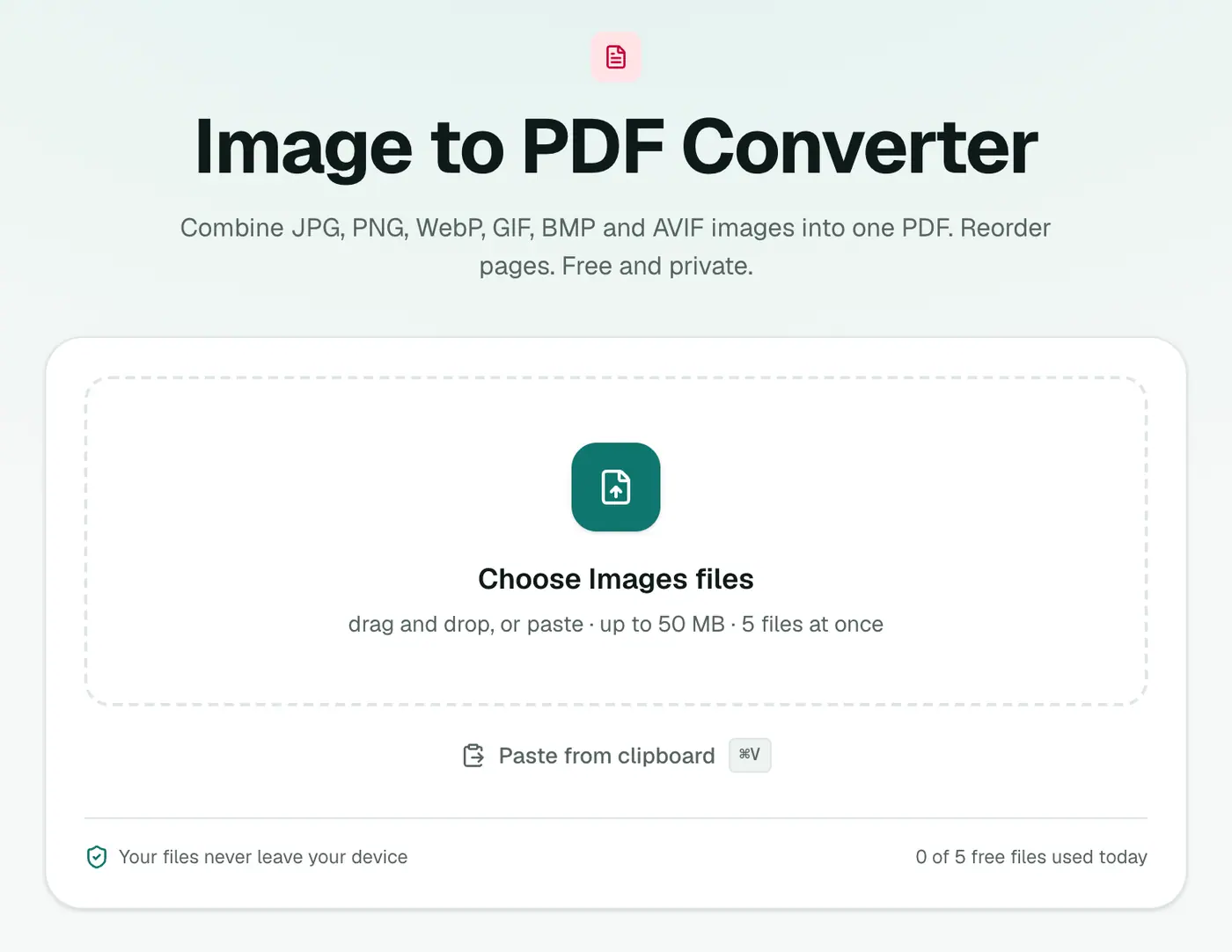
2. Add your images and arrange them
Select everything at once, whatever the format. Put the pages in order with the arrows, then choose:
- Page size: A4, US Letter, or Same as image.
- Margin: none, small or large.
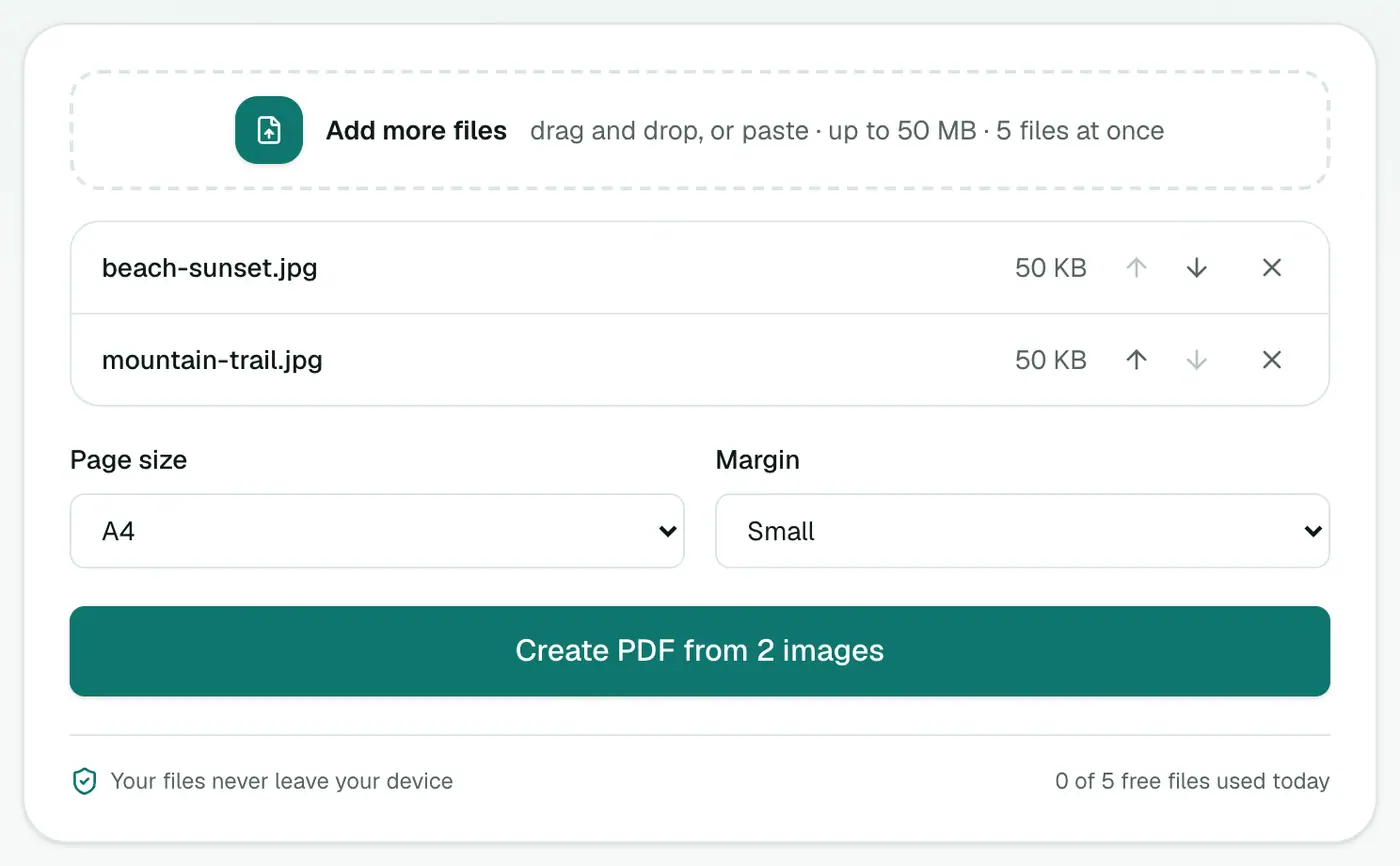
3. Create the PDF
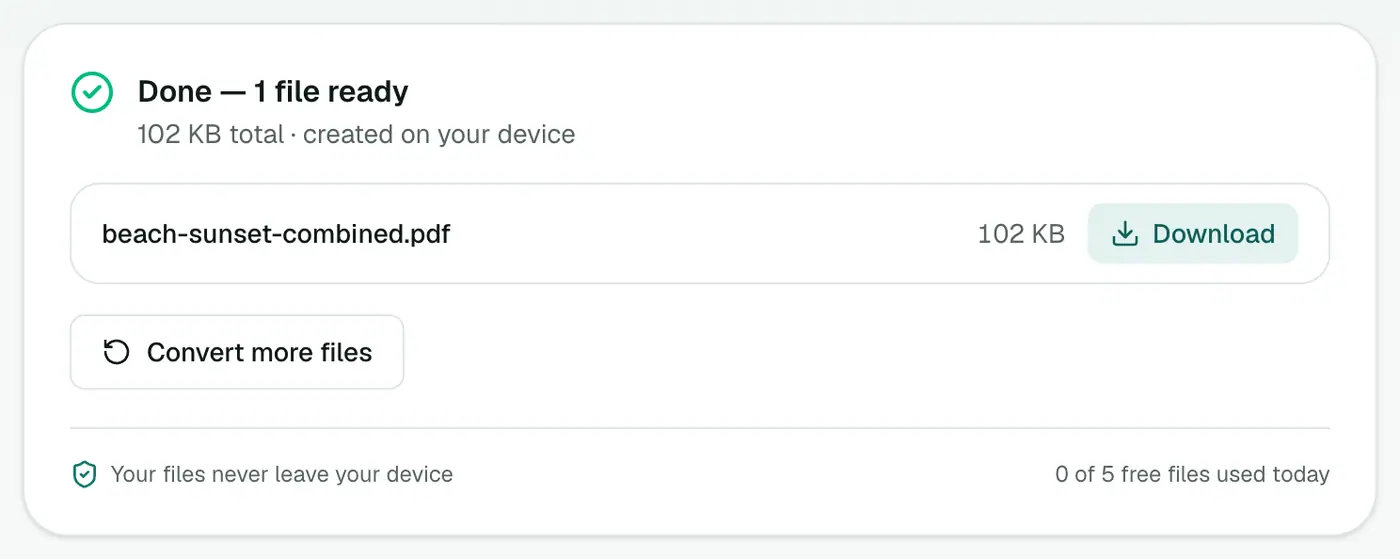
Click Create PDF and download.
Ideas for using it
- Homework and assignments: photos of handwritten work plus screenshots of results.
- Expense claims: receipts from photos, email screenshots and downloaded invoices.
- Portfolios: artwork in different formats, each on its own page with "Same as image".
- Visa and rental applications: ID photos and documents, in the order the checklist asks for.
Tips
- Check orientation first. A sideways photo will be a sideways page. If you notice afterwards, Rotate PDF can fix just the landscape or portrait pages.
- Keep the file size sensible. Phone photos are big. Compress PDF shrinks the finished document.
- Add page numbers for long submissions with Add Page Numbers.
Page size and margin
| Setting | Best for |
|---|---|
| A4 / US Letter | Printing, forms, assignments |
| Same as image | Screenshots and portfolios with no borders |
| Small margin | Receipts and documents |
| No margin | Photos edge to edge |
Wide images are automatically placed on landscape pages.
Common uses
- Receipts for an expense claim.
- Homework and assignments photographed with a phone.
- Portfolios of designs or artwork.
- ID documents for applications (front and back in one file).
Next steps
- Too big to upload? Compress PDF.
- Make text searchable: OCR PDF.
Bottom line
When your images come in every format under the sun, Images to PDF is the one-step way to get a single, ordered PDF, made privately in your browser.
FAQs
Which image formats can I mix?
JPG, PNG, WebP, GIF, BMP and AVIF can all go into the same PDF. For iPhone HEIC photos, use HEIC to PDF.
How do I change the page order?
After adding the images, use the up and down arrows next to each one. The list order is the page order.
Can I make each page the size of its image?
Yes. Choose "Same as image" as the page size.
Is there a page limit?
The number of files you can add at once depends on your plan. Very large batches also depend on your device's memory.
Is anything uploaded?
No. The PDF is built in your browser.
Try the Image to PDF Converter
Free to start, no install, and your files never leave your device.