PDF2 min read
How to Convert an HTML File to PDF
Archive a saved web page, HTML export or emailed report as a clean, readable PDF. What's kept, what's left out, and when to use your browser's print instead.
By the ZapMorph team
On this page
Just want it done?
Open the HTML to PDF Converter — it runs in your browser and nothing is uploaded.
HTML files turn up in more places than you'd think: reports exported from analytics or HR tools, saved web pages, invoices generated as HTML, newsletters saved from email. They open in a browser, but they're awkward to archive, attach or print.
This converter turns them into clean, readable PDFs focused on the content.
How to convert HTML to PDF with ZapMorph
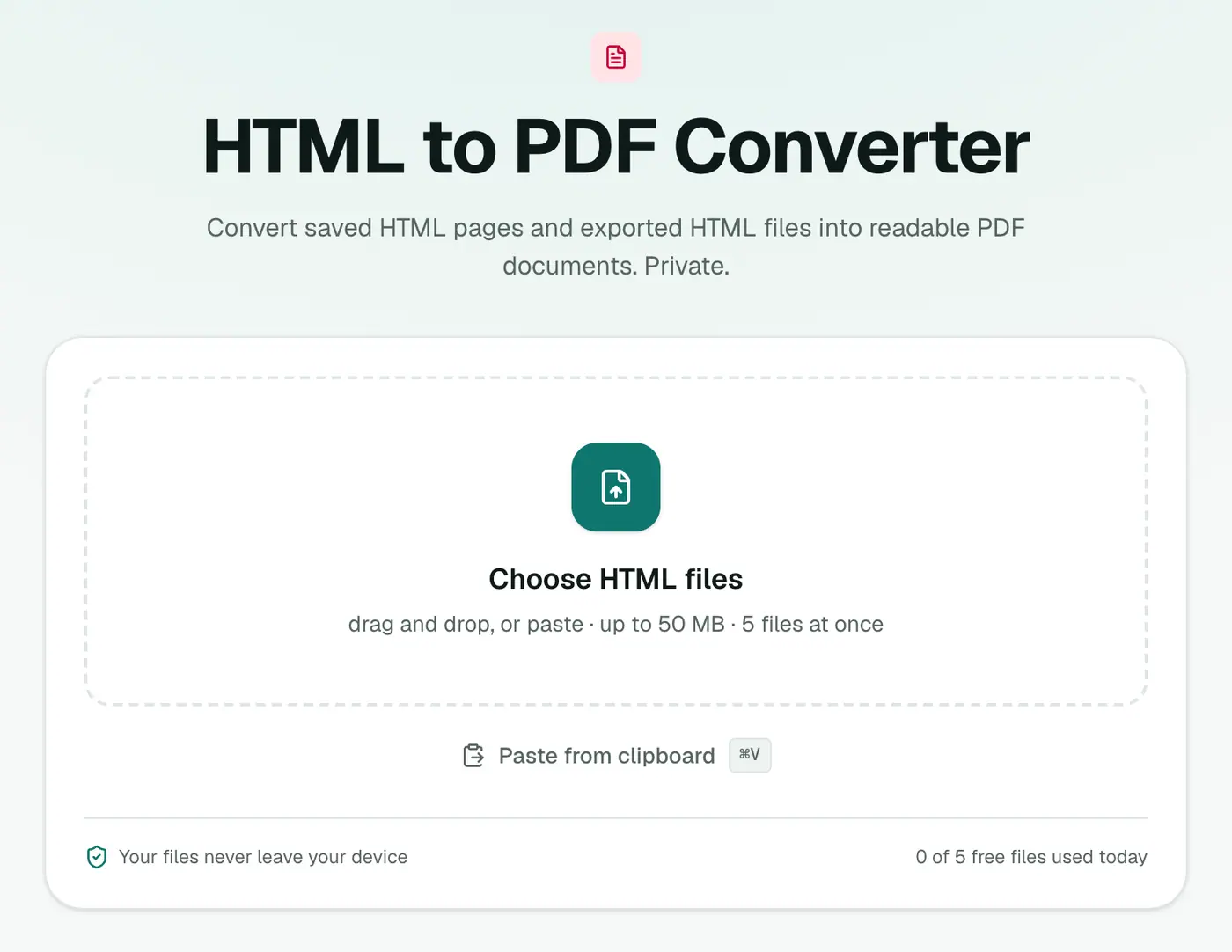
1. Open HTML to PDF
Go to the HTML to PDF converter.
2. Add your HTML files
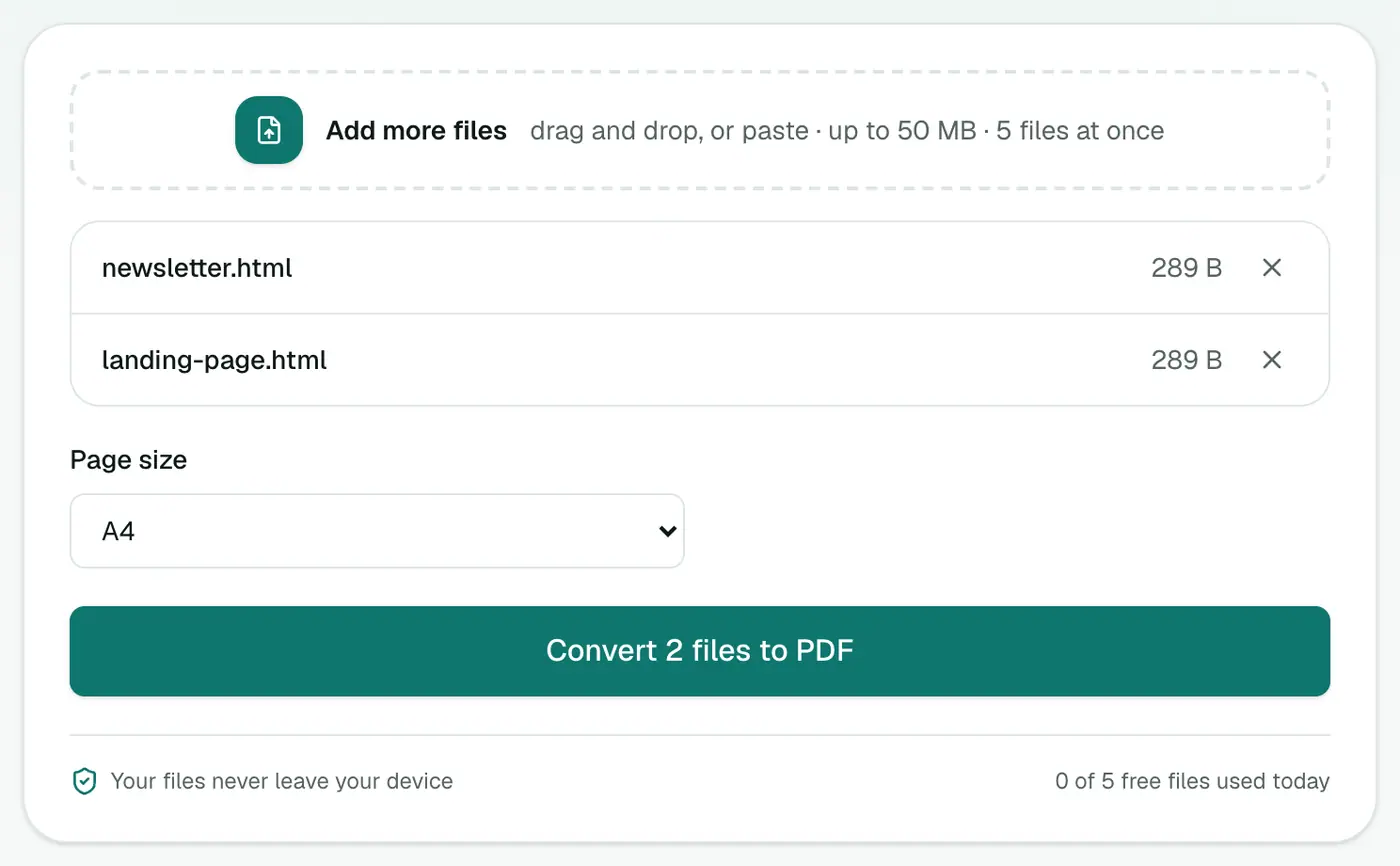
Drop in .html or .htm files and choose A4 or US Letter.
3. Convert and download
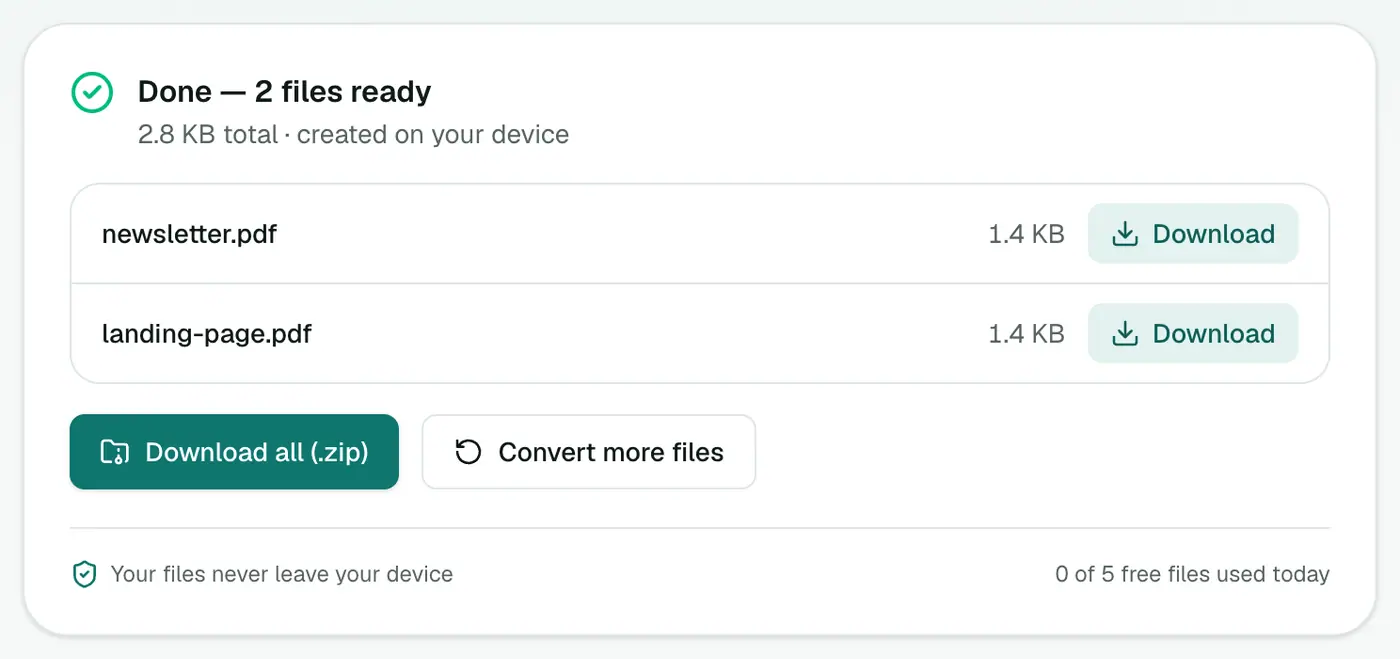
Click Convert to PDF.
Content mode vs browser print
This converter gives you a reading-focused PDF: the words, headings, lists and tables, without menus, ads, scripts or styling. That's ideal for archiving articles and reports.
If you need the exact visual look (colors, layout, images), open the HTML file in Chrome or Edge and use Print → Save as PDF. Tick "Background graphics" in More settings to keep colors.
Tips
- Saving a web page first: press Ctrl+S (Cmd+S) and choose "Webpage, HTML only" to get a single
.htmlfile. - Want editable text instead? HTML to Word gives you a DOCX.
- Moving content to a Markdown wiki? HTML to Markdown.
Clean document vs exact copy
| HTML to PDF | Browser Print → Save as PDF | |
|---|---|---|
| Layout | Clean, readable document | Looks like the page |
| Menus, ads, footers | Content-focused | Often included |
| Remote images | Left out | Included |
| Works on saved .html files | ✓ | ✓ |
Good uses
- Archiving articles and documentation as readable text.
- HTML reports and exports from tools and CMSs.
- Email newsletters saved as HTML.
Tips
- Save the page first: File → Save Page As → Web Page, HTML only.
- Need images too? Use the browser's print dialog instead.
Summary
For a tidy, text-first PDF of an HTML report or saved page, use the HTML to PDF converter. For a pixel-perfect copy, your browser's Save as PDF is the better tool.
FAQs
Does the PDF look exactly like the web page?
No. The text content (headings, paragraphs, lists and tables) is laid out as a clean document. Scripts, styling and remote images are left out.
When should I use my browser's Print to PDF instead?
When you need the page to look exactly as it does on screen, with its styling. Open it in the browser and choose Print → Save as PDF.
Can I convert a URL directly?
This converter works on HTML files you've saved or received. Save the page first (Ctrl+S / Cmd+S), then convert the .html file.
Is my file uploaded?
No. The PDF is created in your browser.
Will the PDF look like the web page?
It keeps the text content (headings, paragraphs, lists and tables) as a clean document. Styling, scripts and remote images are left out. For an exact visual copy, use your browser's Print → Save as PDF.
Try the HTML to PDF Converter
Free to start, no install, and your files never leave your device.