Data & docs2 min read
How to Convert HTML to Markdown for Notion, Obsidian or GitHub
Move web pages and CMS content into Markdown with headings, links, lists and code blocks intact. Scripts and styling are stripped.
By the ZapMorph team
On this page
Just want it done?
Open the HTML to Markdown Converter — it runs in your browser and nothing is uploaded.
Migrating a blog to a static site generator, moving docs into GitHub, pulling articles into Obsidian, or tidying a CMS export: they all start with HTML and end with Markdown.
How to convert HTML to Markdown with ZapMorph
1. Open the converter
Go to the HTML to Markdown converter.
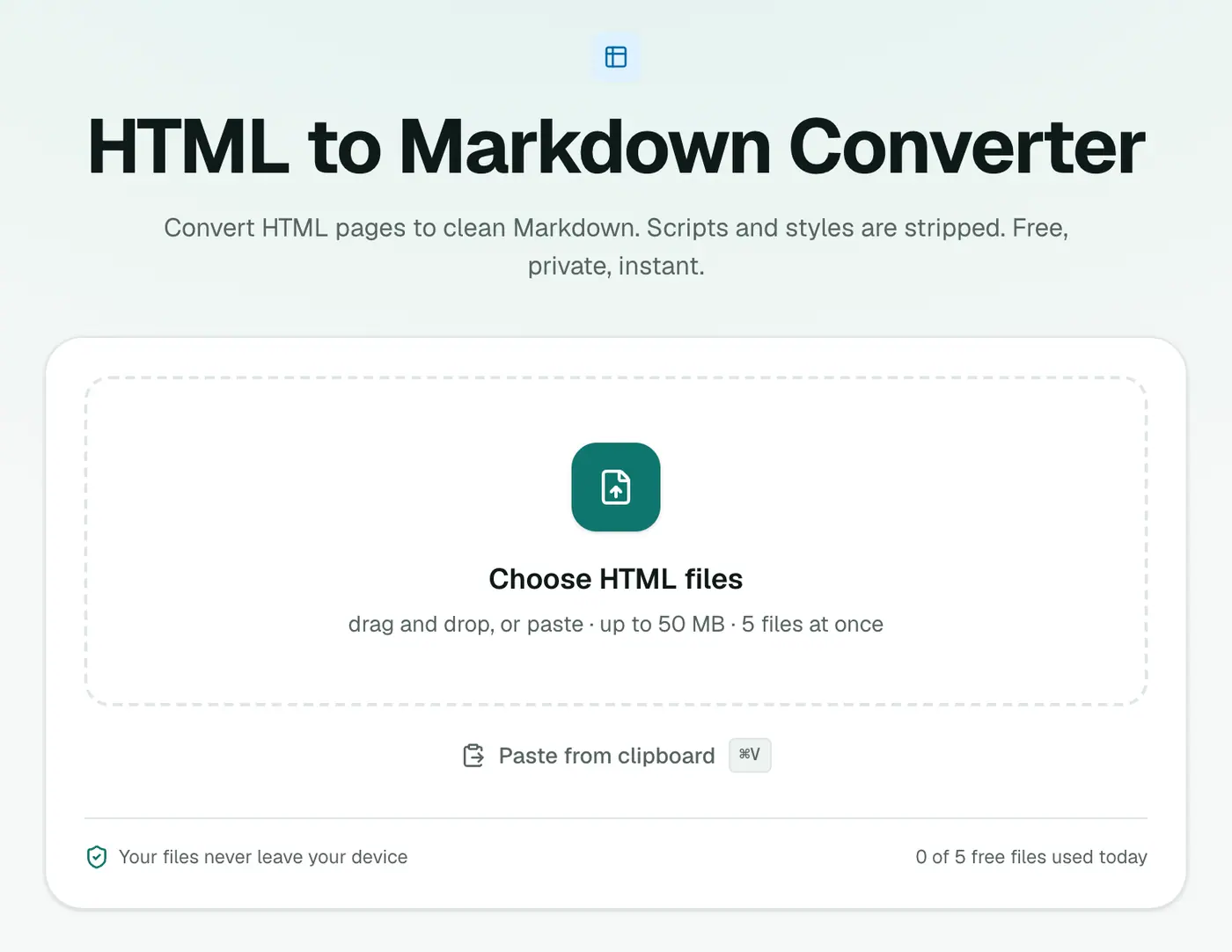
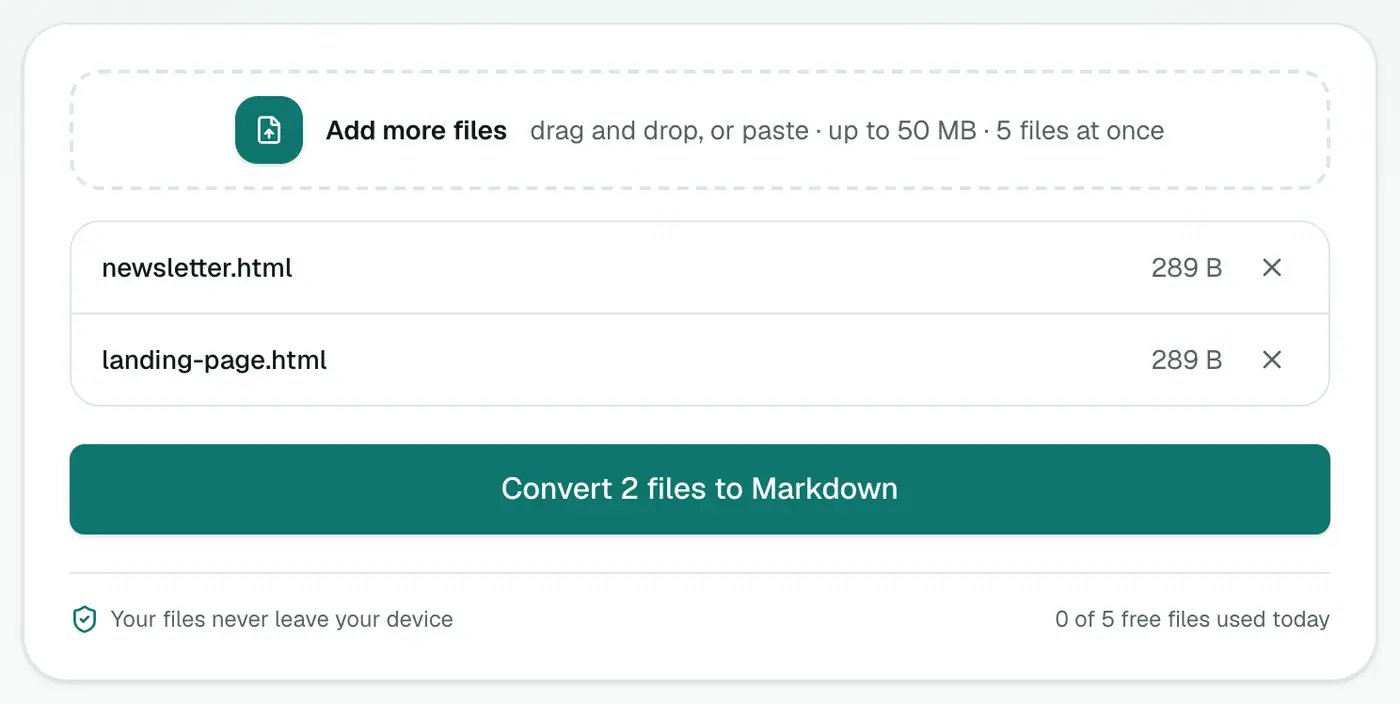
2. Add your HTML files
Drop in .html or .htm files.
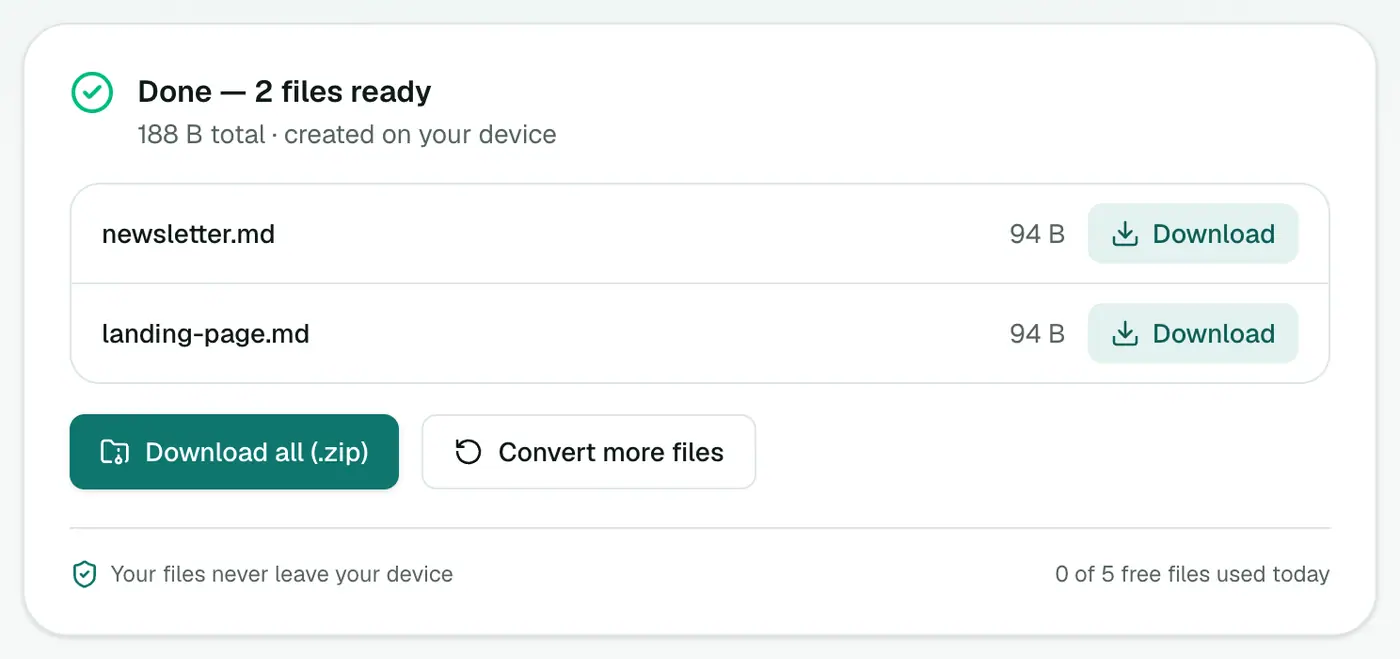
3. Convert and download
Click Convert to Markdown.
Getting cleaner output
- Strip the chrome. A saved web page includes navigation, cookie banners and footers. If you only want the article, copy the article's HTML (right-click → Inspect → copy the main element) into a file first.
- Tables: simple tables convert well. Complex layout tables (old-school websites) won't make sense in Markdown.
- Images keep their URLs. If those point to the old site, download the images too.
Where to use it
- Notion: import Markdown files directly (Import → Text & Markdown).
- Obsidian: drop the
.mdfiles into your vault. - Static sites: Hugo, Jekyll, Astro, Eleventy and Docusaurus all use Markdown content.
Related
- Markdown to HTML to go back.
- Word to Markdown for DOCX documents.
What converts
| HTML | Markdown |
|---|---|
<h2>Title</h2> | ## Title |
<strong>bold</strong> | **bold** |
<a href="…">link</a> | [link](…) |
<ul><li> | - item |
<pre><code> | Fenced code block |
Common migrations
- WordPress to a static site (Hugo, Astro, Jekyll, Eleventy).
- Web pages into Notion or Obsidian.
- Old documentation into GitHub READMEs or wikis.
Tips
- Clean source gives clean Markdown. Save the article content rather than a whole page with menus and footers.
- Preview the result in the Markdown viewer.
Summary
The HTML to Markdown converter keeps the structure that matters and drops the rest, perfect for content migrations.
FAQs
What's kept?
Headings, paragraphs, links, bold and italic, lists, images, blockquotes and code blocks.
What's removed?
Scripts, styles, and layout markup that has no Markdown equivalent.
Can I convert a whole saved web page?
Yes, but menus, footers and sidebars come along too. Trim the HTML to the main content first for the cleanest result.
Is the HTML uploaded?
No. It's converted in your browser.
Are images kept?
Image tags become Markdown image links pointing to the original image addresses.
Try the HTML to Markdown Converter
Free to start, no install, and your files never leave your device.