Image2 min read
How to Convert HEIC to PNG for Editing and Printing
Want the best possible copy of an iPhone photo for editing or print? Convert HEIC to lossless PNG. Here's how, plus when JPG is the smarter choice.
By the ZapMorph team
On this page
Just want it done?
Open the HEIC to PNG Converter — it runs in your browser and nothing is uploaded.
Most people converting iPhone photos want JPG, and there's a guide for that. But if you're about to edit a photo seriously, retouch it, or send it to a print shop that asked for "the highest quality file you've got", PNG is the better pick.
Why choose PNG over JPG
JPG compresses every time you save. Edit a JPG, save it, edit it again, save again, and you'll slowly see smudgy blocks creep into skies and skin. PNG doesn't do that. It's lossless, so it's a safe "working copy" format.
Pick PNG when you're:
- Editing in Photoshop, Lightroom, GIMP, Affinity or Canva.
- Printing large, like posters or canvas prints.
- Cutting out a subject to place on another background.
- Archiving a converted copy and want zero additional quality loss.
For WhatsApp, email and social media, stick with JPG. PNG files from a modern iPhone are big.
How to convert HEIC to PNG with ZapMorph
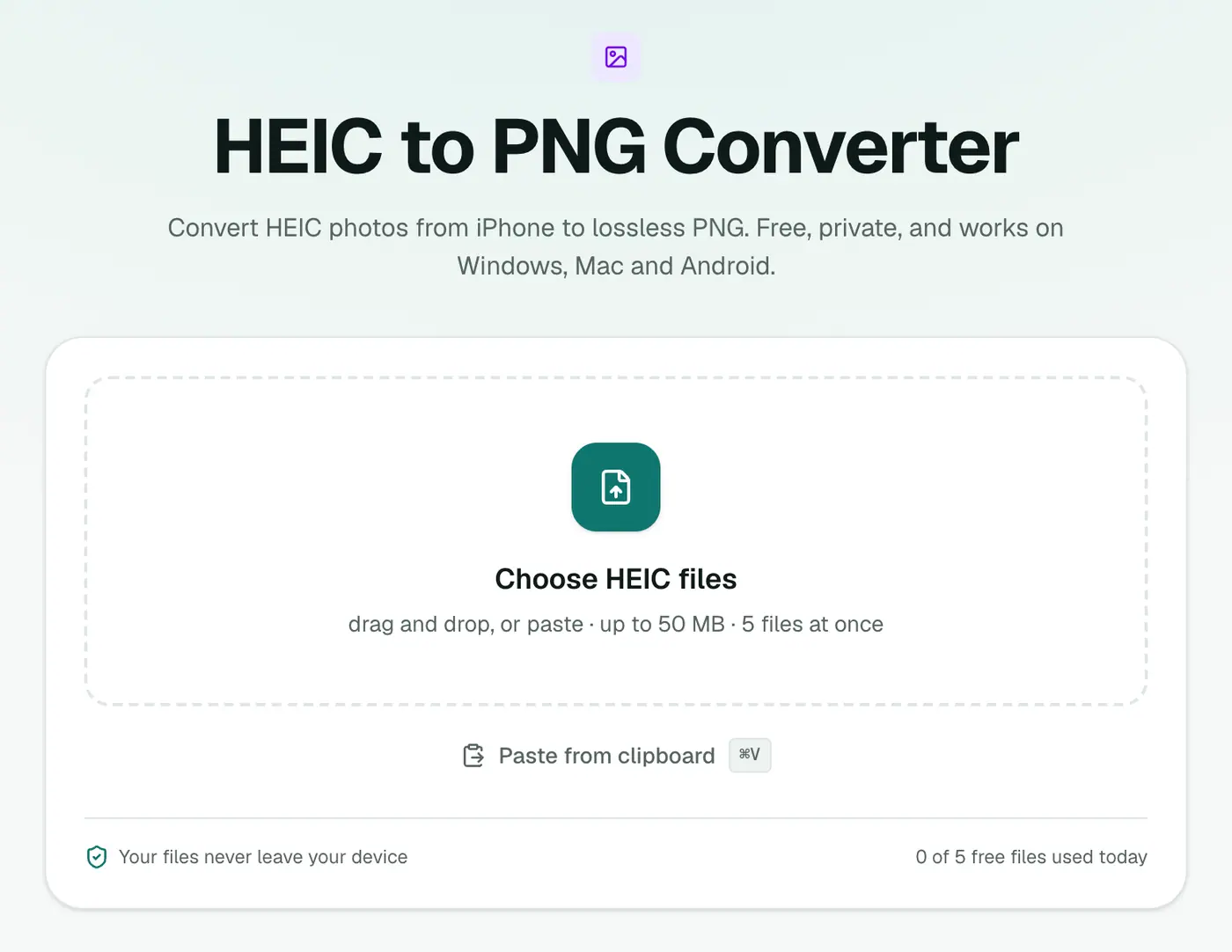
1. Open the converter
Go to the HEIC to PNG converter.
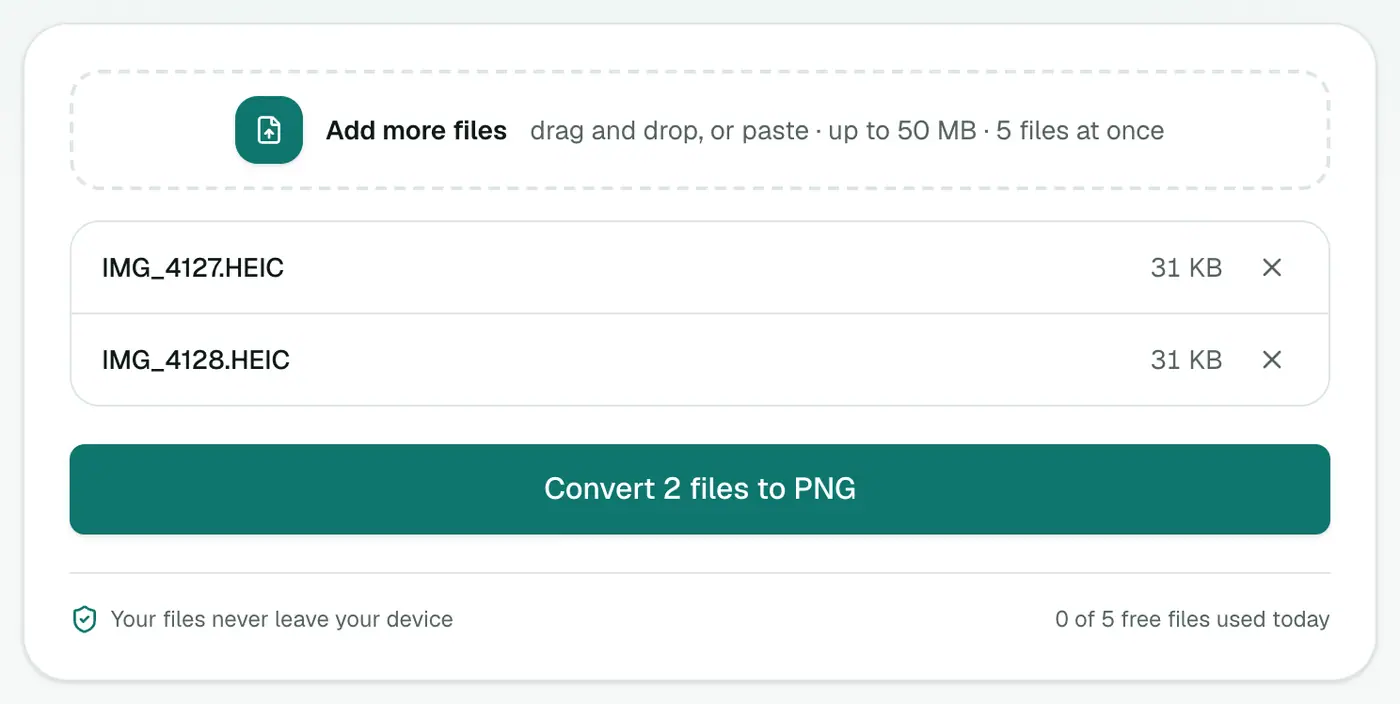
2. Add your iPhone photos
Drag in the HEIC files or click to select them. There are no quality settings, because PNG doesn't need any.
3. Convert and download
Click Convert to PNG, then download the files or the ZIP.
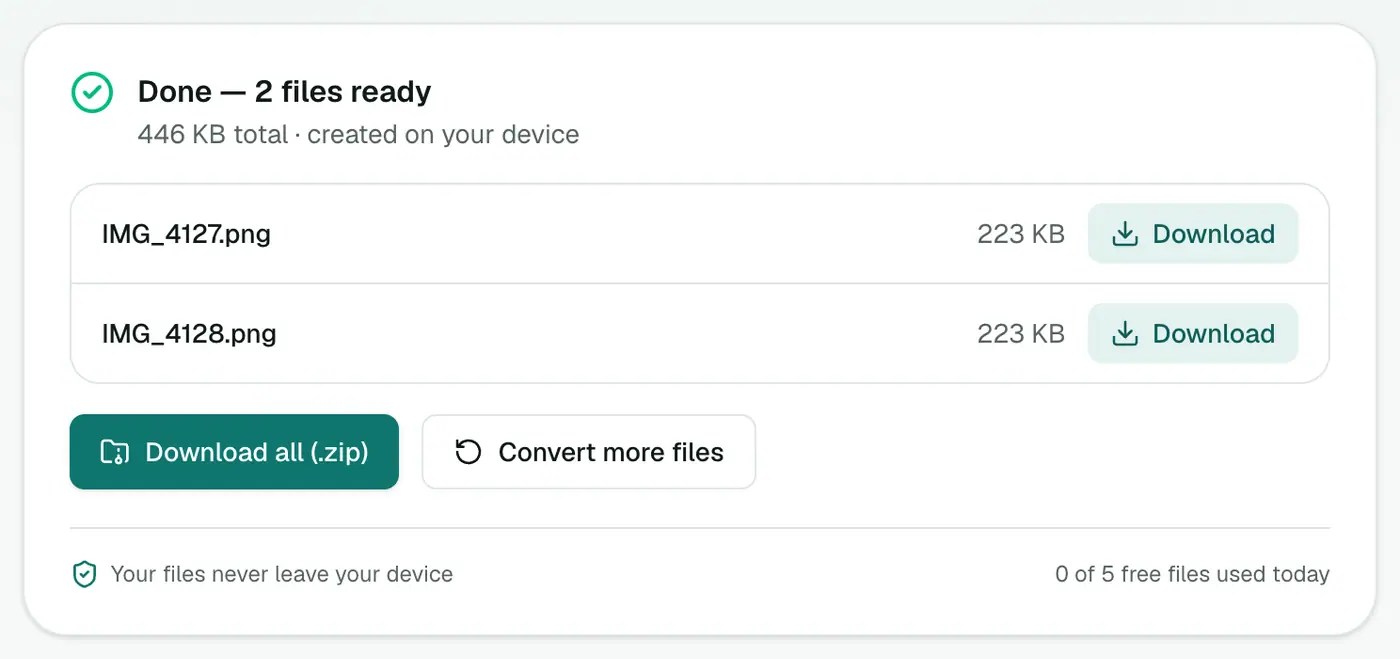
Expect each PNG to be several times the size of the HEIC. That's the price of lossless.
Doing it on a Mac or PC
- Mac: open the photo in Preview and use File → Export, choosing PNG. Or select several in Finder and use Quick Actions → Convert Image.
- Windows: with Microsoft's HEIF and HEVC extensions installed, open the photo in Photos and use Save as, choosing PNG. Without those extensions, Windows can't read HEIC at all.
Tips
- Edit, then export JPG. Do your editing on the PNG and export a JPG at the end for sharing.
- Printing? Ask the print shop what they want. Many are happy with a high-quality JPG, which is far easier to upload.
- Just need to see the photo? The HEIC viewer opens it without converting anything.
- Lots of photos for a document? HEIC to PDF bundles them into one file.
PNG, JPG or PDF?
| You want to… | Choose |
|---|---|
| Edit the photo in Photoshop or Canva | PNG |
| Share or upload photos | HEIC to JPG |
| Send photos of documents as one file | HEIC to PDF |
| Just look at the photo on Windows | HEIC viewer |
Location and camera data
Converting re-saves the image in your browser, so hidden metadata like GPS location is not carried into the PNG. That's a good thing before sharing photos publicly.
In a nutshell
HEIC to PNG gives you a lossless working copy of your iPhone photo, ideal for editing and printing. Use the HEIC to PNG converter for the photos you'll work on, and JPG for everything you're just sharing.
FAQs
Is PNG better quality than JPG for iPhone photos?
PNG is lossless, so it doesn't add any compression on top of the original. For editing and print that's an advantage. For sharing, the difference is invisible and JPG is much smaller.
Why are the PNG files so large?
A 12-megapixel photo stored losslessly simply takes a lot of space, often 15–25 MB per photo. That's normal.
Do portrait-mode photos keep the background blur?
Yes, the blur is part of the image itself. The depth data used to change it later on the iPhone isn't carried over.
Are my photos uploaded?
No, the conversion runs entirely in your browser.
Can I convert many photos at once?
Yes. Add several HEIC files and download all the PNGs together. How many at once depends on your plan.
Try the HEIC to PNG Converter
Free to start, no install, and your files never leave your device.