PDF2 min read
How to Convert iPhone HEIC Photos Straight to PDF
Turn iPhone photos of documents, receipts and whiteboards into one PDF without converting to JPG first. Works on Windows, Mac and Android.
By the ZapMorph team
On this page
Just want it done?
Open the HEIC to PDF Converter — it runs in your browser and nothing is uploaded.
You've photographed your passport, a utility bill and three payslips on your iPhone, and the rental agency wants them as a PDF. On a Mac that's easy enough. On a Windows PC, HEIC photos often won't even open.
This converter skips the "convert to JPG first" step and goes straight from iPhone photos to a PDF.
How to convert HEIC to PDF with ZapMorph
1. Open the converter
Go to the HEIC to PDF converter.
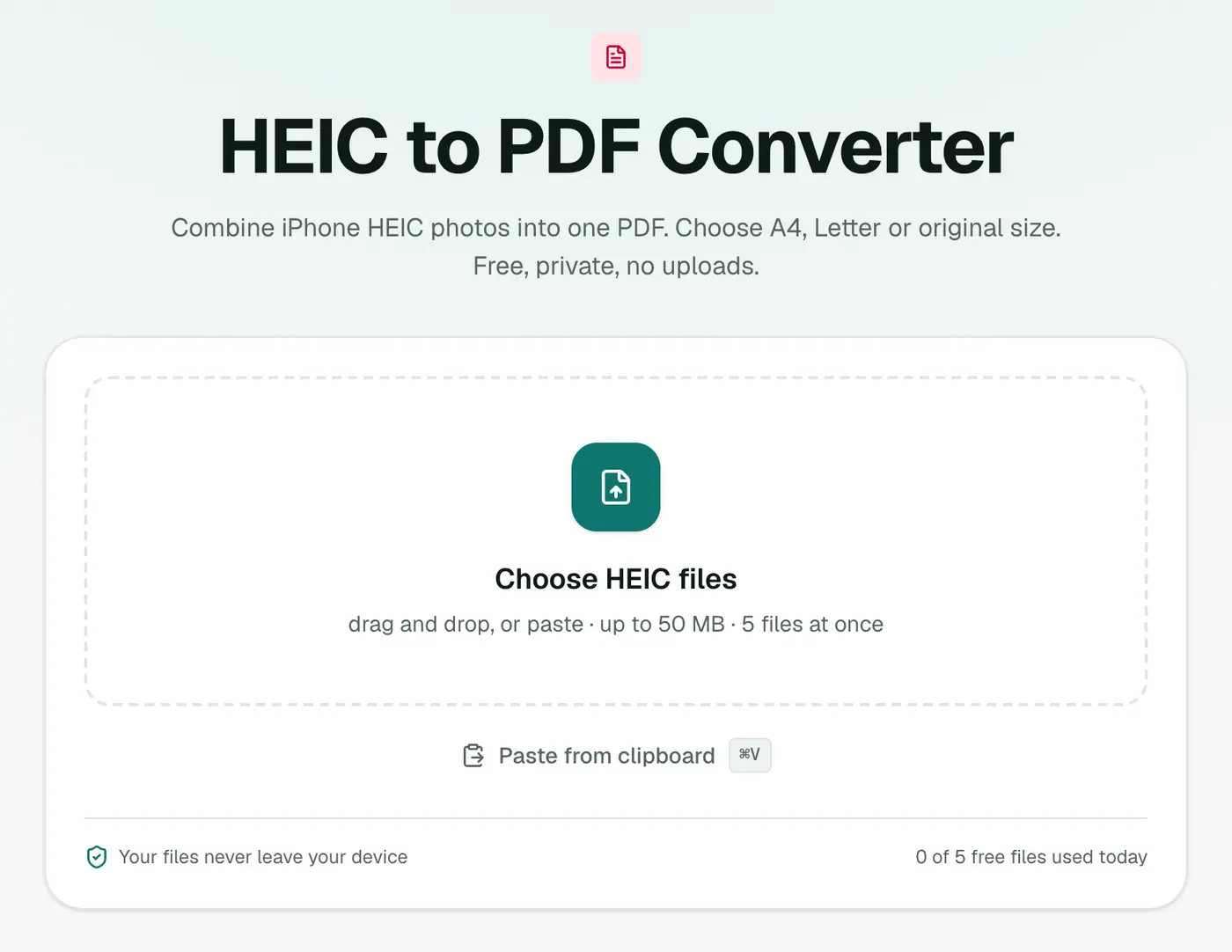
2. Add your iPhone photos and set the layout
Select your HEIC photos, then use the arrows to put them in order.
- Page size: A4 or US Letter for anything official. Same as image for a photo album style PDF.
- Margin: Small looks tidy for documents.
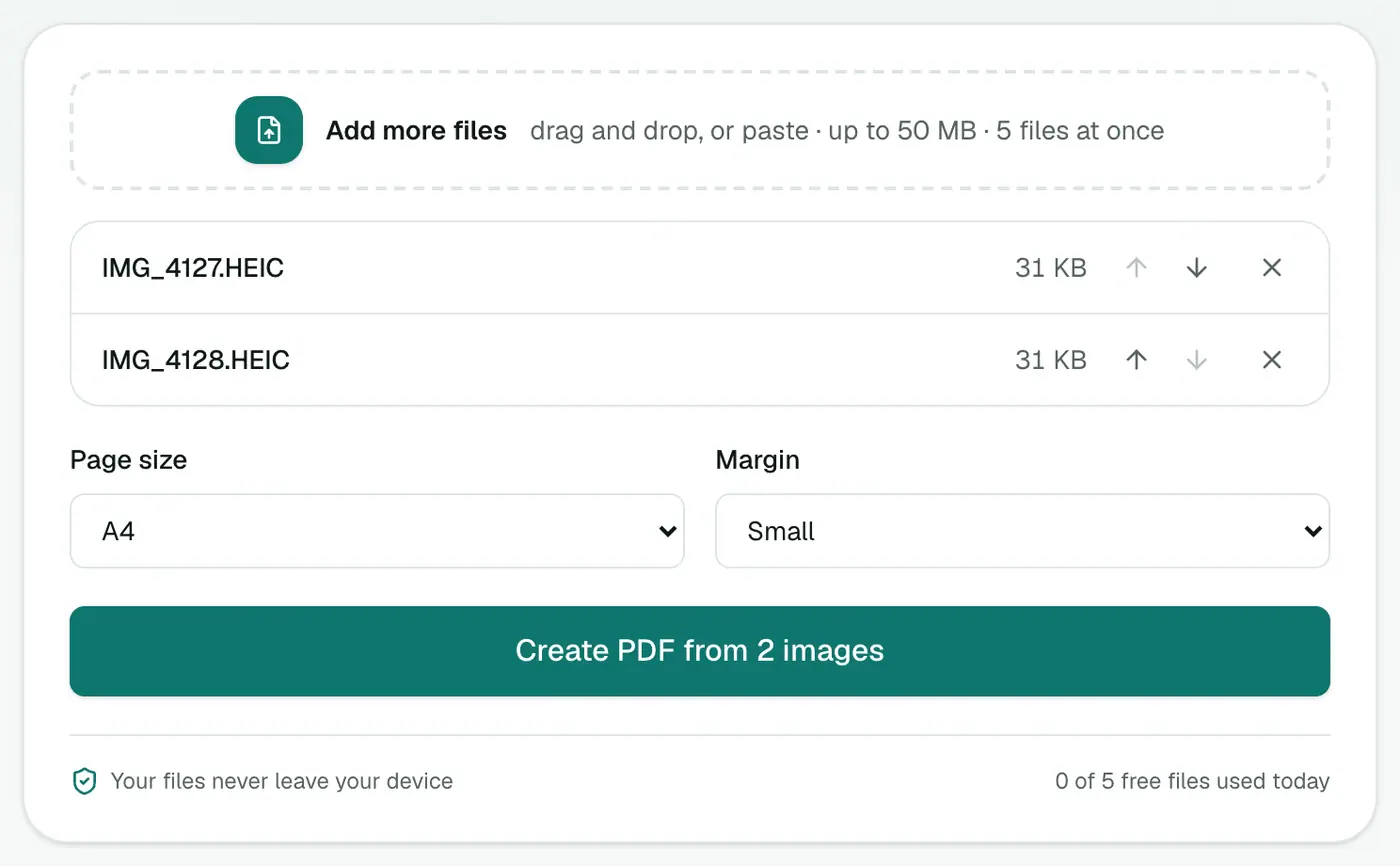
3. Create the PDF
Click Create PDF. One PDF, one photo per page.
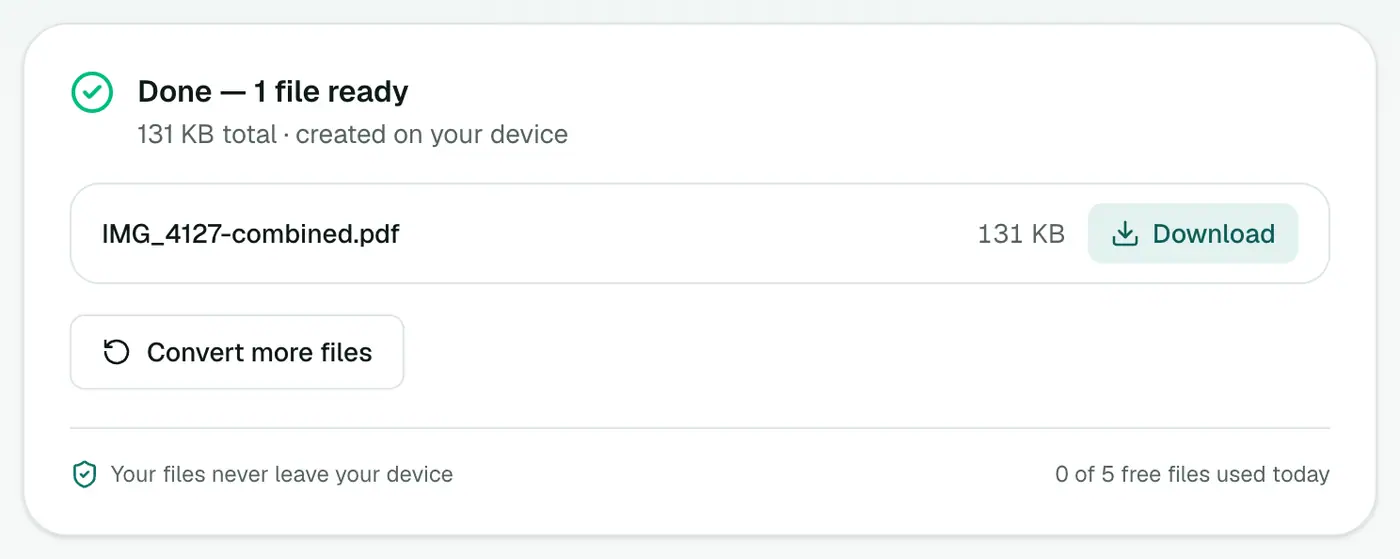
Getting the photos onto your computer
- AirDrop to a Mac.
- Email or WhatsApp them to yourself. Note that WhatsApp compresses photos and may convert them to JPG. For documents that's usually fine.
- USB cable to Windows: photos arrive as HEIC unless you've set Settings → Photos → Transfer to Mac or PC → Automatic.
- iCloud Photos on the web (icloud.com) lets you download originals.
Tips for document photos
- Use the iPhone's built-in scanner for paper documents: in the Notes app, tap the camera icon, then Scan Documents. It straightens and crops automatically, and can save as PDF itself.
- Flat surface, good light, no shadows. Hold the phone parallel to the page.
- Big file? Compress PDF on Balanced is your friend.
- Mix of photo types? Images to PDF handles JPG, PNG, WebP and more together.
Page size and margin
| Setting | Choose for |
|---|---|
| A4 / US Letter | Forms, printing, receipts |
| Same as image | Photo albums with no borders |
| Small margin | Documents and receipts |
Scanning documents with your iPhone
The Notes app and the Files app (⋯ → Scan Documents) can create PDFs directly. Use HEIC to PDF when you already have photos in your library, or when the photos were taken with the Camera app.
Next steps
- Too big for an upload form? Compress PDF.
- Make text searchable: OCR PDF.
In short
If your photos came from an iPhone and need to end up in a PDF, the HEIC to PDF converter does it in one go, on any computer, without uploading your documents.
FAQs
Do I need to convert my HEIC photos to JPG first?
No. The HEIC to PDF converter reads HEIC directly and puts each photo on its own page.
Can I choose the order of the pages?
Yes. Use the arrows next to each photo to reorder them before creating the PDF.
Is it OK for ID documents and bank statements?
Yes. The photos are decoded and the PDF is created on your device. Nothing is uploaded.
The PDF is very large. What can I do?
Run it through Compress PDF with the Balanced setting. That usually makes a photo-based PDF several times smaller.
Can I mix HEIC with JPG photos?
This converter takes HEIC. For a mix of formats, use Images to PDF.
Try the HEIC to PDF Converter
Free to start, no install, and your files never leave your device.