Audio & video2 min read
How to Convert FLAC to MP3 for Your Phone or Car
Shrink lossless FLAC music to MP3 for phones, car stereos and old players. Choose 128 to 320 kbps and keep your FLAC library as the master copy.
By the ZapMorph team
On this page
Just want it done?
Open the FLAC to MP3 Converter — it runs in your browser and nothing is uploaded.
FLAC is perfect for a music library: lossless, about half the size of WAV, and every bit of the CD preserved. But FLAC files are still big (25–35 MB per song), and some car stereos, older iPods and a few apps don't play them.
MP3 at 256–320 kbps sounds excellent and takes a fraction of the space.
How to convert FLAC to MP3 with ZapMorph
1. Open the converter
Go to the FLAC to MP3 converter.
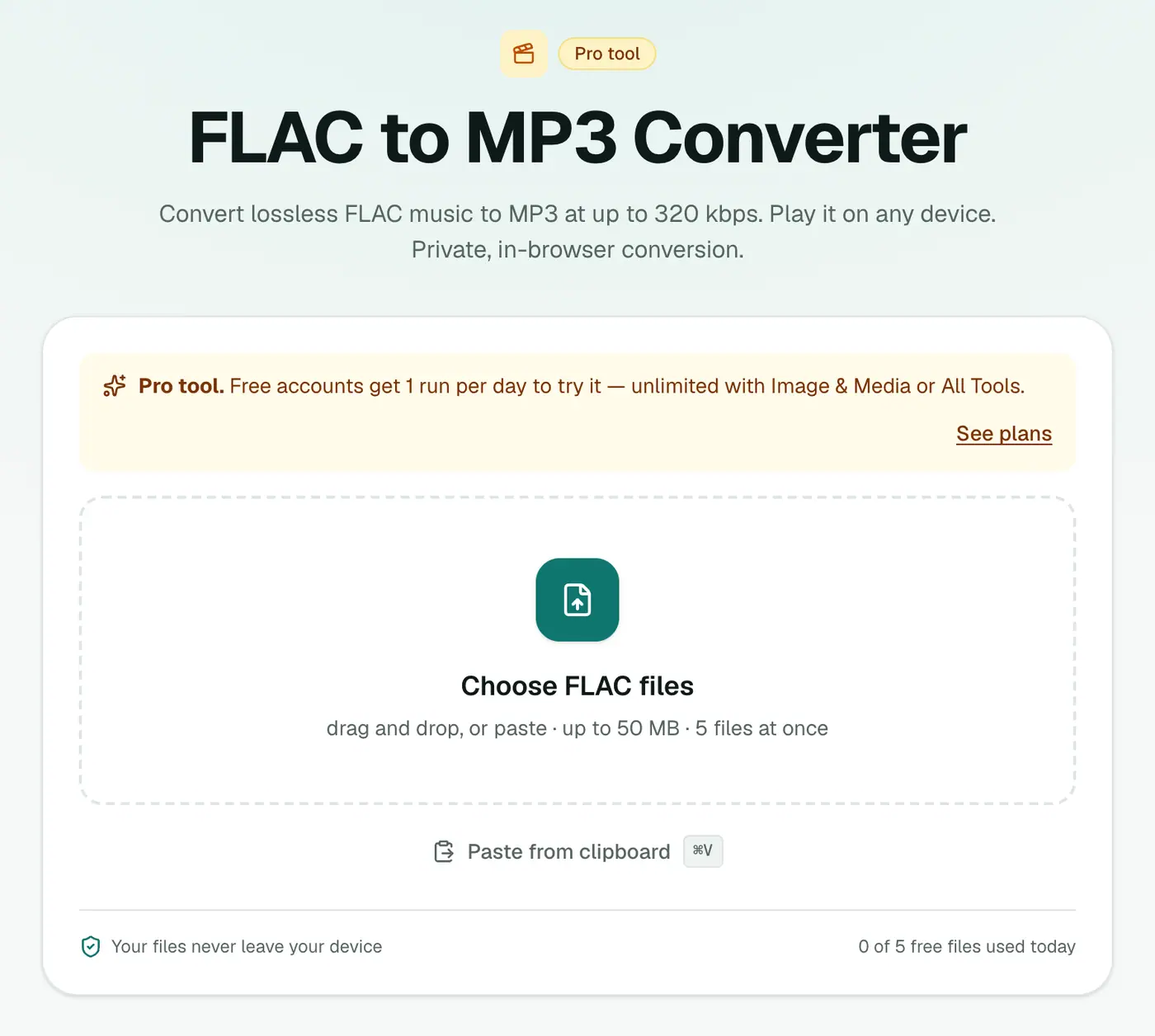
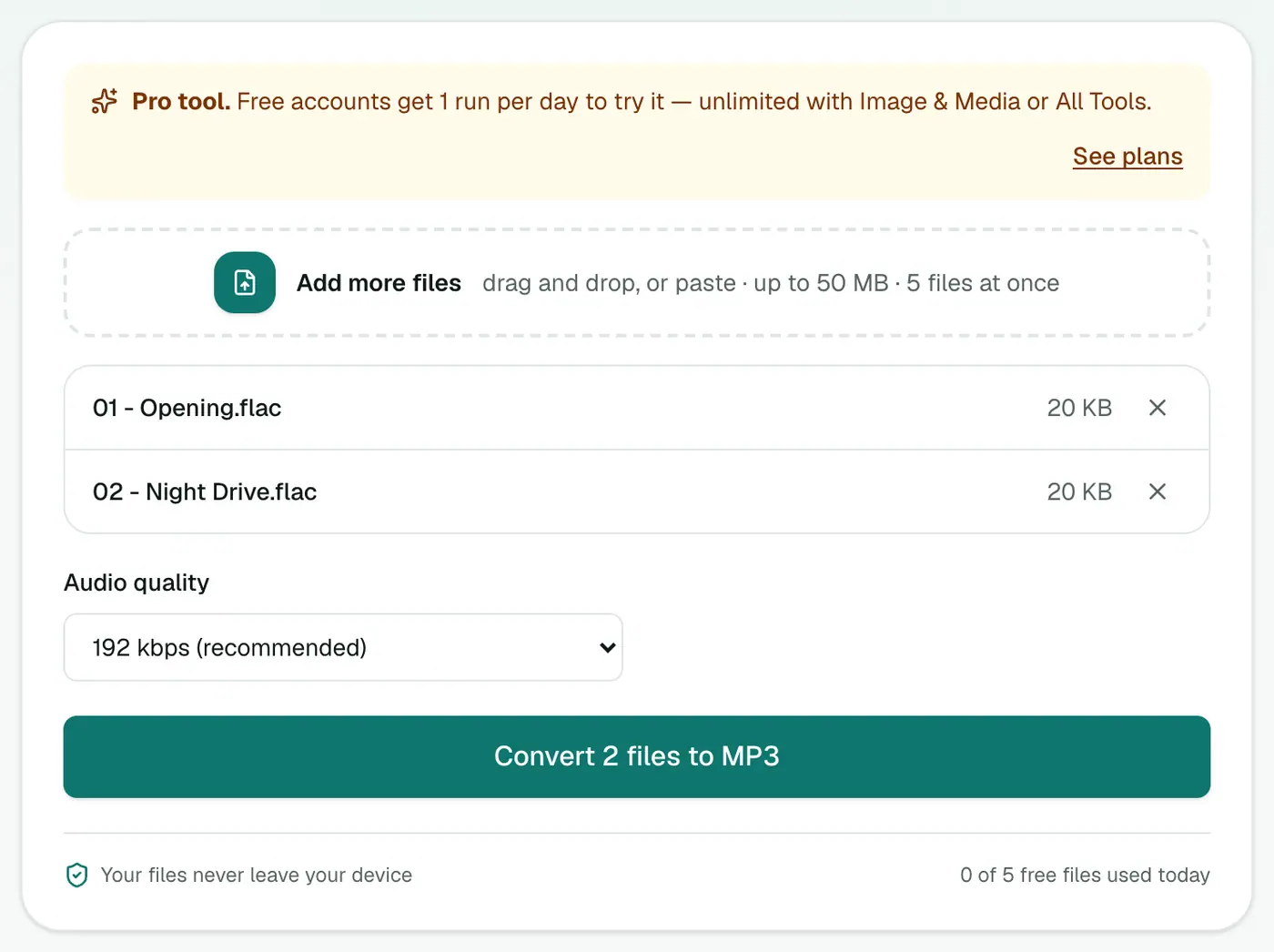
2. Add tracks and pick the bitrate
Drop in your .flac files and choose 128, 192, 256 or 320 kbps.
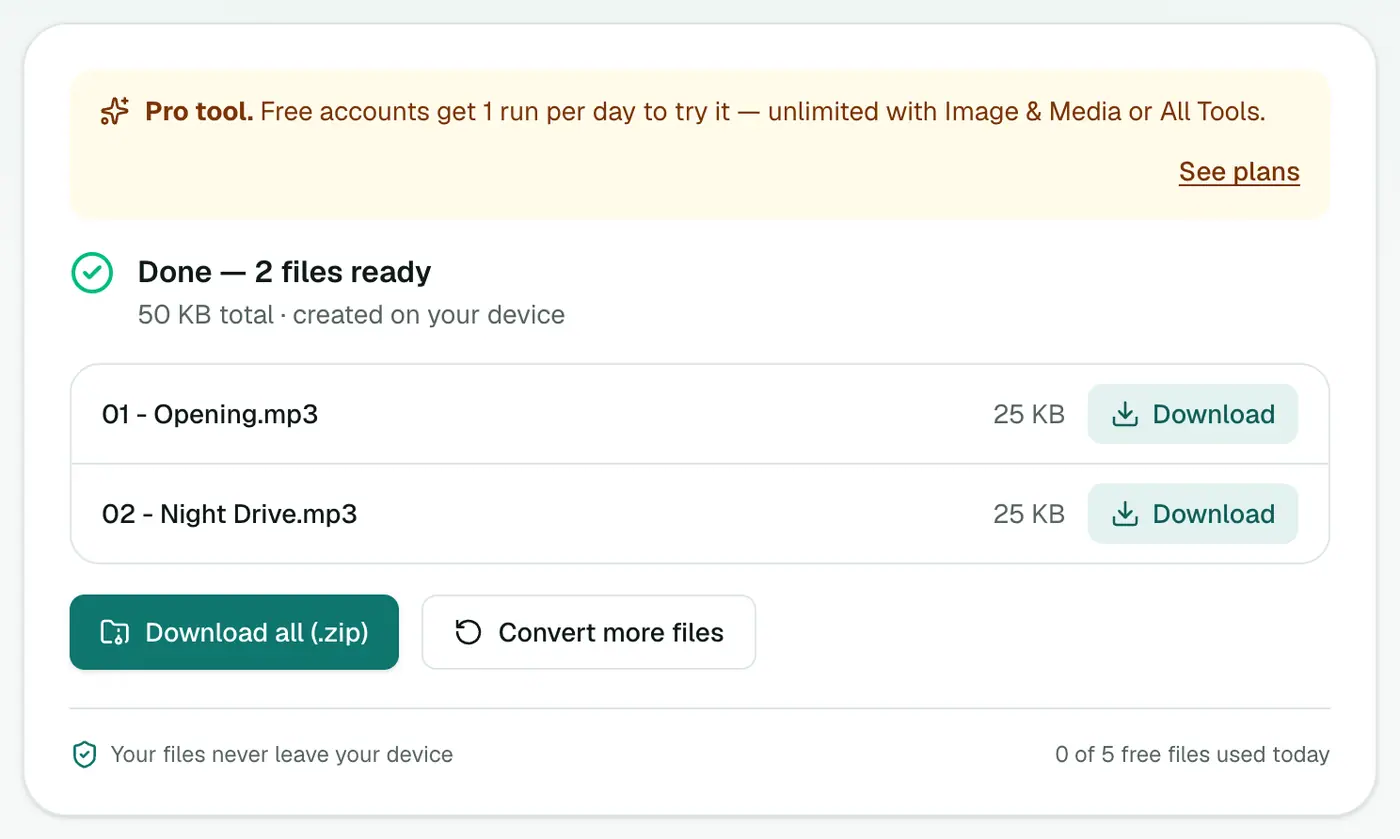
3. Convert and download
Click Convert to MP3 and download the files (ZIP for an album).
Bitrate and size
| Bitrate | 4-minute song | Good for |
|---|---|---|
| 320 kbps | ~9.6 MB | Best MP3 quality, good headphones |
| 256 kbps | ~7.7 MB | Music, very hard to tell from FLAC |
| 192 kbps | ~5.8 MB | Car, phone speakers, everyday listening |
| 128 kbps | ~3.8 MB | Podcasts, audiobooks, tight storage |
| FLAC (original) | ~25–35 MB | Archive |
MP3 or M4A?
At the same bitrate, AAC (FLAC to M4A) generally sounds slightly better than MP3 and works on every Apple device and most others. MP3 is the most universally compatible. Pick MP3 for old car stereos.
Car stereo tips
- USB sticks: many car systems want FAT32-formatted sticks and have a file or folder limit. Organise by album folder.
- Track order: some stereos play files in the order they were copied, not by name. Copy one album at a time in order.
- Long file names may be cut off on the display. Short names like
01 Title.mp3read best.
Tips
- Keep FLAC as the master and convert copies for devices.
- Don't re-convert MP3s to a different bitrate. Go back to the FLAC each time.
- Album art: add it back with a tag editor such as Mp3tag or MusicBrainz Picard if your player shows covers.
Summary
Keep FLAC as the master, convert copies for devices. The FLAC to MP3 converter does it without installing any software.
FAQs
Which bitrate should I use for music?
256 or 320 kbps for music from FLAC. You're starting from a perfect source, so it's worth keeping quality high.
Are tags like artist and album kept?
Basic tags are usually carried over. Check your player after converting, and re-tag if needed with a tag editor. Album art isn't included.
Should I delete the FLAC files?
No. FLAC is your lossless master. Keep it, and convert copies for devices.
Is it free?
Yes, once a day: one file up to 25 MB with no account. A free account gets one Pro tool run a day, and paid plans are unlimited.
Can I convert a whole album at once?
Yes. Add all the tracks and download a ZIP. How many files per batch depends on your plan.
Are my files uploaded?
No. The conversion runs in your browser.
Try the FLAC to MP3 Converter
Free to start, no install, and your files never leave your device.