Data & docs2 min read
How to Convert Excel to CSV (Every Sheet as Its Own File)
Export XLSX workbooks to CSV for imports into CRMs, shops, databases and analytics tools. Each sheet becomes a separate CSV file.
By the ZapMorph team
On this page
Just want it done?
Open the Excel to CSV Converter — it runs in your browser and nothing is uploaded.
Import tools are fussy. Shopify, HubSpot, Mailchimp, WooCommerce, accounting apps and database tools almost always want CSV, not XLSX. And Excel's own Save As → CSV has a catch: it only saves the sheet you're looking at.
How to convert Excel to CSV with ZapMorph
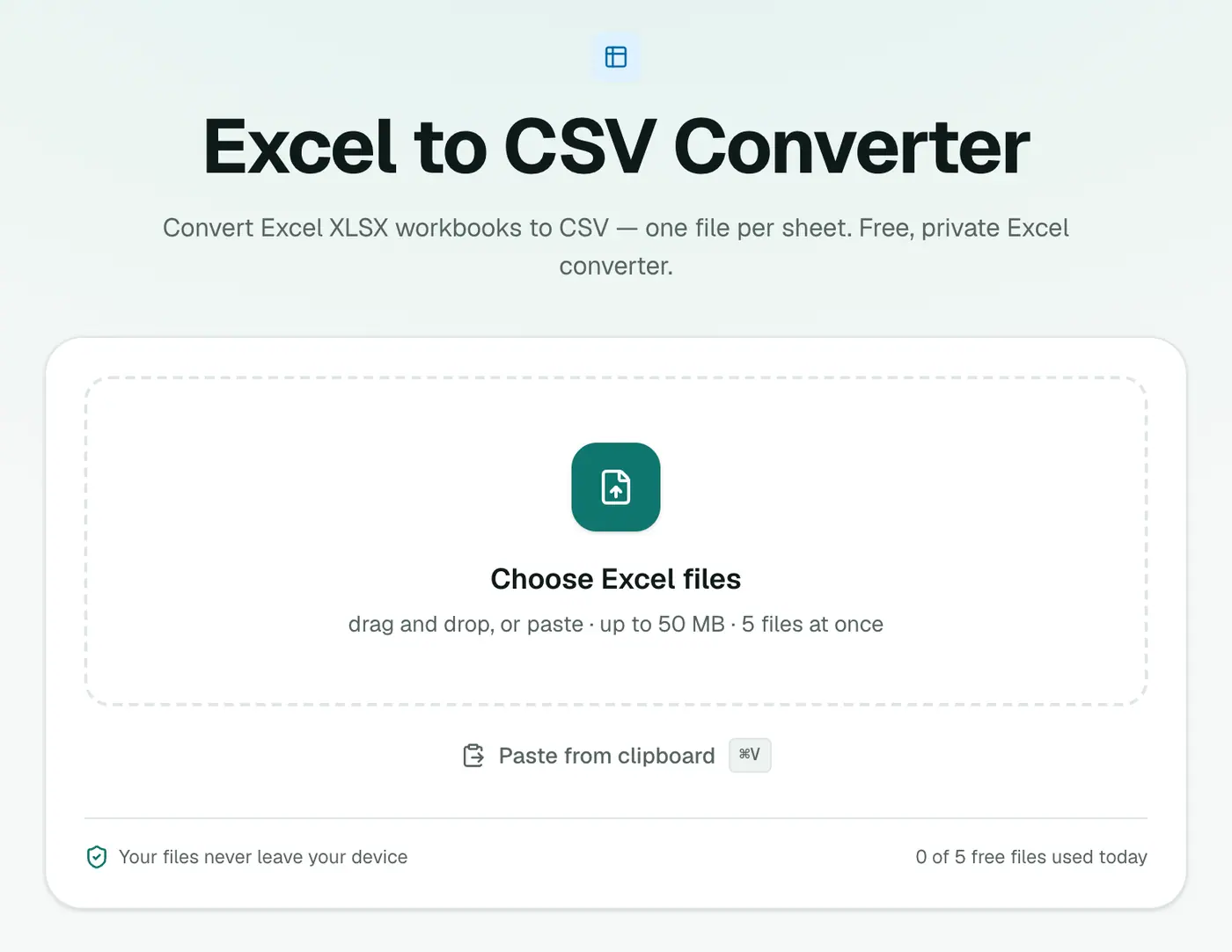
1. Open the converter
Go to the Excel to CSV converter.
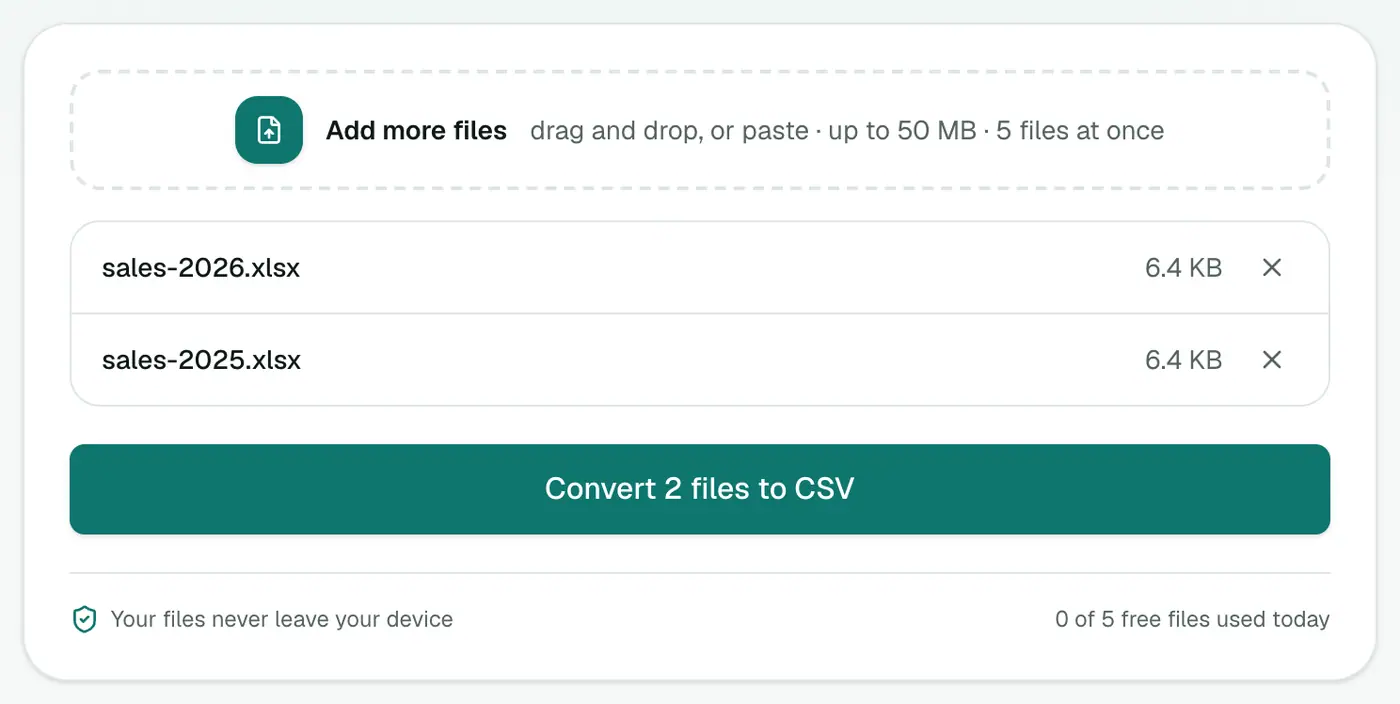
2. Add your workbooks
Drop in .xlsx files.
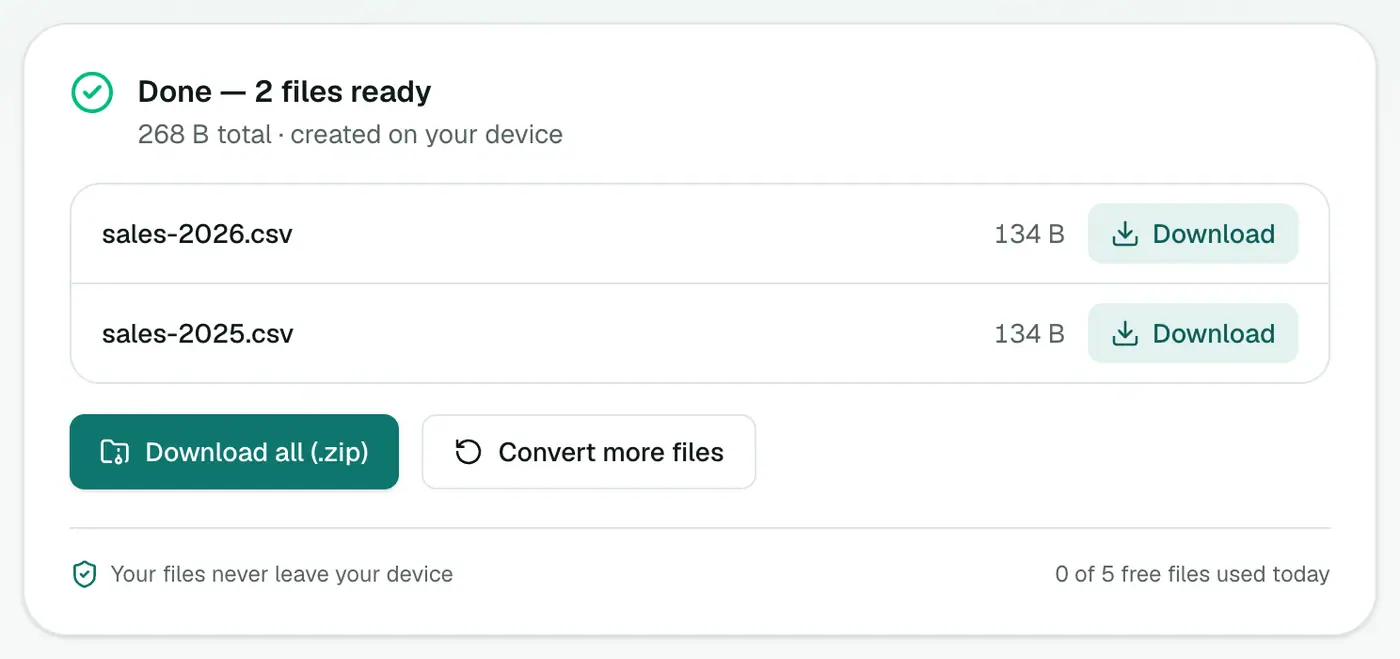
3. Convert and download
Click Convert to CSV. Each sheet comes out as its own CSV, named after the workbook and sheet.
Before you import
- Check the header row. Most imports match columns by header name, like
Email,First NameorSKU. Rename headers in Excel to match the import template. - Remove totals and notes below the data. Importers read them as rows.
- Dates: different systems expect different formats. If an import rejects dates, format the column as
YYYY-MM-DDin Excel first. - Leading zeros: if your sheet stores zip codes as text, they're exported as text, so the zeros are kept.
Other ways
- Excel: File → Save As → CSV UTF-8, once per sheet.
- Google Sheets: File → Download → Comma-separated values, also one sheet at a time.
Related
- Excel to JSON for apps and websites.
- Excel to vCard to turn a contact list into phone contacts.
- CSV to Excel to go back the other way.
What CSV keeps and loses
| Kept | Lost |
|---|---|
| Cell values (formula results) | Formulas |
| Every sheet (one CSV each) | Formatting, colours, fonts |
| Text with accents (UTF-8) | Charts, images, comments |
Import-ready tips
- One header row at the top, no merged cells.
- Remove totals and notes below the data.
- Dates: use a clear format like
2026-03-14so the target system reads them correctly. - Check the result in the CSV viewer, which shows values exactly as written.
Common destinations
Shopify and WooCommerce product imports, CRMs, mailing tools, databases and analytics platforms all accept CSV.
Summary
The Excel to CSV converter exports every sheet in one go, ready for whatever import tool you're feeding.
FAQs
What happens to workbooks with several sheets?
Every sheet becomes its own CSV file. Excel's own Save As only exports the active sheet.
Are formulas exported?
The calculated values are exported, not the formulas, which is what imports expect.
Is formatting kept?
No. CSV is plain text, so colors, fonts, merged cells and charts aren't included.
Can I convert old .xls files?
This converter takes .xlsx. Save an .xls as .xlsx first in Excel, Google Sheets or LibreOffice.
Is my workbook uploaded?
No. It's converted in your browser.
Are formulas exported?
No. CSV stores values only, so formula results are written, not the formulas.
Try the Excel to CSV Converter
Free to start, no install, and your files never leave your device.