Audio & video2 min read
How to Convert Old AVI Videos to MP4
Rescue old camcorder, digital camera and Windows-era AVI videos by converting them to MP4, which plays on modern phones, TVs and websites. Private, batch.
By the ZapMorph team
On this page
Just want it done?
Open the AVI to MP4 Converter — it runs in your browser and nothing is uploaded.
That folder of MVI_0042.AVI files from a 2008 digital camera, or the camcorder tapes someone digitised years ago, has a habit of not playing on anything modern. AVI was Windows' video format of the 2000s, and the codecs inside vary wildly.
MP4 is today's universal format.
Where AVI files come from
- Digital cameras (2000s), often using Motion JPEG, which makes huge files.
- Camcorder captures and tape digitising services.
- Dashcams and security cameras.
- Old Windows Movie Maker projects and DivX/Xvid downloads.
How to convert AVI to MP4 with ZapMorph
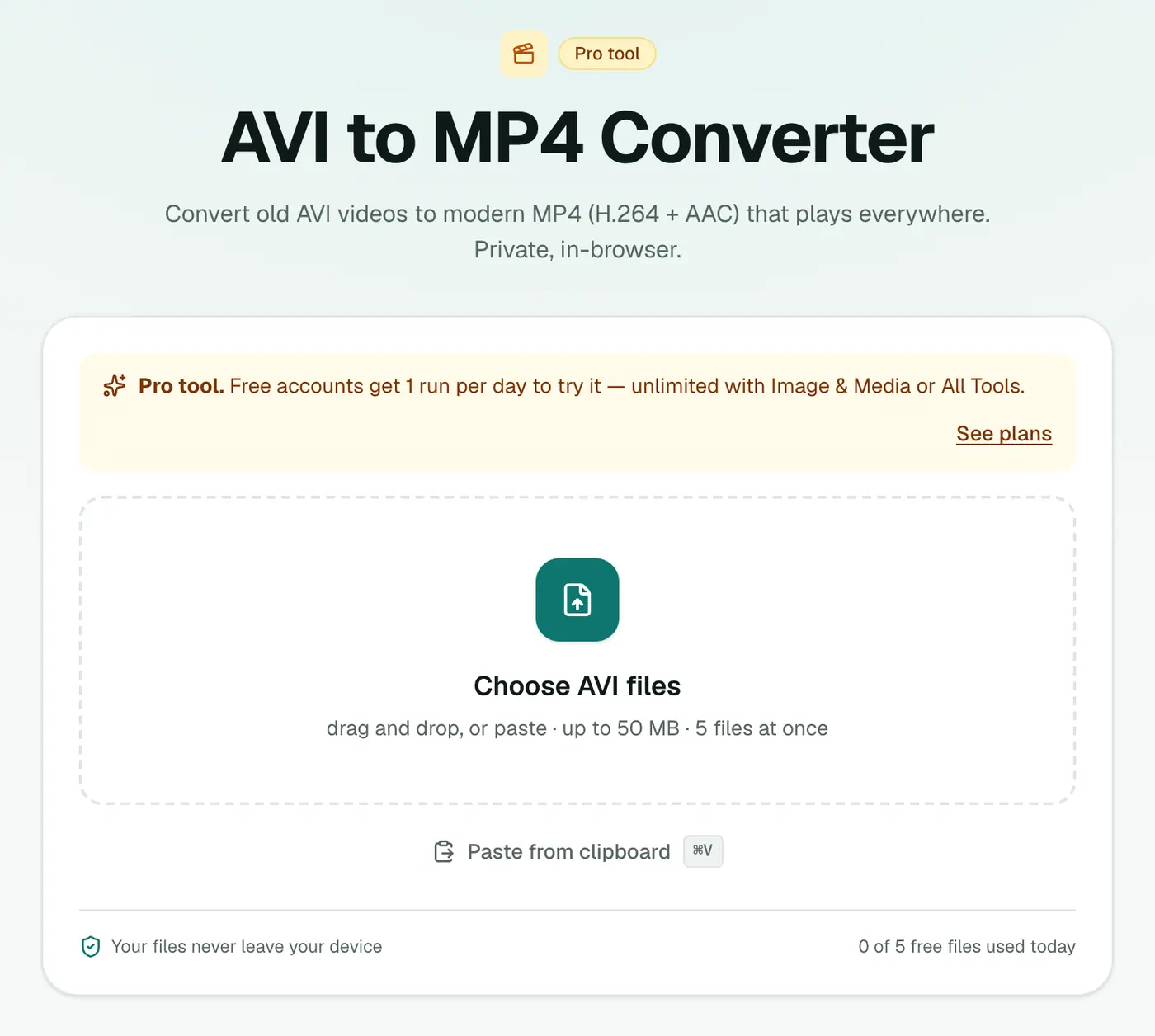
1. Open the converter
Go to the AVI to MP4 converter.
2. Add your videos and pick the quality
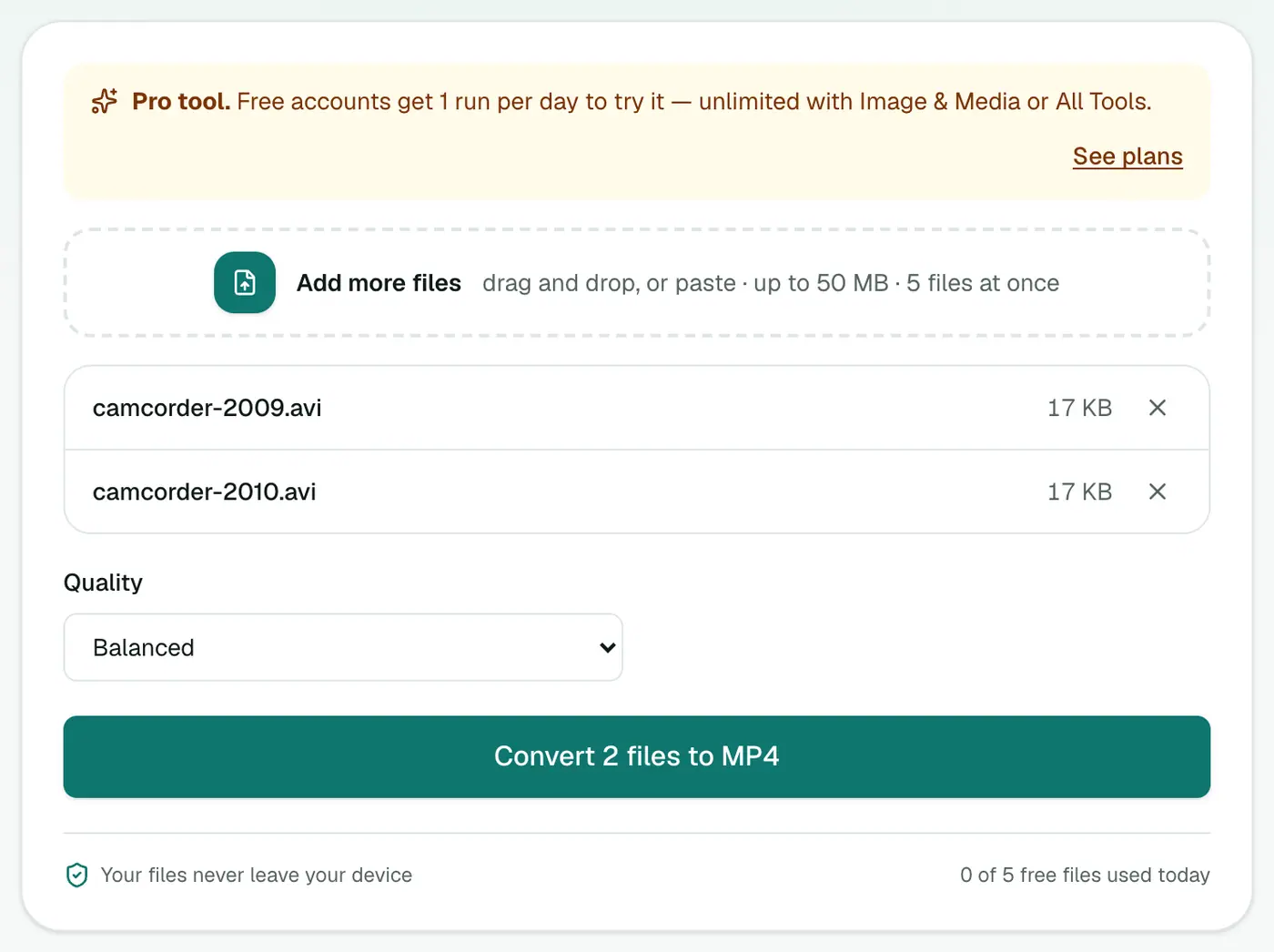
Drop in .avi files and choose High, Balanced or Small file.
3. Convert and download
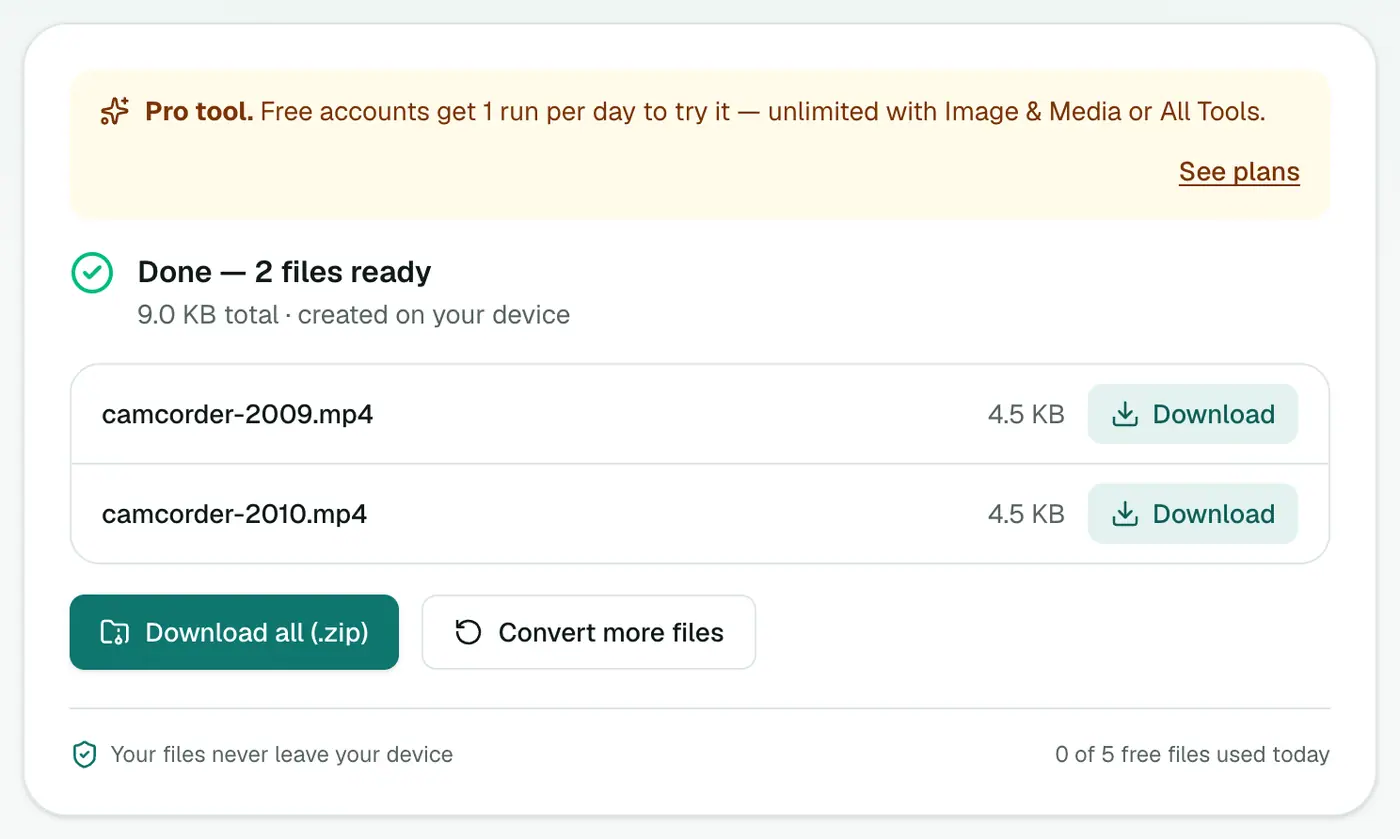
Click Convert to MP4.
Which quality setting?
| Footage | Setting |
|---|---|
| Family memories you're archiving | High |
| General home videos to share | Balanced |
| Dashcam clips, long surveillance footage | Small file |
Preserving family videos
- Keep the originals on a backup drive. Converted copies are for watching and sharing.
- Name files by date and event (
2009-07 Beach holiday.mp4) as you go. - Upload the MP4s to a family photo library (Google Photos, iCloud), since they understand MP4.
- Store copies in two places, like an external drive and cloud storage.
What converting doesn't fix
- Low resolution: 640×480 footage stays 640×480. It'll look soft on a 4K TV.
- Interlacing lines from camcorder captures may still show on fast movement.
- Sideways videos: rotate them in your video editor or phone's Photos app after converting.
Troubleshooting
"Couldn't be converted." The file may be damaged, or use a very old or proprietary codec that isn't supported. Try the video converter, or open the AVI in VLC and use Convert/Save.
Long files are slow. Conversion happens on your computer. Do a few at a time and leave the tab open.
No sound. Some old AVIs use unusual audio codecs. If the MP4 is silent, the original's audio may not be decodable.
Summary
The AVI to MP4 converter brings old videos back to life on modern devices, without uploading your family footage anywhere.
FAQs
Why won't my old AVI files play?
AVI can contain dozens of different codecs, some of them ancient. Modern phones and TVs often can't decode them.
Will the quality improve?
No. Old footage stays the same resolution. Converting makes it playable and usually much smaller.
Which quality setting?
High for precious family footage you're archiving. Balanced for everything else.
Is it free?
Yes, once a day: one file up to 25 MB with no account. A free account gets one Pro tool run a day, and paid plans are unlimited.
How much smaller will the MP4 be?
Old AVIs, especially from digital cameras using Motion JPEG, often shrink to a fifth or less of their size.
Are my videos uploaded?
No. They're converted in your browser, so family footage stays on your device.
Try the AVI to MP4 Converter
Free to start, no install, and your files never leave your device.