PDF2 min read
How to Convert a PDF to Black and White (Grayscale)
Turn a color PDF into grayscale to save printer ink or meet court, university or print shop rules. Pick standard, high or print resolution.
By the ZapMorph team
On this page
Just want it done?
Open the Grayscale PDF — it runs in your browser and nothing is uploaded.
Two situations come up again and again:
- Saving ink. Color toner is expensive, and slides or reports with colored backgrounds burn through it.
- Rules. Some courts, universities, journals and print shops ask for grayscale submissions.
A grayscale PDF solves both, and anyone who prints it will print it in black and white.
How to convert a PDF to grayscale with ZapMorph
1. Open Grayscale PDF
Go to Grayscale PDF.
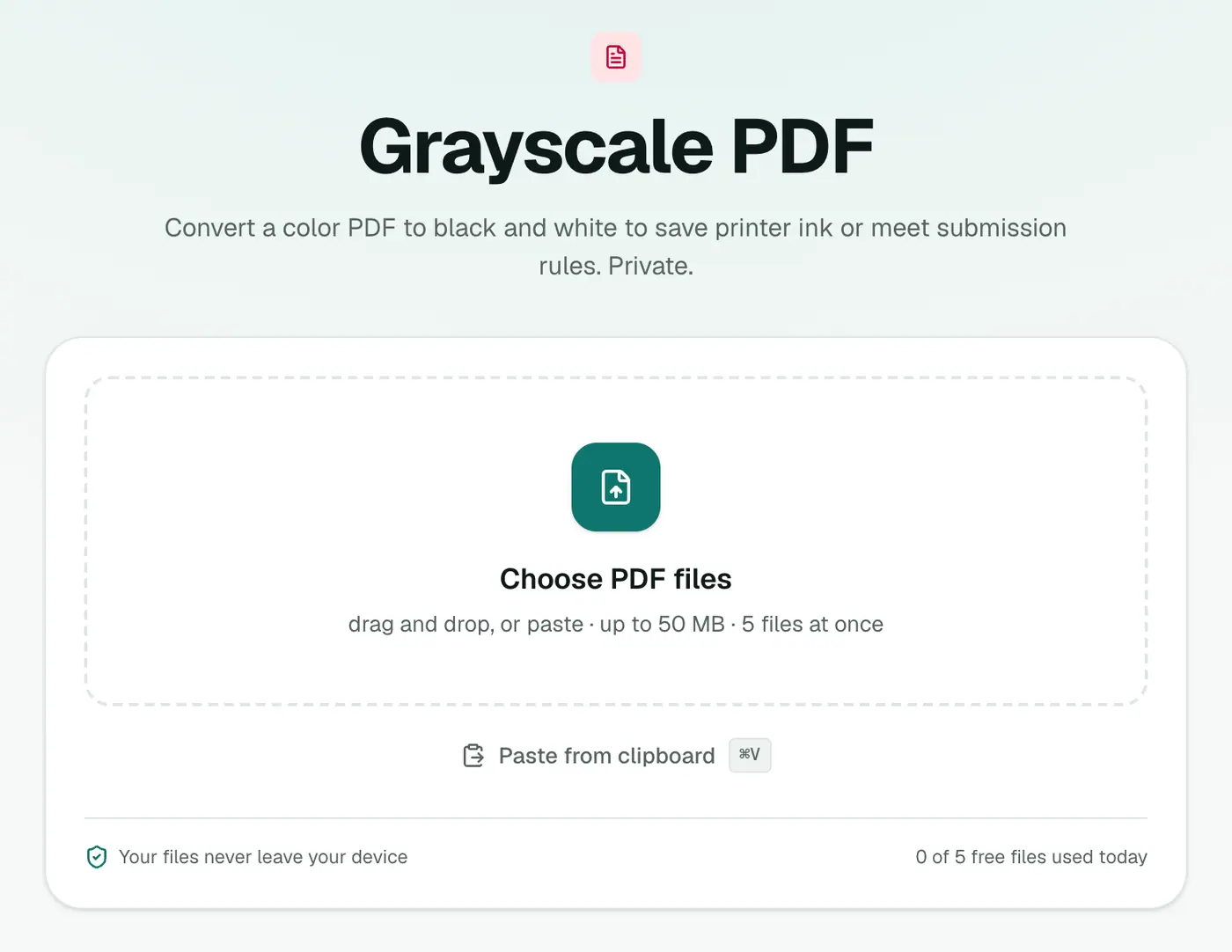
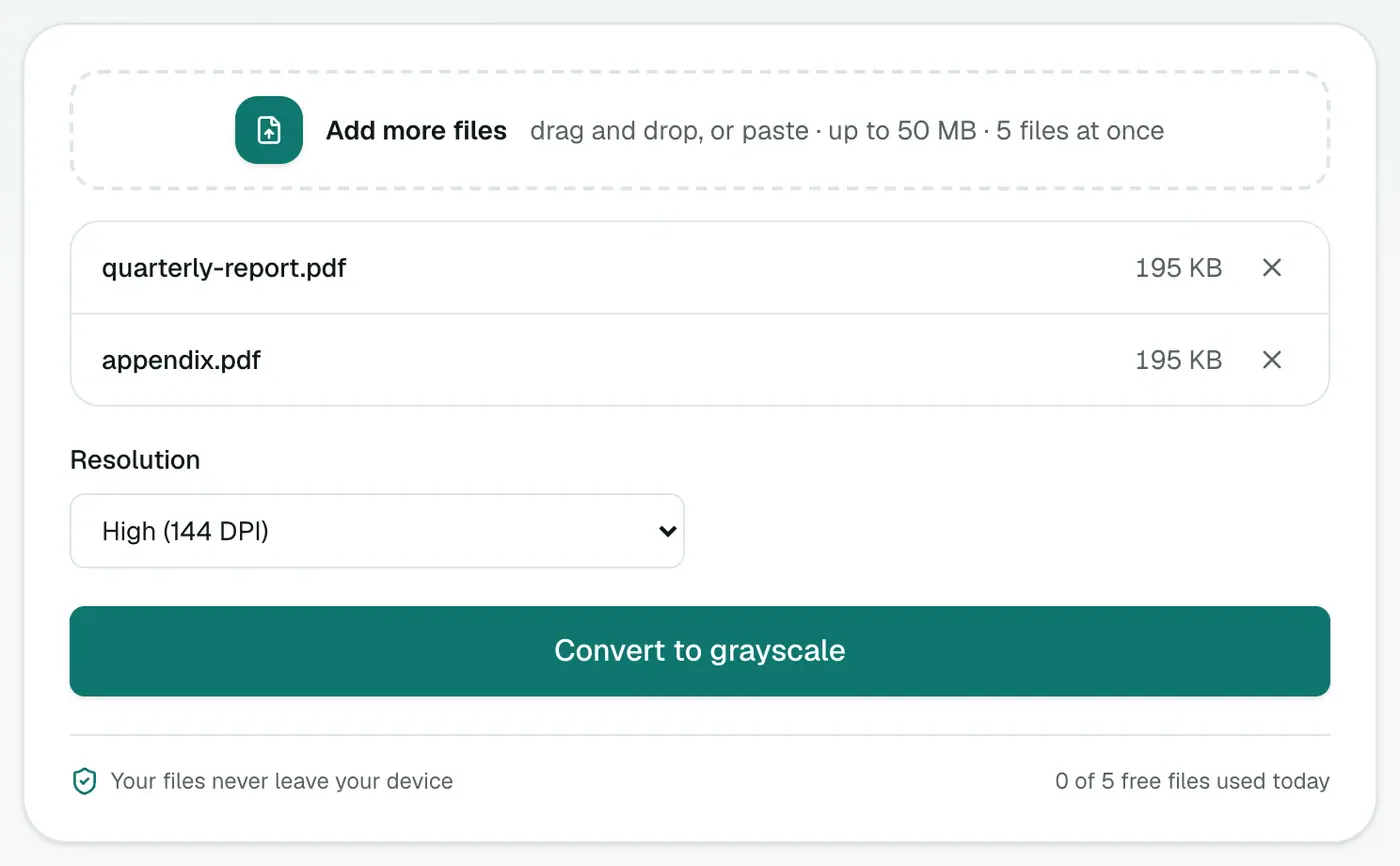
2. Add the PDF and pick a resolution
Choose Resolution: Standard (72 DPI), High (144 DPI) or Print (216 DPI). For anything going to a printer, choose Print.
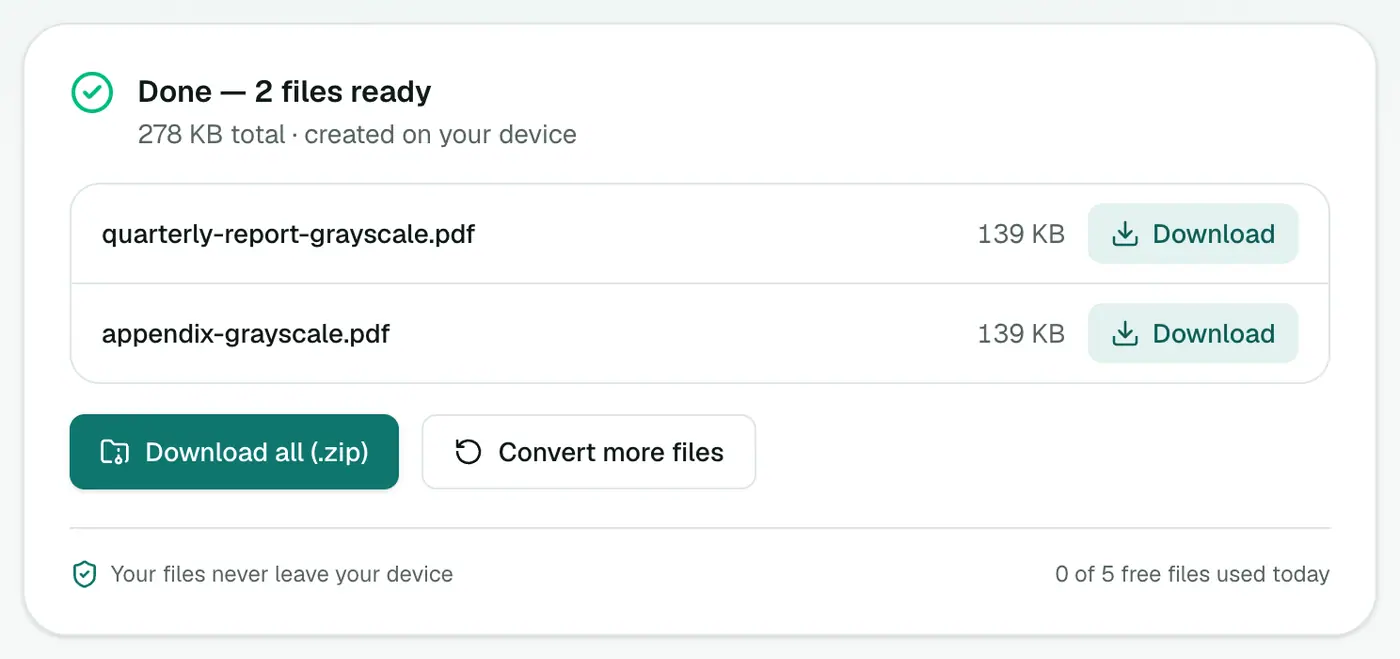
3. Convert and download
Click Convert to grayscale and download.
Things to know
- Text becomes part of an image. Pages are re-rendered, so text isn't selectable afterwards. For submissions that must be searchable, check the rules first.
- Colored text can get faint. Light yellow or pale blue text may become hard to read in gray. Check a page before printing a hundred.
- Charts lose their color coding. If a chart relies on "red line vs green line", readers may struggle. Patterns or labels help.
Just saving ink at home?
Your printer dialog probably has a Grayscale or Black & White option. That's enough for your own printouts. For lecture slides, Print Multiple Pages Per Sheet can also swap dark slide backgrounds for white, which saves even more.
Why grayscale?
- Court and university submissions that require black and white.
- Printing cheaply: some printers still use colour ink on 'black' text in colour documents.
- Consistent look when combining colour and black-and-white scans.
Resolution choice
Pick a higher resolution for documents with small print, and the standard setting for normal text. Higher resolution keeps text crisp but makes the file larger. Use Compress PDF if it ends up too big.
Before you submit
- Check readability of highlighted or coloured text, which can turn pale grey.
- Add page numbers with Add Page Numbers if required.
- Restore searchability with OCR PDF.
Summary
For printing in black and white or meeting grayscale rules, Grayscale PDF converts every page at print-ready resolution, without uploading the document.
FAQs
Will the text still be selectable?
No. Each page is re-rendered as a grayscale image, so text can't be selected afterwards. Keep the original if you need that.
Which resolution should I use?
Print (216 DPI) for documents with small text that will be printed. High (144 DPI) for on-screen reading or smaller files.
Why not just print in grayscale?
That works for your own printer. A grayscale PDF is useful when someone else will print it, or when a submission must be in black and white.
Is my PDF uploaded?
No. It's converted in your browser.
Will text still be selectable?
Pages are re-rendered as grayscale images, so the text becomes part of the image. Run OCR PDF afterwards if you need searchable text.
Try the Grayscale PDF
Free to start, no install, and your files never leave your device.