Dev tools2 min read
How to Compare Two Versions of a Text and See What Changed
Spot every added, removed and changed line or word between two versions of a contract, essay, config file or code snippet. Private, instant, in your browser.
By the ZapMorph team
On this page
Just want it done?
Open the Text Diff Checker — it runs in your browser and nothing is uploaded.
"I only changed a couple of things." Famous last words before signing a contract. When someone sends a revised version, or you're comparing two config files, a diff shows you every change, not just the ones they mention.
How to compare texts with ZapMorph
1. Open the diff checker
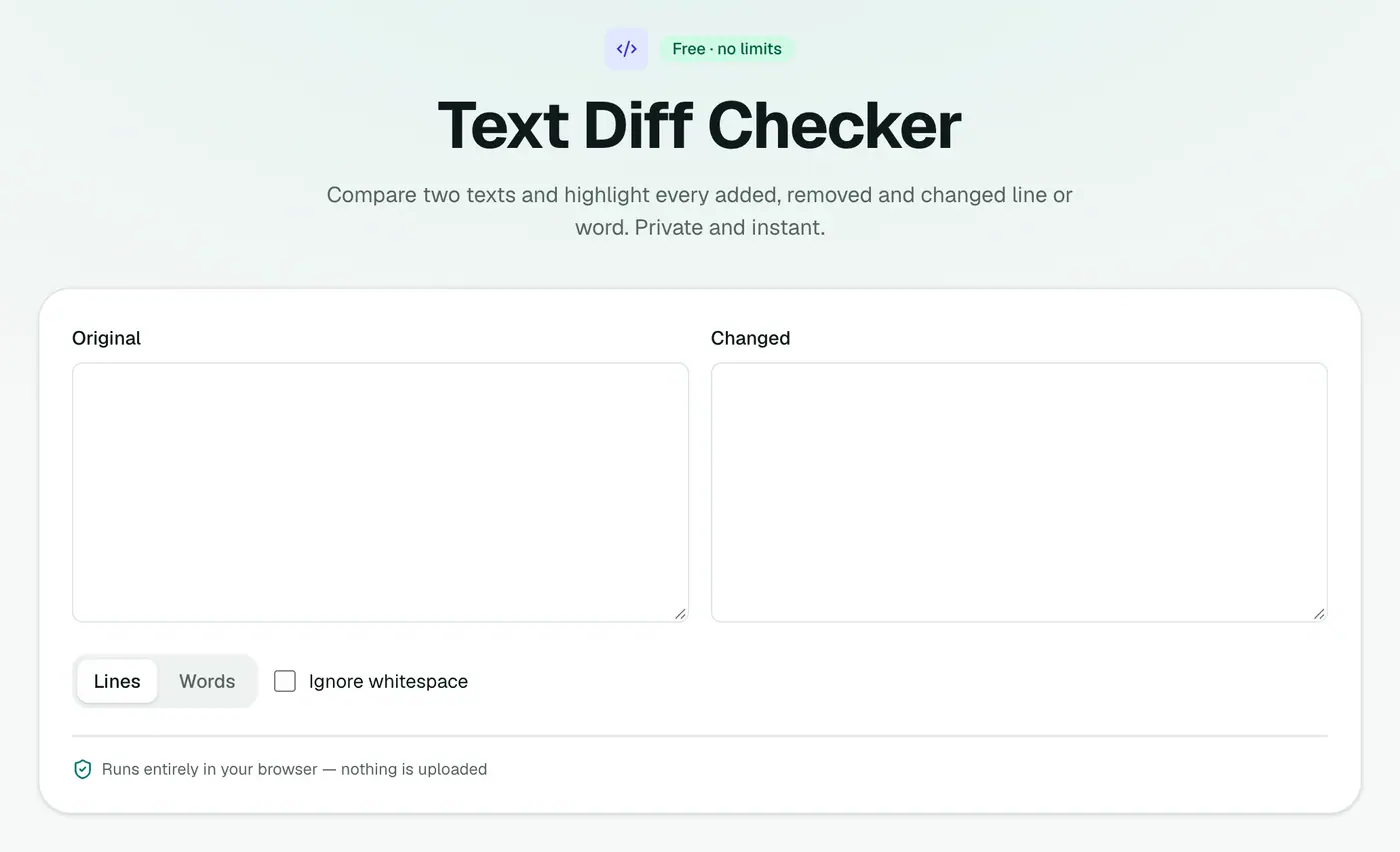
Go to the text diff checker.
2. Add both versions
Put the original on one side and the changed version on the other (or open two files).
3. Read the differences
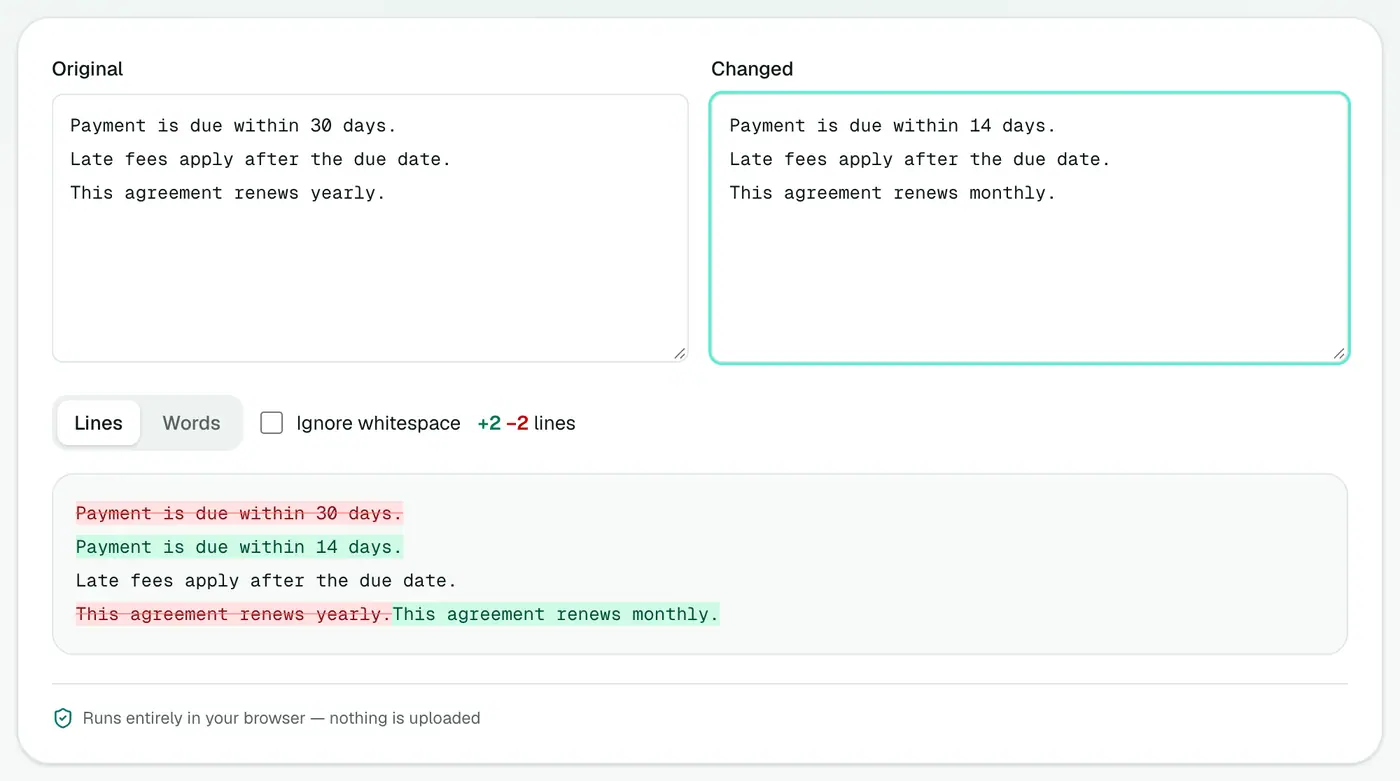
Additions show in green, removals in red, with a count of each. Switch between line and word mode depending on what you're comparing.
Good uses
- Contracts and agreements: catch "14 days" quietly becoming "30 days".
- Config files: see why staging behaves differently from production.
- Essays and articles: review an editor's changes.
- PDFs: extract both with PDF to Text first, then compare.
- Website copy: compare the live page text with the approved version.
- AI rewrites: see exactly what an AI assistant changed in your draft.
Line mode vs word mode
| Line mode | Word mode | |
|---|---|---|
| Best for | Code, CSV, config, logs | Contracts, essays, emails |
| Shows | Which lines changed | Exactly which words changed |
| Noise | Low for structured text | Low for prose |
Comparing other file types
| You have | First convert with |
|---|---|
| Two PDFs | PDF to Text |
| Two Word documents | Word to Text |
| Two scanned documents | Image to Text or OCR PDF |
| Two JSON files | JSON formatter first, so both are formatted the same way |
Tips
- Normalise first. Different line wrapping makes everything look changed. Paste both as plain text with the same formatting.
- Check numbers twice. Dates, amounts and percentages are where changes matter most.
- Keep both versions saved, so you can show what changed later.
Summary
The text diff checker shows exactly what changed between two texts, privately and instantly.
FAQs
Line mode or word mode?
Line mode for code and config. Word mode for prose like contracts, essays and articles, where a single changed word matters.
Can I compare files?
Yes. Open two files instead of pasting.
Is it private?
Yes. Both texts stay in your browser.
Can I compare two Word documents?
Convert both to plain text with Word to Text, then compare. Word's own Review → Compare also works if you have Word.
Can I compare two PDFs?
Yes. Extract the text of each with PDF to Text, then paste both versions here.
Does it ignore formatting?
It compares the text itself. Bold, fonts and colours aren't considered, which keeps the focus on wording.
Try the Text Diff Checker
Free to start, no install, and your files never leave your device.