Dev tools2 min read
How to Generate a Hash and Verify a File's Checksum (MD5, SHA-256)
Check a download against its published checksum, or hash text, with MD5, SHA-1, SHA-256, SHA-512, SHA-3 and CRC32 all at once. Files never leave your browser.
By the ZapMorph team
On this page
Just want it done?
Open the Hash Generator — it runs in your browser and nothing is uploaded.
When you download a Linux ISO, a firmware update or a crypto wallet, the publisher often lists a SHA-256 checksum. Comparing it with your file proves the download wasn't corrupted, or tampered with. Most people skip this step because the command line is fiddly. It doesn't have to be.
How to verify a checksum with ZapMorph
1. Open the hash generator
Go to the hash generator.
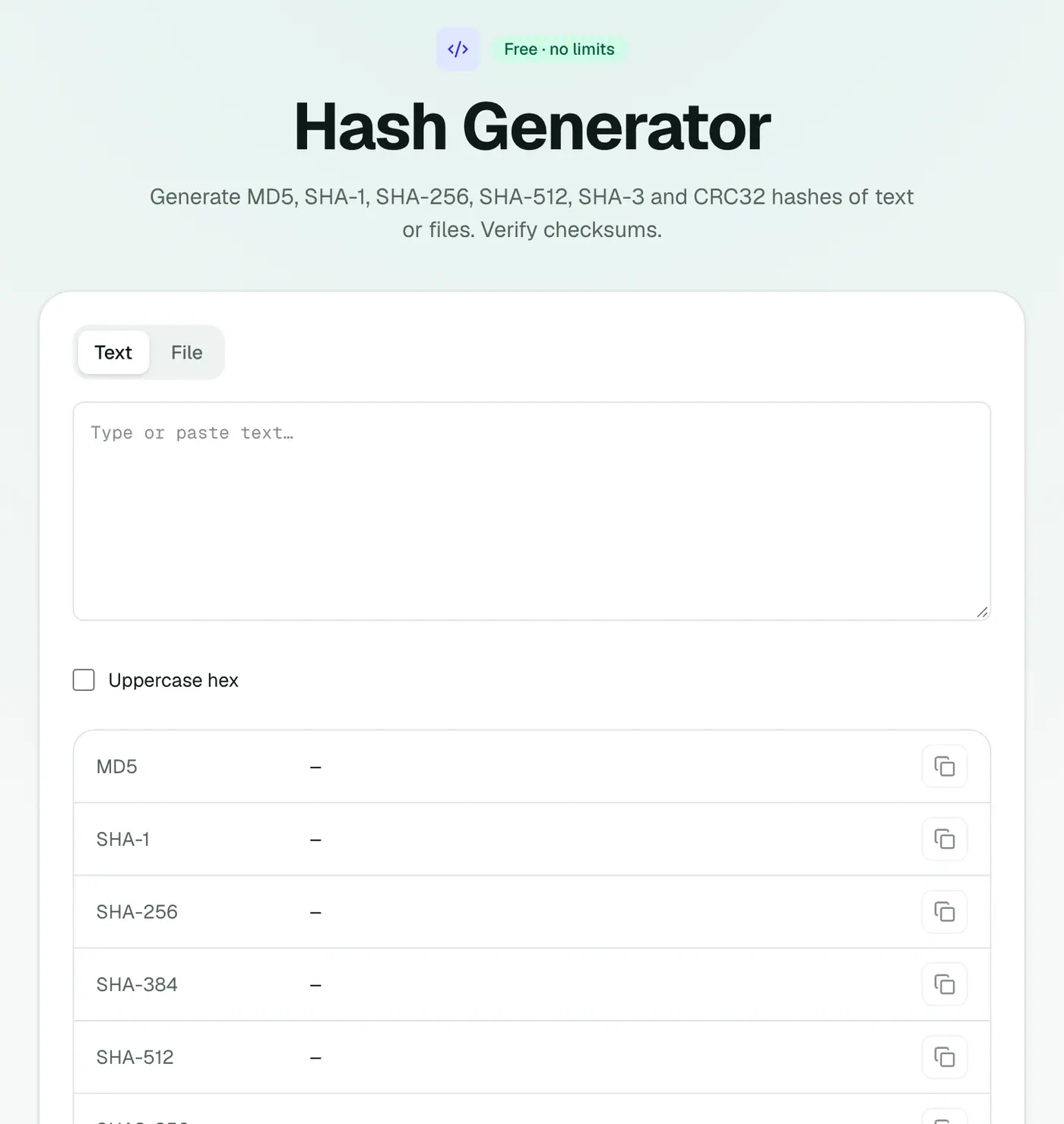
2. Type text or open a file
Every hash is computed at once: MD5, SHA-1, SHA-256, SHA-512, SHA-3 and CRC32. Paste the publisher's checksum into the compare field to check for a match.
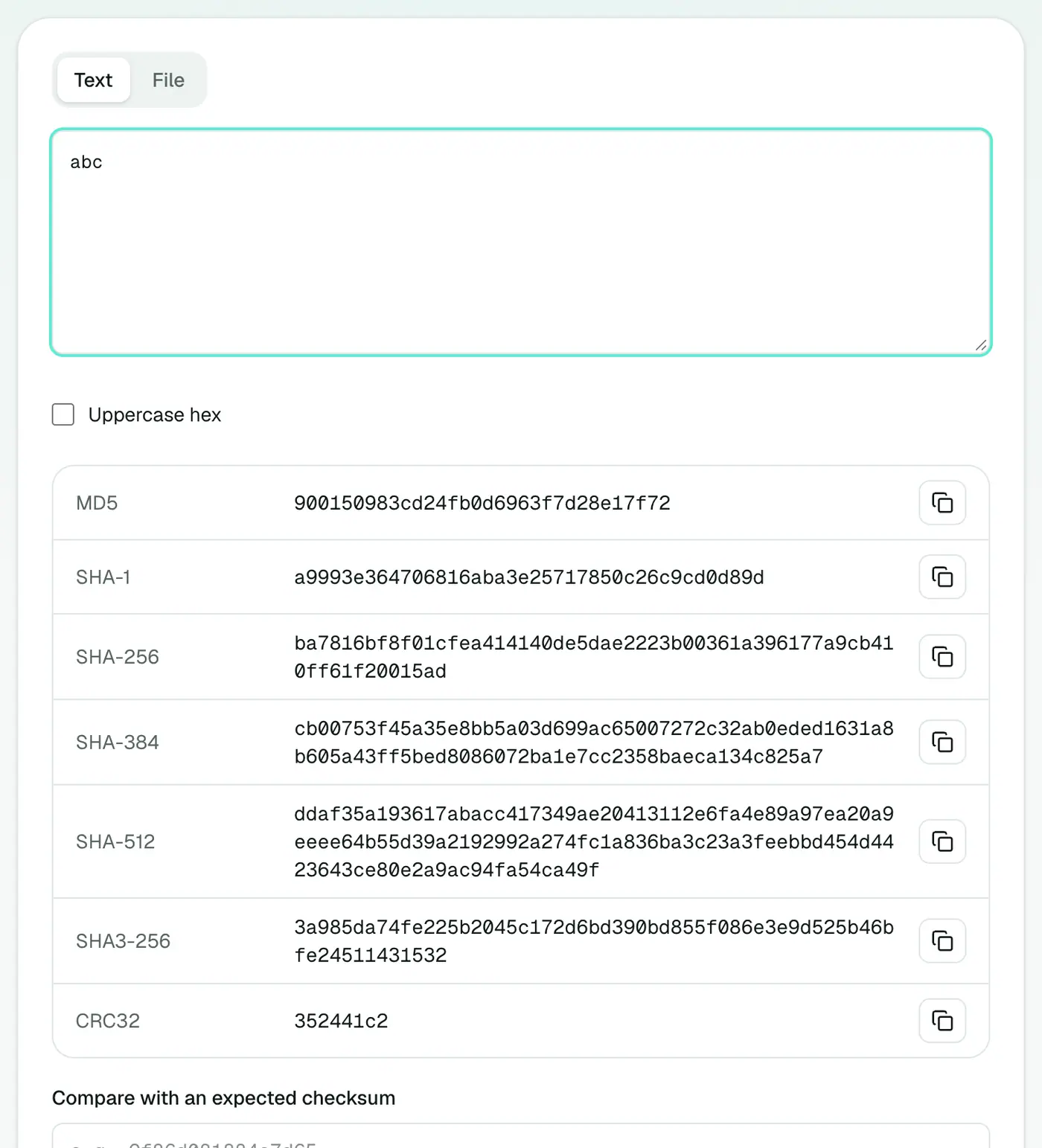
What a match means
- Match: the file is exactly what the publisher released, byte for byte.
- No match: the download is incomplete, corrupted, or not the official file. Delete it and download again from the official site.
One changed byte gives a completely different hash, so there's no "nearly matches".
Which algorithm is which
| Algorithm | Length | Use today |
|---|---|---|
| CRC32 | 8 characters | Quick corruption checks (ZIP files) |
| MD5 | 32 | Corruption checks only, not security |
| SHA-1 | 40 | Legacy, Git commit IDs; not for security |
| SHA-256 | 64 | The standard for verifying downloads |
| SHA-512 | 128 | Stronger variant, common on Linux |
| SHA-3 | 64+ | Modern alternative to SHA-2 |
Command-line equivalents
If you prefer the terminal:
- Windows:
certutil -hashfile file.iso SHA256 - Mac:
shasum -a 256 file.iso - Linux:
sha256sum file.iso
A word on MD5
MD5 is fine for spotting accidental corruption, but it's broken for security. Never use it for passwords or to prove a file is authentic. Use SHA-256.
Other uses
- Finding duplicate files: identical files have identical hashes.
- Checking a file wasn't changed before and after sending it.
- Cache keys and IDs derived from content.
Summary
The hash generator verifies downloads and hashes text in every common algorithm, without uploading your files.
FAQs
Which hash should I use?
Use whichever the publisher lists, usually SHA-256. MD5 and SHA-1 are fine for detecting corruption but not for security.
Can it hash large files?
Yes. Files are processed in chunks, so even multi-gigabyte ISOs work.
How do I compare with a published checksum?
Paste the expected value into the compare box and it tells you if it matches.
Is my file uploaded?
No. Hashing happens in your browser.
Can I hash a password for storage?
Not with a plain hash. Passwords need a slow, salted algorithm like bcrypt, scrypt or Argon2, which your server framework provides.
Does upper or lower case matter when comparing?
No. Hashes are hexadecimal, so ABC123 and abc123 are the same value.
Try the Hash Generator
Free to start, no install, and your files never leave your device.