PDF2 min read
How to Add Page Numbers to a PDF (Position, Style, Start Number)
Number the pages of a report, thesis or contract. Choose where the numbers go, the style ("Page 1 of 12"), the starting number, and skip the cover page.
By the ZapMorph team
On this page
Just want it done?
Open the Add Page Numbers to PDF — it runs in your browser and nothing is uploaded.
Page numbers are one of those things you only notice when they're missing: in a meeting where everyone's flipping through a printout saying "the bit about costs, no, after that", or when a thesis office sends your submission back.
Adding them to a finished PDF takes a minute.
How to add page numbers with ZapMorph
1. Open the tool
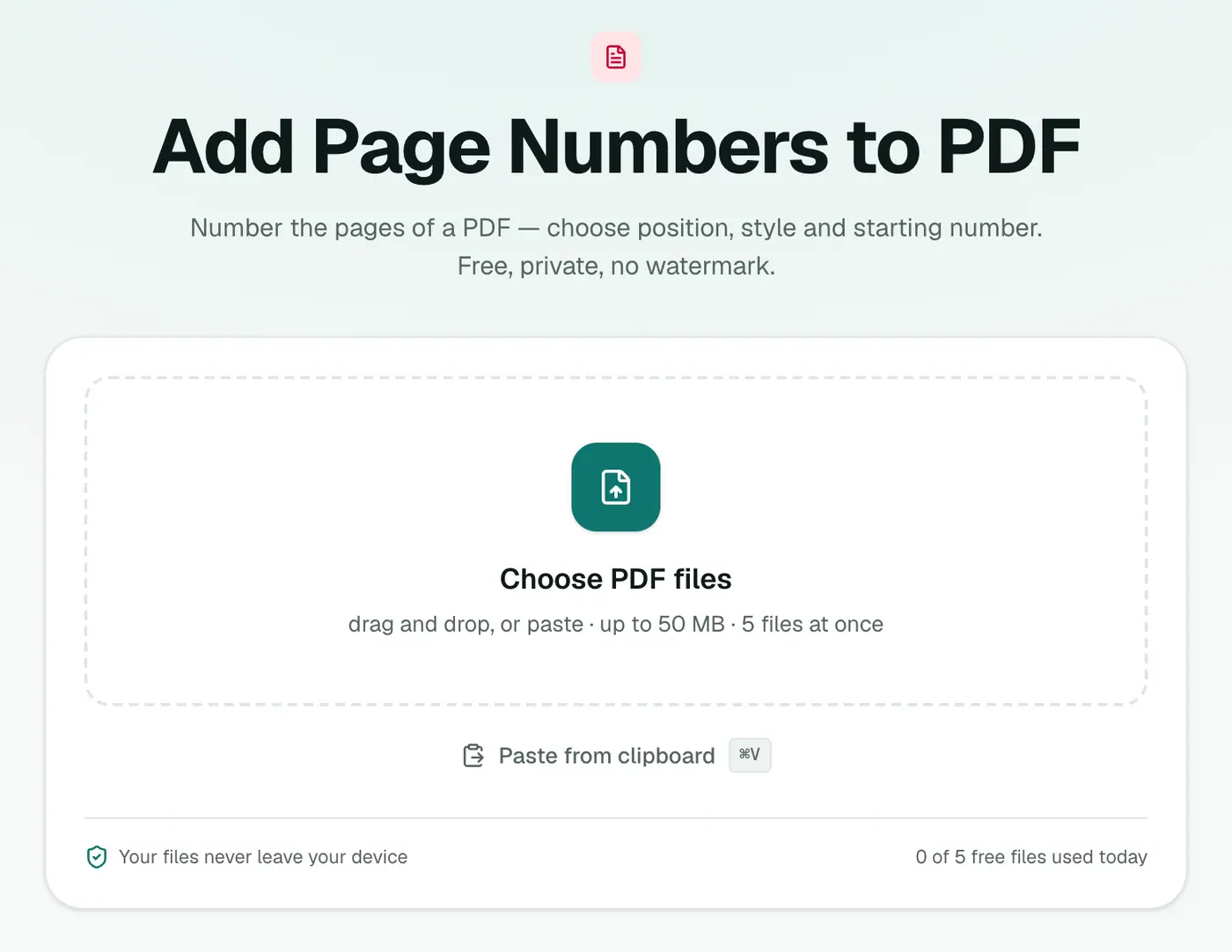
Go to Add Page Numbers to PDF.
2. Add the PDF and choose the format
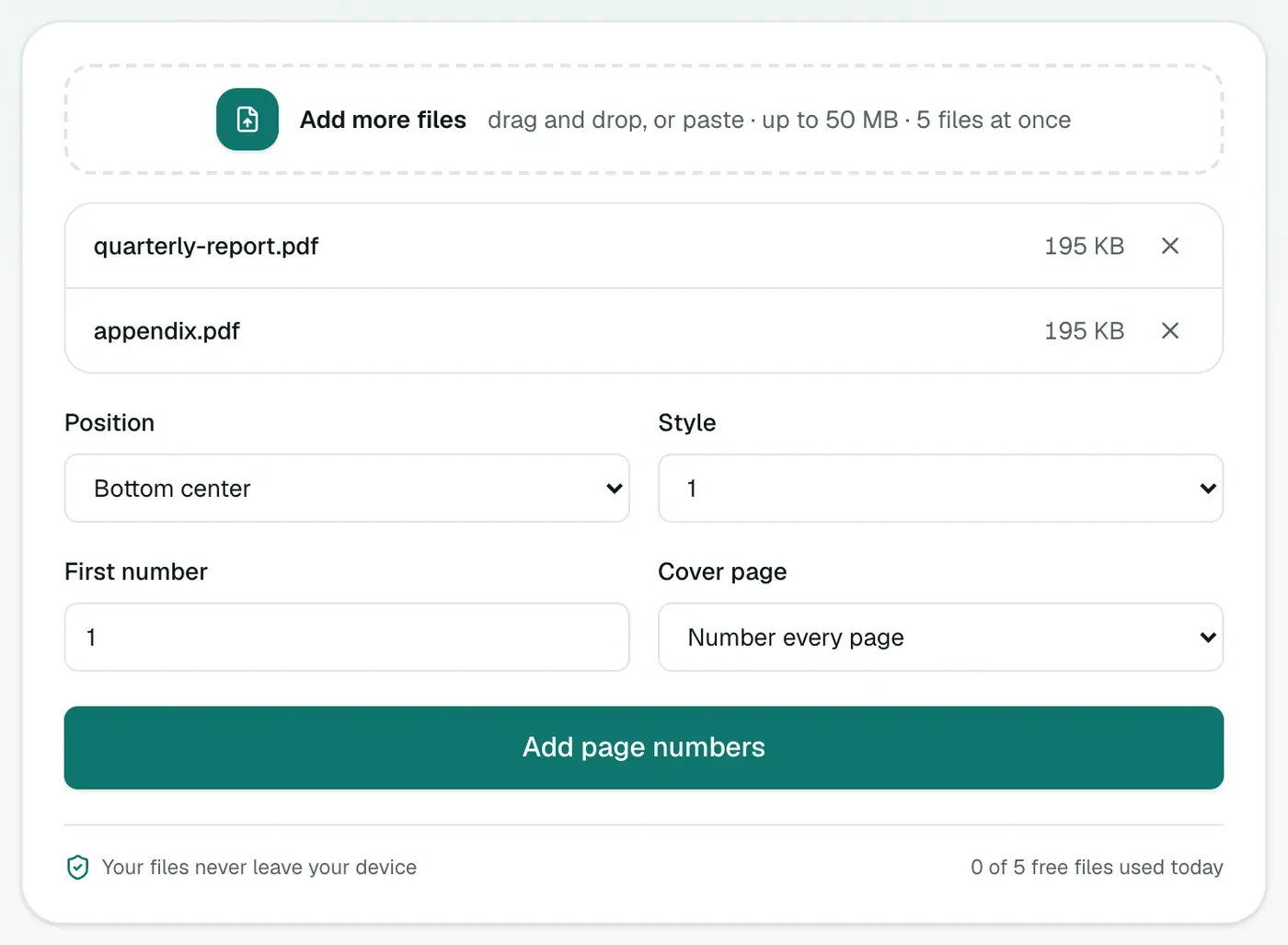
Pick:
- Position: bottom centre, bottom right, bottom left, top centre, top right, and so on. Bottom centre or bottom right is standard.
- Style:
1,Page 1,1 / 12orPage 1 of 12. - First number: usually 1, but you can start anywhere.
- Cover page: number every page, or skip the first one.
3. Add numbers and download
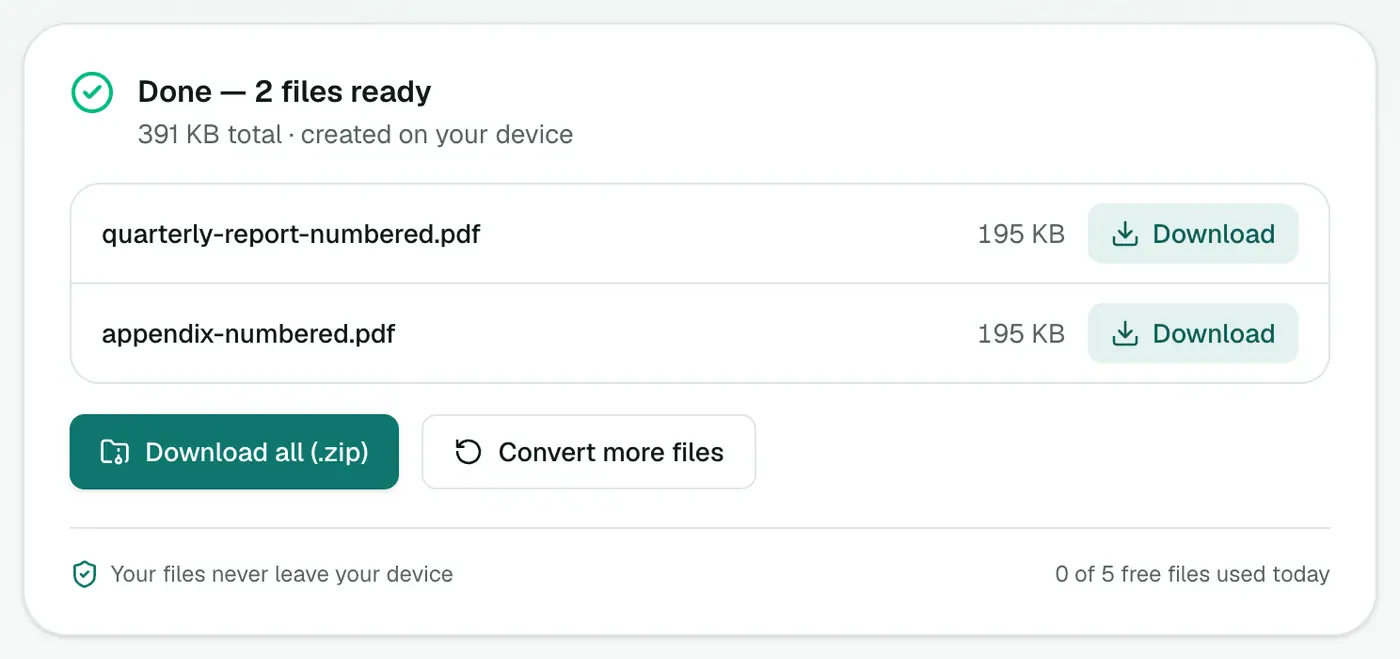
Click Add page numbers and download the numbered PDF.
What to choose for common documents
| Document | Position | Style | Cover page |
|---|---|---|---|
| Business report | Bottom right | Page 1 of 12 | Don't number the first page |
| Thesis or dissertation | Bottom centre | 1 | Depends on your university's rules |
| Contract | Bottom centre | Page 1 of 12 | Number every page |
| Handout or slides | Bottom right | 1 / 12 | Number every page |
"Page X of Y" is especially useful for contracts and legal documents, since anyone can see if a page is missing.
Tips
- Merge first, number second. If you're combining several documents, run Merge PDF first so the numbering runs across the whole thing.
- Check the footer area. If your document already has text at the bottom, choose a top position.
- Continuing from another file? Set First number to carry on the sequence.
Other ways
- Word or Google Docs: add page numbers before exporting to PDF. Best if you still have the source document.
- Acrobat Pro: Edit PDF → Header & Footer. Powerful, but paid.
Common conventions
| Document | Position | Style |
|---|---|---|
| Theses and reports | Bottom centre | 1, 2, 3 (skip the title page) |
| Legal bundles | Bottom right | Page 1 of 12 style, if required |
| Books and manuals | Bottom left or right | 1, 2, 3 |
| Slide handouts | Bottom right | 1, 2, 3 |
Check your university, court or publisher's rules, as requirements vary.
Order of steps
Merge, reorder and remove pages before numbering. Adding pages afterwards breaks the sequence.
Summary
Choose a position, a style, and whether to skip the cover. Add Page Numbers to PDF does the rest without uploading your document.
FAQs
Can I skip numbering the cover page?
Yes. Set Cover page to "Don't number the first page".
Can numbering start at a number other than 1?
Yes. Set First number to whatever you need, for example to continue numbering from a previous document.
Which styles are available?
"1", "Page 1", "1 / 12" and "Page 1 of 12".
Are the numbers real text?
Yes. They're added as text on top of each page, so they print sharply.
Can I use this for Bates numbering?
For simple sequential numbering, yes, using a custom first number. Full Bates numbering with prefixes isn't supported.
Is my PDF uploaded?
No. Numbers are added in your browser.
Try the Add Page Numbers to PDF
Free to start, no install, and your files never leave your device.